Creating Short Motion Graphics Videos for Social Media and Ads


What Are Motion Graphics and Why Use Them on Social Media?
Motion graphics are a style of animation that mixes graphic design elements (like text, shapes, icons) with movement to create engaging visual content - sevahcreative.com. In practice, motion graphics turn static designs into dynamic videos – for example, animated text overlays, logo animations, or infographic elements in motion. They are widely used in everything from TV commercials and explainer videos to product demos and social media posts - sevahcreative.com. The appeal lies in their ability to convey information in a visually attractive, easily digestible way that static images often can’t match.
On fast-paced platforms like Instagram, TikTok, or YouTube, motion graphics are especially powerful for driving engagement. Social media users scroll quickly through feeds, and content needs to stand out in seconds. Motion graphics are attention-grabbing – their animated movement and visual flair can capture a viewer’s eye almost instantly - sevahcreative.com. This is essential in a world where audiences are bombarded with content. In fact, marketers note that with only seconds to make an impression, motion graphic videos have become a go-to tool for capturing attention and boosting engagement - nogood.io. A short animated post – say, animated text with vibrant transitions – is more likely to stop someone mid-scroll than a static image.
Beyond grabbing eyeballs, motion graphics also help communicate messages quickly and memorably. They can simplify complex ideas into animated illustrations or kinetic text, making them perfect for explaining a product or service in a few seconds - yansmedia.com. The combination of visuals, text, and motion reinforces the message and makes it more memorable. High-quality motion graphic content is also highly shareable – viewers are more inclined to repost or share an eye-catching animated promo, which can increase your campaign’s reach - yansmedia.com. Moreover, motion graphics let brands infuse their style (colors, typography, imagery) into video format, ensuring brand consistency while keeping viewers engaged - yansmedia.com. In short, for social media and advertising, motion graphics hit the sweet spot: they quickly capture attention, convey your message in an entertaining way, and encourage higher audience interaction than static posts.
Step-by-Step: Creating a Motion Graphics Video with MotionChat
One of the easiest ways to create short motion graphics is by using MotionChat – an AI-powered motion graphics generator provided by Vidio.ai. MotionChat allows you to create animated videos from a simple text prompt, without needing any design expertise - vidio.ai. Here’s a step-by-step guide to making a motion graphic using MotionChat:
-
Access MotionChat: Visit the MotionChat tool on Vidio.ai (it’s an online app, so no installation needed). You’ll need to sign in or create a free account. Once logged in, navigate to the Motion Graphics Generator (often labeled MotionChat™ in the dashboard).
-
Write a Prompt: Describe the video you want in a natural sentence. This prompt tells the AI what to generate. Be specific but concise – for example, you might type “Bold intro with glowing text for a summer sale” or “Travel promo video with upbeat graphics”. MotionChat’s interface provides a text box for your prompt - vidio.ai. You can even include the tone or style in your description (e.g. “futuristic neon animated promo” or “playful kids theme animation”). This step is essentially you providing a creative brief in one line. (Tip: If you’re not sure what to write, start simple – you can refine and retry with different prompts to get the desired result.)
-
Choose Style/Template (Optional): MotionChat offers a selection of templates and animation styles you can pick from to match your brand or aesthetic - vidio.ai. For instance, you might select a template for “travel vlog intro,” “fashion promo,” or “sports highlights,” depending on your use case. These styles set the typography, colors, and overall design mood of the video. If you have a specific brand look, pick the template closest to it. (If you skip this, the AI will choose a default style that fits your prompt.)
-
Add Media or Music (Optional): If the tool allows, you can upload a logo or image to include, or select a background music track. One unique feature of MotionChat is its ability to sync the animation to music beats for high-energy results - vidio.ai. For example, if you add an upbeat music track, the AI will time the scene cuts and text animations to the beat, making the video feel professionally edited to the music. Adding music isn’t required, but it can enhance engagement for platforms like TikTok or Instagram Reels. (Note: Ensure you have rights to any music you use, or use the stock options provided by the tool.)
-
Generate the Video: Now hit the “Generate” (or similar) button. MotionChat’s AI will take your prompt and, within seconds, automatically create a motion graphic video out of it - vidio.ai. This typically involves the AI selecting or creating background visuals, animating text as specified, and applying transitions/effects — all aligned with the style you chose. For example, if your prompt was “Promo for summer sale”, the output might be a 15-second video with bold animated text saying “Summer Sale!”, bright graphics or stock footage of beaches or sunshine, and energetic transitions, all timed to music if you added a track. The generation is quite fast thanks to Vidio’s optimized infrastructure, so you’ll usually get a preview in moments - vidio.ai.
-
Preview and Refine: Watch the generated video preview. Does it convey your message and fit your brand? MotionChat’s results can be surprisingly spot-on, but since it’s AI-driven, you might need a couple of tries to get the perfect video. If something is off – say the style isn’t quite right or the text isn’t phrased as you intended – you can tweak your prompt or try a different template and generate again. For instance, you might change “glowing text” to “animated bold text” or add details like “include logo at end” (if the tool supports logo insertion). This iterative process is much faster than editing manually; a new version will be created in seconds.
-
Download & Share: Once you’re happy with the preview, you can download the motion graphic video. MotionChat lets you download the result as an MP4 file (a format usable on all major platforms like Instagram, TikTok, YouTube, etc. - vidio.ai). Simply click the download button – the video will be saved at the resolution supported (commonly 1080p for social media). Now you’re ready to post or use it in your ads. Upload the video to Instagram as a post or story, to TikTok as a new video, or incorporate it into a YouTube ad campaign as needed.
Unique Features: Using MotionChat is incredibly straightforward – it takes care of design, animation, and timing for you. Its standout features include the text-to-video generation (just describe what you envision, and the AI does the animating) and the automatic beat synchronization for music-driven content - vidio.ai. It also provides style templates (corporate, upbeat, minimalist, etc.), so you can maintain a consistent look with your brand’s vibe - vidio.ai. Because everything runs in the cloud through your browser, you don’t need a powerful computer or any software installed – the heavy lifting is done by the AI on Vidio’s servers, delivering your video in moments - vidio.ai.
Limitations: While MotionChat is powerful for quick content creation, be aware of its limits. Since it relies on AI and preset templates, you don’t get granular control over every element like you would in traditional editing software. The outcome is based on how the AI interprets your prompt and which assets it chooses, so results can sometimes differ slightly from your vision – you might need to experiment with prompt wording to guide it. Custom branding options are somewhat constrained to the provided styles; for example, you may not be able to enforce an exact brand font or specific color code unless the template supports it (you often can pick a general theme or color scheme, but not design every detail). Also, MotionChat is ideal for short-form videos (think 5–30 second clips). If you need a longer or more complex video with scenes and storytelling, you might have to create it in smaller sections or use a more manual tool. Finally, while MotionChat offers a free trial to get started - vidio.ai, the full capabilities (longer videos, higher resolution, or removing watermarks if any) may require a paid plan – something to consider if you plan to use it heavily for marketing campaigns.
Despite these limitations, MotionChat is a game-changer for marketers, small businesses, or creators who want to produce slick motion graphics in minutes. You can produce a polished Instagram ad or TikTok promo with virtually no design skills, simply by describing your idea and letting the AI animate it - vidio.ai. It’s a perfect tool when speed and ease are top priority.
MotionChat vs. Other Motion Graphics Tools
There are many tools available for creating motion graphics, each with its own strengths. Here’s how MotionChat compares to some other commonly used options:
MotionChat (Vidio.ai) – AI-Powered Ease

MotionChat’s key advantage is its automation and simplicity. It instantly generates animations from a text description, meaning you skip the manual design process entirely. There’s no need for prior animation experience – the AI handles layout, motion, and even timing to music - vidio.ai. This makes it fantastic for quick-turnaround needs, like churning out a social media ad in minutes. It’s also cloud-based, so you can use it on any device with a browser. The trade-off is that you relinquish some creative control. MotionChat works within the bounds of its templates and what its AI deems a good visual interpretation of your prompt. If you have a very specific vision (specific fonts, custom graphics, intricate timing), MotionChat might not let you fine-tune those details as much as a manual tool would. Think of it as a very smart assistant: it handles 90% of the work in seconds, but that last 10% of customization could be limited. Ideal use cases: when you need a professional-looking promo or intro quickly and don’t have the time/skills for manual animation. It’s great for small businesses, social media managers, or anyone who wants to boost their content with motion graphics without investing in a steep learning curve.
Adobe After Effects – Industry-Standard Power
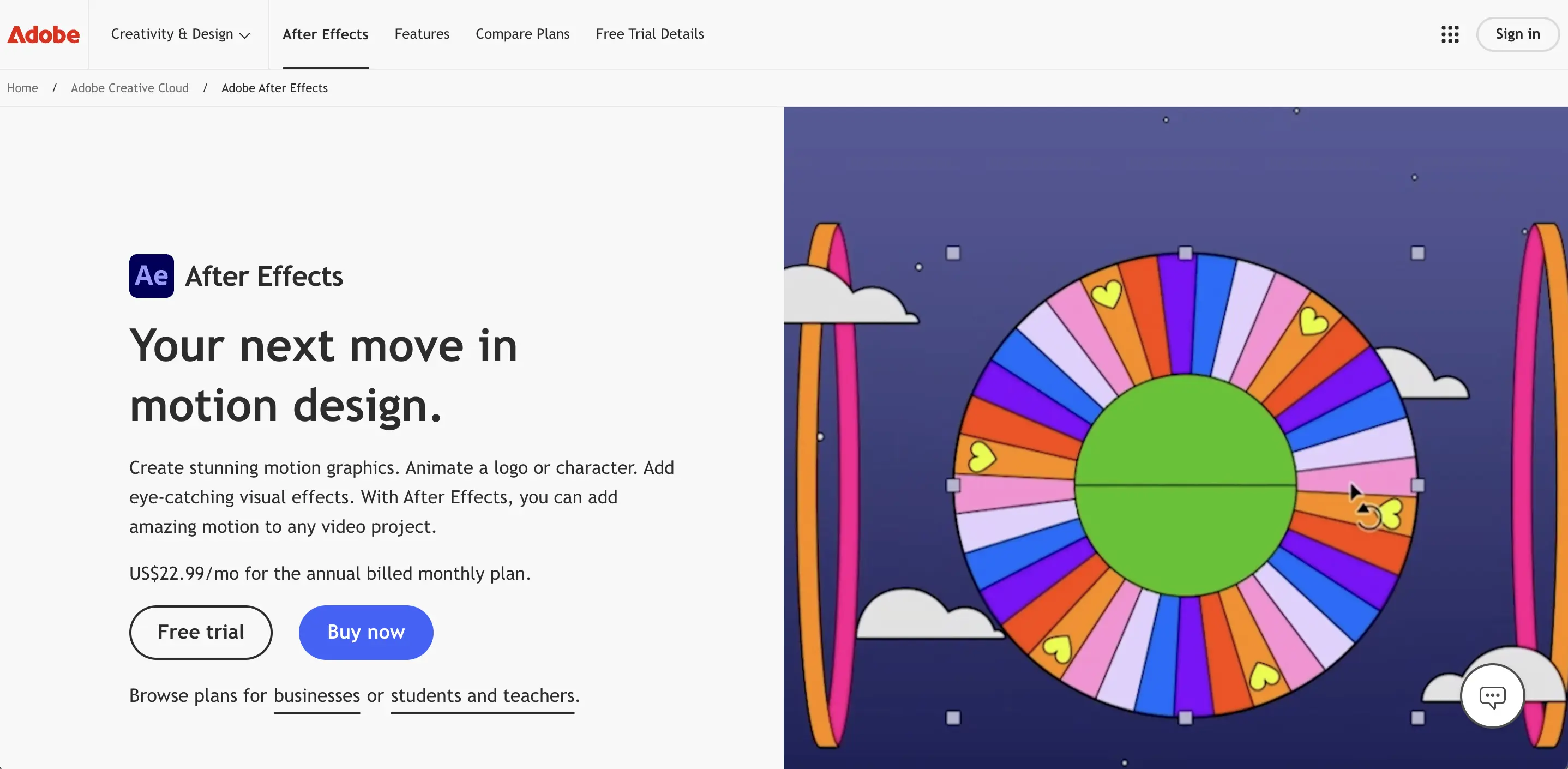
Adobe After Effects is widely considered the industry standard for motion graphics and animation work - miracamp.com. It’s a desktop software used by professionals across film, TV, marketing, and YouTube creators for anything from animated titles to complex 3D compositing. After Effects offers a robust suite of tools for designing both 2D and 3D motion graphics from scratch - miracamp.com. You can animate text, create shape animations, integrate illustrations from Adobe Illustrator, apply countless effects, and use plugins for advanced particle effects or 3D elements. In short, if you can imagine it, After Effects can probably do it – you have complete creative control. This flexibility, however, comes with steep requirements: After Effects has a steep learning curve for beginners and mastering it can take time - miracamp.com. Unlike MotionChat, nothing is automated – you start with a blank composition and design everything manually (though Adobe provides templates and presets, you still need to know how to adjust them). After Effects also demands a relatively powerful computer, especially for rendering complex animations or high-resolution video - miracamp.com. In terms of speed, creating a motion graphic in After Effects could take hours or days, versus seconds in MotionChat – but the result can be pixel-perfect as per your vision. Ideal use cases: high-end projects where quality and customization are critical – for example, a polished product explainer video, a unique animated ad with custom illustrations, or any scenario where brand guidelines require exact fonts, colors, and design elements. Large companies and skilled designers often use After Effects to produce content that stands out (and they might even use MotionChat or similar AI tools as a starting point or for ideas, then refine in After Effects). In summary, After Effects is powerful but resource-intensive, whereas MotionChat is lightweight and instant; they cater to different needs.
Canva – Templates and Simplicity for Beginners
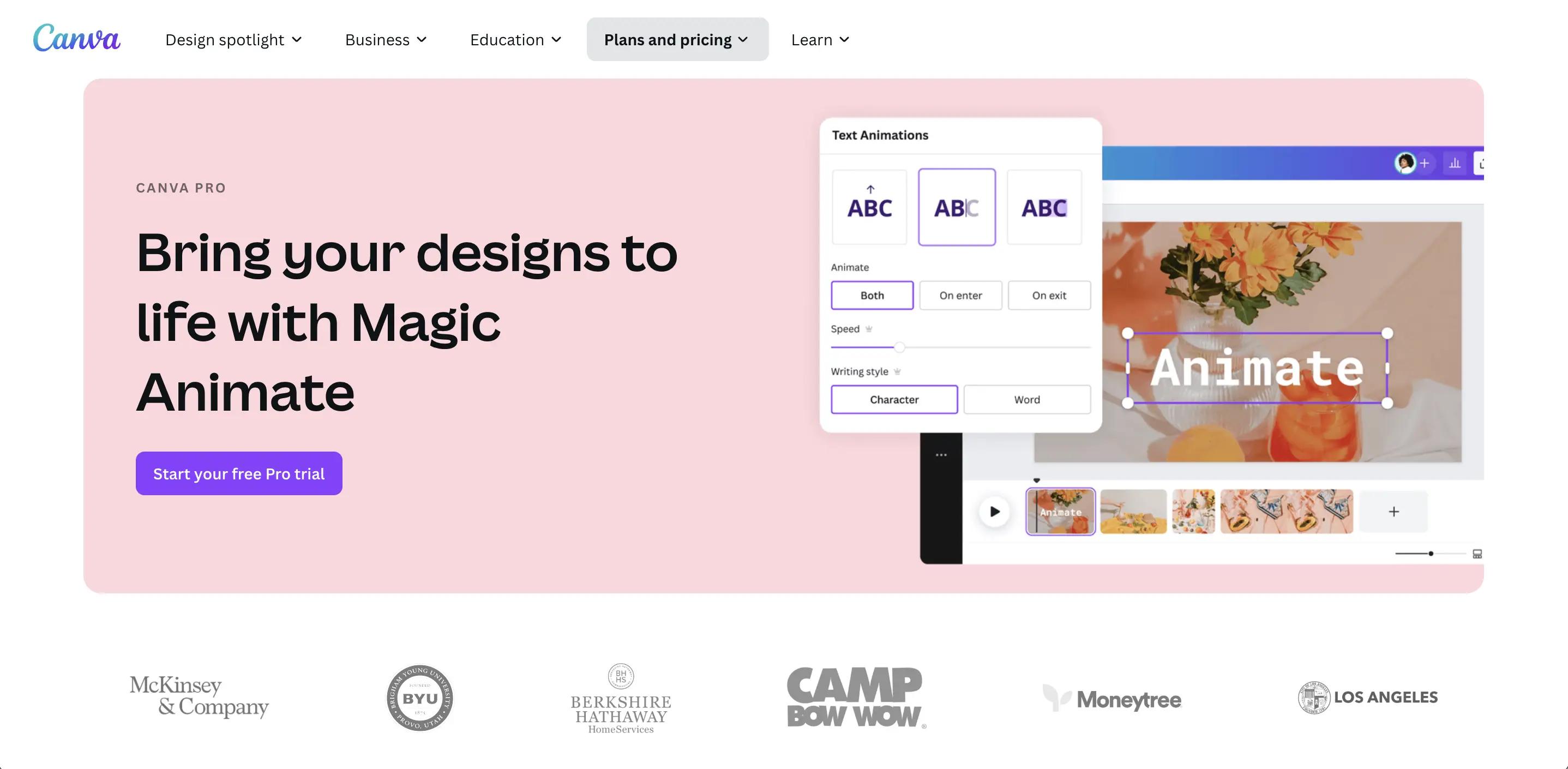
Canva is a popular online design tool known for its drag-and-drop ease of use, and it also offers basic motion graphics capabilities - miracamp.com. In Canva, you can start from hundreds of pre-made animated templates for social media – for instance, an Instagram post template where text slides in or a Facebook video ad template with animated graphics. It’s very user-friendly: you pick a design you like, then you can edit the text, swap colors, add your images or logo, and download the short video or GIF. Canva allows adding simple animations to text or images (like fade in, pop up, slide, etc.) with just a click - miracamp.com. Compared to MotionChat, Canva gives you more direct control over layout and design – you can position elements exactly, choose specific colors, and ensure your brand font is used (if you have a brand kit, Canva will let you apply it). However, Canva’s animation features are pretty basic. They’re great for simple eye-catching social posts, but they won’t have advanced transitions or complex motion paths that a tool like After Effects can do. Essentially, Canva’s strength is in its ease and vast template library for quick content. Strengths: Extremely easy for non-designers; you can produce a decent animated social media graphic in 10–15 minutes by customizing a template. Limitations: It has limited customization for advanced motion – you can’t fine-tune the timing beyond preset durations, and complex effects (3D, physics-based animations, etc.) aren’t possible - miracamp.com. Also, everything tends to have a “template” look unless you modify it heavily, so your content might not be as unique. Ideal use cases: Canva is best for beginners or small businesses who need to create engaging visuals quickly, like an Instagram story with animated text, a simple promo video, or a slideshow video. If you don’t need cutting-edge effects and just want to make your static designs move a bit, Canva is perfect. MotionChat vs Canva: both target non-specialists, but MotionChat’s AI creates the design for you (you just provide ideas), whereas Canva provides you the parts to assemble your design. Canva might require a bit more effort but gives a bit more manual control than MotionChat’s fully automated approach.
Vyond – Animated Video Maker for Business
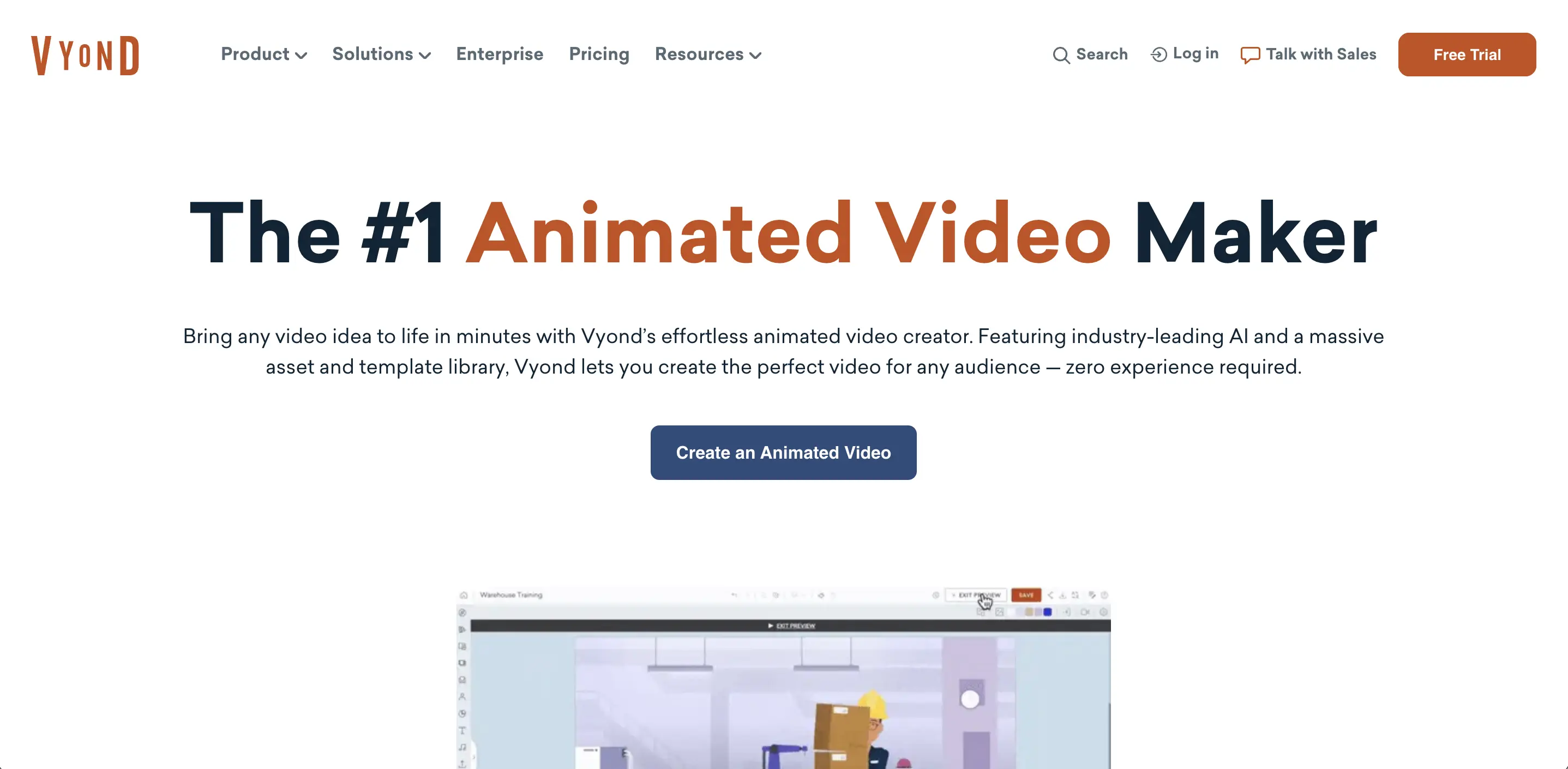
Vyond is a cloud-based animation platform geared towards creating cartoon-style or infographic-style animated videos, often used for businesses, education, or marketing. Unlike the mostly text-and-graphics focus of MotionChat, Vyond lets you create scenes with characters, narration, and more. It comes with a library of pre-made characters (with various poses), props, backgrounds, and you arrange them on a timeline to create a story. For example, you can make a 1-minute explainer video with a friendly animated character walking through the benefits of your product. Strengths: Vyond requires no animation skill to use; it’s all drag-and-drop and very approachable. It provides lots of templates and pre-built assets (like ready-made scenes for an office, or template animations for charts) to speed up video creation - miracamp.com. It even has lip-sync: you can upload a voiceover and the character’s mouth will move in sync automatically - miracamp.com. Collaboration features are built-in since it’s online. Compared to MotionChat, Vyond is more interactive and narrative – you decide exactly what happens in each scene – but it also means you must manually script and organize the animation, which takes longer than a one-click AI generation. Limitations: Vyond’s style is somewhat templated; if you want a very on-brand or custom-looking motion graphic, Vyond might feel a bit generic (most videos made in Vyond have a similar look). It also has limited customization compared to high-end tools like After Effects – for instance, you can’t draw your own complex animations; you’re limited to the characters and motions provided - miracamp.com. Additionally, Vyond is a paid subscription service and can be relatively pricey, which might be overkill if you just need a few short clips (where a pay-per-video model like Vidio.ai might be cheaper). Ideal use cases: Vyond shines for business explainers, training videos, or any scenario where you need to convey information through a narrative or characters – e.g., an HR team making an internal training animation, a startup making a quick explainer for their app, or a marketing team producing a series of informational social videos. In the context of short social media clips, you could use Vyond to make, say, a 30-second cartoon ad, but often its value is in slightly longer form content with voiceover. MotionChat versus Vyond: MotionChat is better for quick promo graphics (text-centric, snappy ads, intros, title cards), while Vyond is better for story-driven animations (scenes with characters and dialogue). They serve different storytelling needs.
Other Tools (Honorable Mentions)
Beyond the above, there are other tools depending on your needs. After Effects has several competitors or complementary tools: for 3D motion graphics, professionals use Maxon Cinema 4D (often alongside After Effects) or open-source Blender for 3D animation. There are also other AI-driven video tools like Runway ML, which offers text-to-video and some motion features, or Kaiber AI for stylized visuals – these, like MotionChat, aim to speed up content creation with AI (though they may lack the specific text-animation focus of MotionChat). Simpler online animation makers such as Animaker or Powtoon are comparable to Vyond (letting you animate characters and text via templates). And for quick social media video editing, apps like Adobe Spark/Express or Kapwing can add motion to text or images easily. Each tool has its niche: the key is to choose based on your project’s complexity, your skill level, and how much time you can invest. MotionChat stands out when you need results fast with minimal effort, whereas traditional tools like After Effects shine when you need full control and are willing to invest time to craft something unique.
Best Practices for Effective Short Motion Graphics
Whether you use MotionChat or any other tool, some golden rules can help your short motion graphic videos perform better on social media and in ads. Here are some best practices to ensure your content is both engaging and effective:
-
Keep it Short and Sweet: For social media, brevity is key. Aim for roughly 15–30 seconds or less for promotional motion graphics. Users have tiny attention spans, so deliver your message quickly - sevahcreative.com. In fact, many successful Instagram or TikTok ads are only ~10–15 seconds. Don’t try to cram too many ideas in one short video – focus on a single message or theme and hit it succinctly.
-
Grab Attention Early: The first 1–3 seconds of your video are critical. Use an eye-catching element right away – big bold animated text, a flashy graphic, or an intriguing motion – to hook viewers before they scroll past. For example, start with a dynamic title card or a surprising visual. Given that motion graphics can capture attention quickly - sevahcreative.com, make sure that quick capture happens immediately. Avoid long intros; your logo can appear, but ensure there’s interesting motion alongside it to pique curiosity instantly.
-
Maintain an Engaging Pace: Pacing refers to how fast or slow the content flows. For short promos, lean toward a snappy pace – scenes and text should transition frequently (every couple of seconds) to keep things moving. Cut on the beat of music if music is used, or at least align transitions with logical visual beats. A fast, rhythmic pace (not frantic, but energetic) helps hold attention throughout. That said, ensure each key message stays on screen long enough to be read or understood – don’t flash text too quickly. Striking a balance in timing is important: every idea needs enough time to register, but no element should overstay its welcome.
-
Use Captions or Text Wisely: Many people watch social videos with the sound off, especially on platforms like Facebook or Instagram’s feed. If your motion graphic includes voiceover or relies on audio, make sure to include on-screen text or captions so the message still gets across - sevahcreative.com. Even if there’s no voiceover, using text in the animation (e.g. slogans, product names, prices) will help communicate at a glance. Keep text short and punchy – think headlines, not paragraphs. And use clear, large fonts with good contrast against the background, so it’s easily readable on a small phone screen.
-
Keep Branding Consistent: Even in a short clip, reinforce your brand identity. Use your brand colors, fonts, and logo in the motion graphic so viewers start associating the style with you. Motion graphics make it easy to incorporate brand elements seamlessly – for instance, animate your brand logo or use your signature color as the background or accent color. Consistency is key: a viewer should subconsciously recognize it as your brand’s content - sevahcreative.com. MotionChat’s templates, for example, allow choosing styles that align with certain brand vibes – but you can further customize (in tools like Canva or After Effects) to match exact brand guidelines. Just ensure the branding doesn’t overwhelm; the content should still provide value (entertain or inform) while subtly highlighting your brand. A good practice is to include a small logo watermark in a corner or a final closing scene with your logo and tagline.
-
Include a Clear Call-to-Action (CTA): What do you want viewers to do after watching? Don’t leave them guessing – tell them. In a short ad, integrate a call-to-action at the end (or even mid-video if it fits). Common CTAs include: “Shop Now”, “Learn More”, “Sign Up”, “Download the App”, or even a simple “Follow us for more”. In motion graphics, you can animate the CTA text or button to make it attention-grabbing (e.g., a clickable-looking button that pulses). Ensure the CTA stands out visually, maybe in a contrasting color or bold font. This is especially important for ads – you’ve hooked the audience and delivered your message, now guide them on the next step - sevahcreative.com. Even for non-ad content (like a teaser for your upcoming YouTube video), a CTA could be “Subscribe for updates” or “Stay tuned on Friday!”. Always give the viewer an action, so the engagement continues beyond the video.
-
Optimize for Platform and Format: Consider the platform where you’ll post. For instance, vertical 9:16 format is optimal for TikTok, Instagram Stories/Reels, and YouTube Shorts – your motion graphics should be framed accordingly (most tools including MotionChat can output different aspect ratios or you can crop in an editor). If designing for horizontal (16:9) for a YouTube ad or Twitter, ensure the important visuals and text are within a safe central area. Also, file size and length might be constrained by platform (e.g., TikTok max 60s for certain ads, etc.), though short videos usually are fine. If possible, test how your motion graphic looks on a phone screen – details should be visible and text readable on smaller displays.
-
Use High-Quality Visuals: While motion is crucial, the graphics themselves (images, icons, video clips) should be clear and high-resolution. Blurry or pixelated assets will make your content look unprofessional. If you’re using stock images or video clips in your motion graphic, ensure they’re HD. Tools like MotionChat presumably use suitable stock visuals under the hood for you. If you’re designing manually, export at 1080p at least for crisp quality. High-quality visuals and smooth animations lend credibility to your brand, whereas choppy or low-res graphics can detract from your message - sevahcreative.com. Also, pay attention to color and contrast – vibrant colors often perform well to stop users mid-scroll, but they should align with your branding and be aesthetically pleasing, not garish.
-
Test and Iterate: Lastly, treat your motion graphics as testable content. If you’re running ads, create a couple of variations with different styles, messages or CTAs and see which gets better engagement or conversion. Use A/B testing on platforms (Facebook Ads, for example) to compare two short motion graphic ads. Analyze the analytics: watch time, click-through, shares, etc. You may find, for example, that one video with a faster pace kept viewers longer, or another with a different tagline got more clicks. Use those insights to refine future videos - sevahcreative.com. The beauty of short content is it’s relatively quick to produce and replace. Continuously improving your motion graphic approach based on real audience feedback will lead to more and more effective social videos over time.
By following these best practices – keeping videos short, impactful, on-brand, and actionable – you’ll increase the chances that your motion graphics not only wow viewers but also achieve your marketing goals (whether that’s higher engagement, more followers, or boosted sales).
Example Use Cases for Short Motion Graphics
Short motion graphic videos are incredibly versatile. Let’s look at a few popular use cases where they shine, especially in social media and advertising:
A high-energy sports highlights motion graphic. This short video uses bold text and dynamic transitions to recap a basketball game, perfect for engaging sports fans on social media.
-
Product Promotions and Ads: One of the most common uses of motion graphics is to promote products or sales in a flashy, concise way. For example, a clothing brand might create a 15-second motion graphic ad showcasing a “Winter Sale – 50% Off”. The video could animate product photos onto the screen with cool transitions, include text callouts of the discount, and end with the store logo and a “Shop Now” CTA. Motion graphics allow you to emphasize the product’s features or the sale urgency with kinetic text and graphics (think exploding price tags, animated arrows pointing to a discount code, etc.). This is far more engaging than a static ad. Short promo videos like these are perfect for Instagram feed posts, Stories, and TikTok ads where you need to capture interest quickly and drive action. Brands also use motion graphic ads for app promotions (e.g., an app demo with animated interface screenshots) or service offerings, because they can highlight key benefits in seconds with text and visuals. The visual appeal and quick messaging of motion graphics make viewers more likely to notice and remember the promotion - yansmedia.com, yansmedia.com.
-
Explainer Clips & Educational Content: Not all motion graphics are selling something – many are used to explain or inform in an engaging way. Imagine a tech startup using a 30-second motion graphic to explain how their service works: instead of a person talking into the camera, they show a sequence of animated icons and bold captions that walk the viewer through the problem and solution. Short explainer motion graphics are popular on LinkedIn, Twitter, and Facebook to educate viewers about a concept or a “how-to”. For example, a bank might post a quick explainer on “How to save money in 3 easy steps,” with each tip appearing as animated text with supporting graphics. The motion keeps viewers interested while the information comes across clearly. Another example: health authorities might share a quick motion graphic with tips on staying healthy, using simple animations (e.g., a cartoon person washing hands, with bullet-point text). Complex ideas can be simplified with motion graphics - yansmedia.com, making them easier to grasp than a text article or a static infographic. Short explainer videos are great for social media because they provide value (the viewer learns something) in a format that’s enjoyable to watch and easy to digest.
-
Social Media Teasers and Announcements: If you have longer content (like a YouTube video, a podcast, or an event) or an upcoming launch, motion graphics are excellent for creating teaser clips. For instance, a YouTuber can make a 10-second animated teaser of their next video: “Coming Friday: My Travel Adventure in Japan” with animated text, some quick images or footage from the trip, and upbeat motion elements to build excitement. Similarly, businesses launching a new product can use a short motion graphic as a “Coming Soon” teaser, perhaps revealing just a few key details with dramatic text animations (e.g., “Get Ready… 01/01/2026” with the product silhouette gradually animating into view). Motion graphics teasers work well on Twitter, Instagram, and TikTok to create buzz. They are often intentionally a bit mysterious or fast-paced to leave the viewer curious. Because motion graphics are good at evoking emotion and excitement through visuals and music, even a brief teaser can generate hype. Another scenario is event announcements: say your company is hosting a webinar or a sale event, you can create a short animated invite (like “Join us LIVE – Webinar on Marketing, Date/Time” with moving elements and branded visuals) which is more eye-catching than a plain image post.
-
Branded Content and Logo Stings: Brands often use short motion graphics as intro/outro clips on social videos or YouTube. For example, you might have a 5-second animated logo reveal that you put at the start of all your Instagram Reels or TikTok videos to strengthen brand recall. These are usually simple but slick motion graphics where your logo might flip, pop, or be drawn in animation. They can also include a tagline appearing with a subtle effect. While these are not standalone social posts (they accompany other video content), they are a key use of motion design to make your content look professional and on-brand. Another example in this category: a short motion graphic thank-you message or holiday greeting from a brand, which is often posted on social media (like an animated season’s greetings card from a company to its followers).
-
Personal or Creative Projects: Not every motion graphic has to be for business – creators on social media use short motion graphics for artistic expression or entertainment. For instance, a graphic designer might post a short animated typography piece just for aesthetic pleasure (these often go viral on platforms like Dribbble or Instagram among creative communities). Or an influencer might use motion graphics in their Story highlights covers or in video memes (like animated captions on a funny video). With easy tools like MotionChat, even individuals can play around with turning a favorite quote into a cool animated text video to share. The usage is really as broad as one’s imagination – any message or story that can benefit from a visual boost is a good candidate for a motion graphic.
In all these use cases, the common thread is that motion graphics help deliver the message quickly, memorably, and in a visually engaging manner – perfectly aligning with what works on social media. They can be adapted to virtually any industry or theme, from a nonprofit spreading awareness with an animated stat sheet, to a fashion brand hyping a new collection with stylish kinetic text. The versatility and high engagement potential of motion graphics have made them a staple of modern social content and digital advertising - sevahcreative.com.
By understanding the value of motion graphics and leveraging tools like MotionChat (alongside traditional platforms), even small teams or individual creators can produce stunning animated videos that captivate audiences. Short motion graphic videos, when done right, stop the scroll, communicate your message in seconds, and leave a lasting impression – which is exactly what you need in the bustling world of social media and online ads.
Top related tools
4AskVIDIO
Ask our AI agent anything you want
This assistant can help you with guidance on what tools to use for your video editing needs.
Ask now