Best Jitter Alternatives


Introduction
Motion graphics generators are tools that simplify the creation of animated graphics, kinetic text, and short videos without requiring advanced animation skills. These platforms cater to designers, marketers, and content creators who need to produce engaging visuals for social media, presentations, ads, and more. This report provides a comprehensive overview of Jitter (jitter.video) – a fast, web-based motion design tool – and compares it with Vidio’s Motion Graphics Generator and other major competitors including Canva, InVideo, and Animaker. We examine each tool’s core features, usability, pricing, export options, strengths, weaknesses, and ideal use cases. A comparison table is also provided to summarize key features and pricing.
Jitter – Fast and Simple Motion Design (jitter.video)
Usability & Interface: Jitter is designed to be beginner-friendly. It’s often described as feeling like “Figma but for animation” - reddit.com – meaning the interface is clean and familiar, with layers, alignment tools, and an easy timeline. New users report that Jitter is “VERY easy to learn and make something half decent with” even without prior motion design experience - reddit.com. The timeline allows aligning and staggering animations with precision, but without the steep complexity of traditional tools - jitter.video. Real-time preview and a “lightning-fast” render engine make the editing experience smooth - jitter.video, jitter.video. Jitter is collaborative: multiple team members can work in a shared online workspace with real-time collaboration (similar to Google Docs or Figma’s multiplayer editing) - jitter.video, jitter.video. There’s also versioning via an Infinite canvas feature, which lets you lay out multiple animation scenes or variants side by side for easy iteration - jitter.video. Overall, users praise Jitter’s intuitive UI and speed: it “simplifies the process of crafting animated interfaces” and ensures even non-experts can produce visually stunning results - slashdot.org.
Pricing Model: Jitter offers a generous Free tier and a premium Studio plan. The Free plan allows unlimited projects and collaboration, with access to all core editing features and exports at standard quality. Free exports are watermarked and limited to 720p resolution at 30 FPS - jitter.video, jitter.video. This is truly a “free forever” plan suitable for trying out the tool. Upgrading to Studio (paid) removes the Jitter watermark and unlocks high-definition export (up to 4K resolution and 120 FPS) - jitter.video. The Studio plan also enables organization features like unlimited folders and team asset libraries - jitter.video, jitter.video. Jitter’s Studio plan costs around $19/month (or about $144/year if billed annually) - siteefy.com, siteefy.com. An Enterprise plan with SSO, priority support, and custom onboarding is available for larger organizations (pricing is by custom quote)jitter.video. Notably, Jitter’s free tier is quite functional for individuals or small teams, only requiring upgrade for HD output or removing watermarks - jitter.video, jitter.video.
Export Formats & Integration: Jitter supports one-click export to a variety of formats to suit different platforms - jitter.video. You can export your animation as an MP4 video, GIF, or even as a lightweight Lottie JSON file for web/app integration - jitter.video, jitter.video. It also supports exporting MOV/WebM with transparency (alpha channel) for overlaying animations on videos or websites (ProRes 4444 and WebM for transparency are available in the Studio plan) - jitter.video. Frame-by-frame PNG sequence export is possible for advanced workflows like sprite sheets - jitter.video. These export options make Jitter flexible – whether you need a looping GIF for an email, a social media MP4, or a JSON animation to embed in a product interface, Jitter has you covered. Integration-wise, Jitter’s Lottie export means animations can be imported into mobile or web projects easily. The Figma import plugin (and an After Effects JSON export plugin) also integrate Jitter into design workflows - jitter.video. Finally, Jitter projects can be shared via a web link for review/feedback, enabling easy client or team collaboration without sending large files - jitter.video.
Strengths & Use Cases: Jitter’s biggest strength is making motion design accessible to non-experts. It provides professional-looking results with far less effort than learning Adobe After Effects. As one Fast Company review noted, “Jitter is a free tool for creating visuals that stand out” and is great for making quick, catchy motion graphics for social media, emails, or websites - fastcompany.com. It particularly shines for UI/UX designers and product teams who want to animate interface mockups or create tutorial graphics – Jitter’s precise design controls and Figma integration are ideal for that. It’s also well suited for marketing teams creating dynamic social posts, ads, or promo videos on tight timelines. Collaboration features make it useful for agencies or design teams working together on motion projects. Jitter was even recognized as a “Top Animation Tool” in 2024 - jitter.video. In summary, Jitter’s strengths are its user-friendly interface, rich template/preset library, broad export options, and real-time collaboration. Its ideal use cases include social media graphics (text animations, promo videos), UI animations and product demos, explainer illustrations, and any scenario where quick, high-quality motion is needed by a team with mixed skill levels.
Weaknesses: Jitter is less suitable for very complex or lengthy video projects. It’s a 2D motion graphics tool, so it does not handle 3D animation or advanced VFX. Power users coming from After Effects might find Jitter lacks some fine-grained control or plugin extensibility that they’re used to. For example, while Jitter’s simplified timeline is easy to use, extremely intricate animations with dozens of layers might become challenging to manage compared to a traditional keyframe timeline. Additionally, the free tier’s 720p output and watermark are limitations for professional deliverables, meaning serious users will need the paid plan (which at ~$12–19/month is still reasonable). Some users have also noted that Jitter being browser-based means it can tax your browser for very heavy projects, and a desktop version isn’t available (it’s optimized for Chrome on desktop, not mobile) - siteefy.com. Overall, these are minor drawbacks given Jitter’s target audience; for the majority of common motion graphic tasks, Jitter is a highly efficient solution.
User Feedback: User reception of Jitter has been very positive, especially among designers. In community discussions, many recommend Jitter as the go-to for “simple motion graphics” because of its ease of use. For instance, one user noted that “if you’re a Figma user I’d recommend Jitter. It’s VERY easy to learn and make something half decent with.” - reddit.com Another designer who normally finds After Effects “laborious and unintuitive” tried Jitter and commented that “it felt a bit like Figma but for animation… promising.” - reddit.com. These testimonials highlight Jitter’s intuitive design and quick learning curve for newcomers. Professional reviewers likewise praise that “Jitter simplifies the process of crafting animated interfaces” with an interface mirroring familiar design programs - slashdot.org. Overall, Jitter is applauded for lowering the barrier to entry in motion design while still delivering polished results - jitter.video, jitter.video.
Vidio Motion Graphics Generator (vidio.ai)
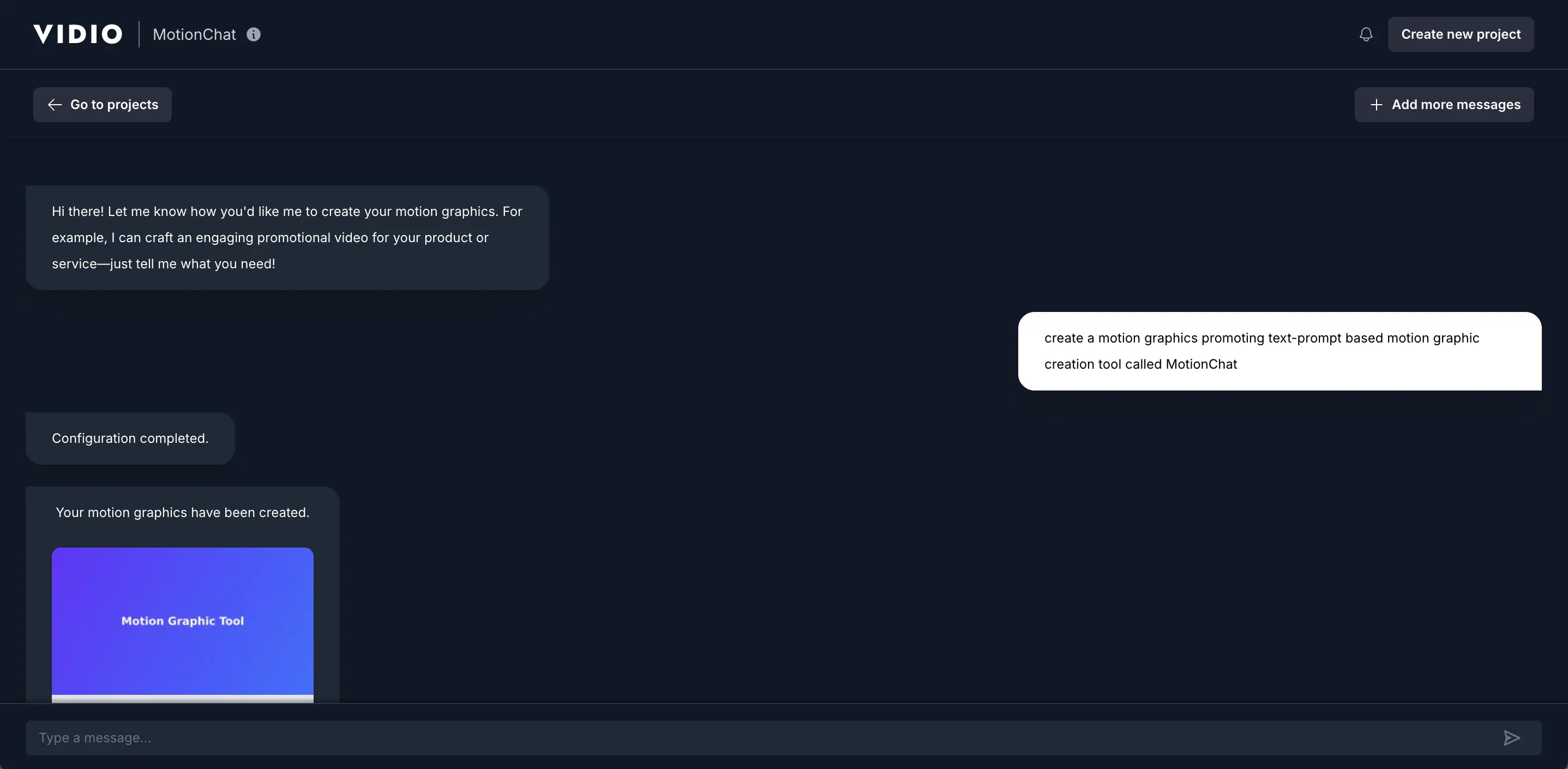
Usability & Interface: The user interface for Vidio’s motion generator is extremely straightforward. The workflow is essentially: enter prompt → choose style (if applicable) → generate → preview → refine or download. There’s no traditional editing timeline; the AI does the heavy lifting. This makes it very beginner-friendly – literally anyone who can write a sentence can create a motion graphic. Vidio also allows some customization after generation: users can regenerate with different prompts or styles, and in some cases tweak colors or swap assets based on provided templates (the FAQ indicates you “can choose from various templates and animation styles” to match your brand - vidio.ai). The interface is chat-like (hence the name MotionChat), guiding users through prompt entry and offering suggestions. Because it’s an AI tool, the learning curve is minimal – it’s more about describing your vision clearly to the AI. The output preview is shown quickly, and if it’s not what you envisioned, you can modify the prompt. This trial-and-error is much faster than manual animation would be. In summary, Vidio offers maximum ease of use: it abstracts away timelines, keyframes, and design tools entirely. The trade-off is that you relinquish fine control – you trust the AI to make design decisions. For many simple use cases (like a flashy quote graphic or an event promo video), this is a worthwhile trade, as noted by users who say “it’s easy to use, and the output quality is decent” - reddit.com. The interface also integrates with other Vidio editing features, so if the generated clip needs further tweaks (like trimming or adding music), Vidio’s broader editor can handle that.
Pricing Model: Vidio operates on a freemium model with a free tier and paid plans that use a credit system. According to the official site, you can “start for free” - vidio.ai – the Basic (Free) plan allows new users to try the motion graphics generator with some limitations. The free outputs come with a watermark and limited resolution/duration. In fact, the free plan on Vidio.ai has “watermarked output” and “limited features” - vidio.ai, vidio.ai. There is also likely a cap on how many videos or prompts one can generate on free – for example, one source mentions “Free monthly 10 messages” for the AI prompt usage limit on the basic tier - vidio.ai, vidio.ai. To unlock full capabilities, Vidio offers a Premium pay-as-you-go option and subscription plans. The Premium (pay-as-you-go) lets you buy credits and use them for generating videos on demand – e.g. $7.90 for 10 credits - vidio.ai, vidio.ai. This yields no watermarks, faster processing (2× to 6× speed), and higher specs limits per video. For heavy users, a Pro subscription is available at $12.90/month (annual billing ~$154/year) which includes 80 credits per month and all premium features at a lower per-credit cost - vidio.ai, vidio.ai. There’s also a Business plan at $34.90/month (annual ~$418/year) with 400 credits/month and priority support for small companies - vidio.ai, vidio.ai. Essentially, the pricing scales with usage: occasional users can pay per video via credits, while power users save with subscriptions. All paid tiers remove watermarks and allow higher output resolutions/longer durations. Notably, Vidio’s free plan is somewhat restrictive – TechRadar points out the free tier does not even allow exporting the video (likely you can preview but not download) - techradar.com, techradar.com. Therefore, serious use of Vidio’s generator beyond testing will require a paid option. On the plus side, the entry cost is low (under $10) to generate a few videos with the pay-go model. This flexibility is great for users who just need one specific motion graphic occasionally, as they aren’t locked into a subscription.
Export Formats & Integration: Vidio’s motion graphics outputs are downloaded as standard video files. Specifically, exports are in MP4 format, which is universally playable and accepted on platforms like Instagram, TikTok, YouTube, etc. - vidio.ai. The service automatically configures the video for optimal online sharing (likely 1080p HD by default on paid plans). There is mention of “extended specs” on higher plans - vidio.ai, suggesting that higher resolutions or frame rates might be available to Pro/Business users (possibly 4K or longer durations up to certain limits). The credit usage system implies limits on video length – for instance, Basic might allow only a few seconds or a shorter duration, whereas paid plans extend that (the pricing table snippet shows increasing “max output video duration” as plans increase) - vidio.ai, vidio.ai. Integration-wise, because the output is a video file, you can import it into other video editors (the Vidio site emphasizes compatibility with tools like Final Cut, Premiere, etc.) - techlaugh.com. This means a user could generate a motion graphic in Vidio, then edit it into a larger video project elsewhere. Vidio.ai itself also offers an online editor, so one could chain the AI motion graphics into a longer timeline with other footage if needed, all within Vidio’s platform. There isn’t an option to export source files or JSON (since the graphics are AI-generated, no source project is provided). But MP4 covers most needs, and the simplicity of “download & share for ads, reels, stories” is emphasized - vidio.ai. In summary, Vidio focuses on quick video outputs ready for social media – less about integration into code or apps, more about immediate use in content.
Strengths & Use Cases: Vidio’s major strength is speed and ease through AI. It literally allows content creators to produce an animated promo or intro in seconds, which is a game-changer for those without motion design expertise. It’s perfect for social media managers and small business owners who want eye-catching animated posts (sale announcements, event invites, quote graphics) but don’t have time or skills to build them from scratch. It’s also useful for video editors or YouTubers who need a quick title sequence or lower-third animation – they can generate one and drop it into their project. The fact that Vidio can sync motion to music beats is a plus for creating dynamic short-form videos (Reels/TikToks) with trending audio. Another strength is that Vidio consistently applies good design principles (layout, timing, effects) via its AI, so the outcomes tend to look modern and “high-energy,” as the marketing states - vidio.ai. This ensures even novices get professional-looking results. For brainstorming, Vidio can rapidly prototype different animation styles by tweaking the text prompt, which might even inspire designers in a creative rut. Ideal use cases for Vidio include: quickly generating a batch of promotional videos for an ad campaign (e.g., many variations for A/B testing), creating stylish text animations for music lyric videos or presentations, and producing content on the fly (like an announcement video right before a deadline). Essentially, whenever you need a fast, decent-looking motion graphic without manual work, Vidio is an excellent solution. It democratizes motion graphics much like how Canva did for static graphics.
Weaknesses: The convenience of Vidio’s AI comes with some limitations. The main one is limited creative control – if the AI’s output isn’t exactly what you envisioned, your options are to tweak the prompt or try a different template, rather than directly fine-tuning the animation as you would in a traditional editor. Highly specific brand requirements (exact font choices, precise timing to match other visuals) could be hard to achieve if the AI doesn’t cooperate. However, Vidio does allow choosing styles and offers some templates to steer the results - vidio.ai, so it’s not a complete black box. Another weakness is that Vidio’s focus is on short, text-centric animations; it’s not meant for longer videos or non-text visuals. If your project needs extensive image or footage integration, Vidio might not be the right tool (though you could use its output as one component). Also, AI generation may yield inconsistent quality for very complex prompts – some trial and error might be needed to get a satisfying result. In terms of output, as of now Vidio exports max at HD video (suitable for web). Those needing 4K or high bitrate might find it lacking. Lastly, the free tier’s heavy restrictions (watermarks and no direct exports on free) mean the truly useful version is paid; some users have criticized the AI results under the hood if expecting miracles (there are mixed reviews of “Invideo AI” on forums, with some saying it’s not as good for complex tasks - youtube.com, quora.com). But for its intended simple use, most find it effective. In summary, Vidio is not a full-fledged editor – it’s a niche tool for quick motion graphics, and its weaknesses are the flip side of its simplicity.
User Feedback: Vidio.ai’s tools have garnered positive attention, reflected in a high user rating of 4.8/5.0 on Trustpilot - vidio.ai. Users appreciate the drastic reduction in editing time – the platform claims to have saved creators “millions of hours” by automating tasks - vidio.ai. One social media manager testimonial states Vidio “made it really easy for making content fast and the quality always turns out perfect!” - vidio.ai, highlighting the balance of speed and quality. However, user discussions (e.g. on Reddit) indicate that while Vidio’s AI is solid for straightforward videos, it might disappoint for more complex storytelling – in one honest review, a user found it “easy to use” with “decent” output - reddit.com, whereas another felt the AI video generation feature was still immature for their needs - youtube.com. In general, for the specific use case of short promo graphics, Vidio is well-reviewed. It’s also “recommended by top media and bloggers,” per the site - vidio.ai, and has notable client organizations (DeepMind, Vox Media, etc.) using it - vidio.ai, indicating trust in its results. Overall, the feedback suggests that if you temper expectations (use it for what it’s best at), Vidio’s motion graphics generator is a highly efficient tool in a creator’s arsenal.
Canva – Templates and “Magic” Animation for Everyone (canva.com)
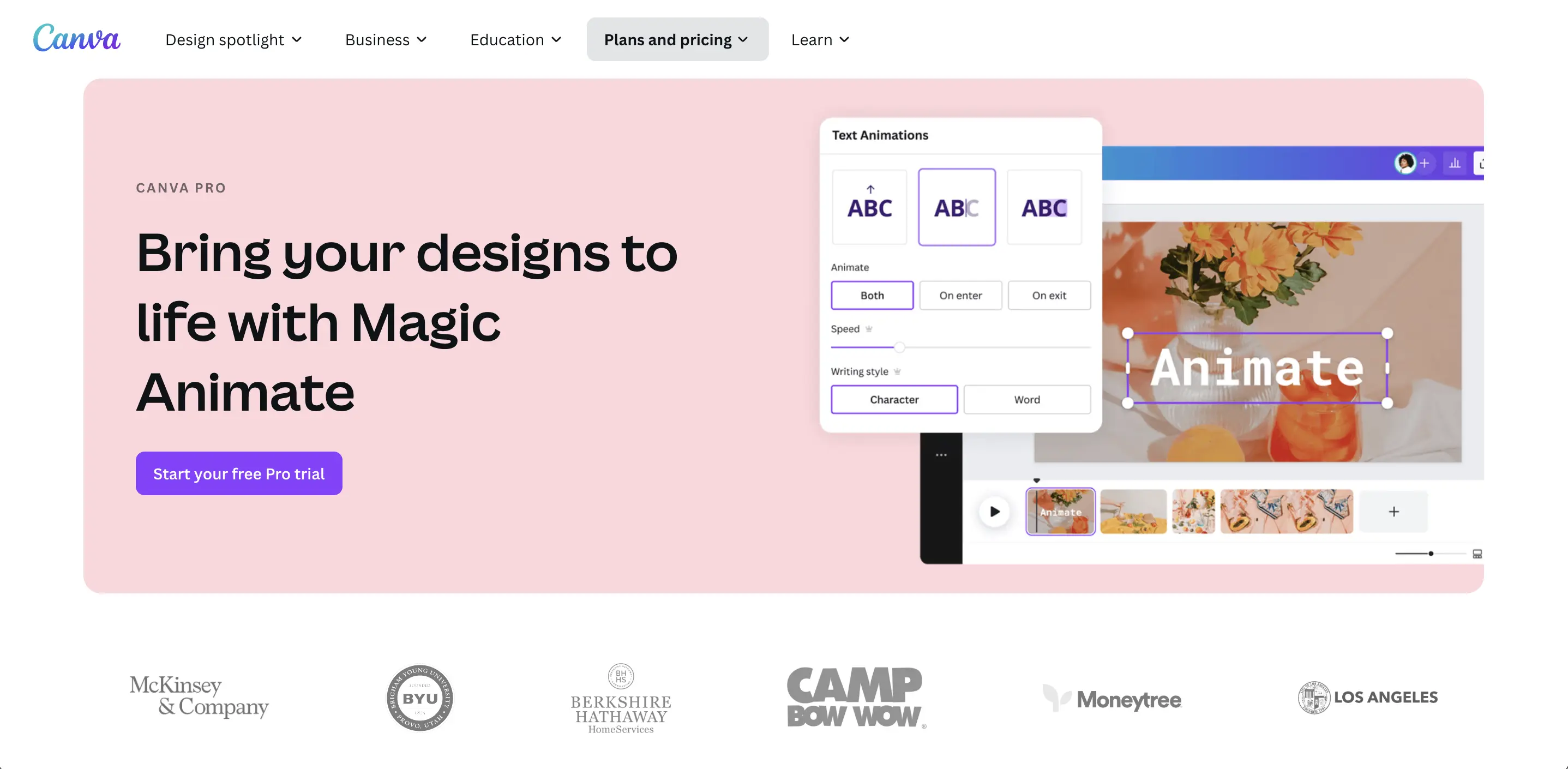
Usability & User Interface: Canva is renowned for its user-friendliness – arguably its biggest selling point. The interface is WYSIWYG (what-you-see-is-what-you-get) with straightforward menus and a canvas editing area. To animate in Canva, users typically click on an element and choose an animation effect from a sidebar; timing and durations can be adjusted with simple sliders. The learning curve is minimal – no design background is required. Canva’s philosophy is “no special skills required” for adding motion to your project - canva.com, which holds true given how intuitive it is to apply preset animations. They’ve added more advanced capabilities (like the ability to animate along a path or sequence animations), but these are still presented in a very accessible manner. For example, to create a motion path, you might just drag an element to define the path; to sync video clips to music, Canva offers a Beat Sync feature to align cuts or animations to audio beats (useful for trendy social videos) - youtube.com. Canva’s multi-page editor can be used akin to a timeline – each page could be a “scene” in a video, and you can download the whole thing as one continuous video. There’s also a brand kit and styles to maintain consistency across animations. Collaboration is a strong suit: multiple people can edit a Canva design (including animated designs) in real-time, which is great for teams. In terms of platform, Canva is web-based but also has mobile apps, so you can even make quick animated posts from a phone or tablet. Overall, beginner-friendliness is where Canva shines: even someone with zero knowledge of animation can produce a polished animated graphic by leveraging templates and the Magic Animate feature in literally seconds - canva.com. Advanced users might at times feel constrained by the template-centric approach, but Canva has been continuously adding more flexibility while keeping the UI simple.
Pricing Model: Canva operates on a freemium model with Free and Pro (and Teams/Enterprise) tiers. The Free plan gives access to a large number of templates (over 250,000 templates, including many animated ones) and basic animation effects. Free users can create and export designs (including videos) up to 1080p resolution. However, certain premium templates, stock assets (images/videos), and advanced features are locked. Exports on free do not have watermarks unless you used premium assets that you didn’t pay for – Canva will prompt you to purchase those or remove them. Canva Pro is a paid subscription that unlocks the full content library (100+ million photos/videos/elements), premium animations, the Magic Animate feature, and other perks like one-click Background Remover for images and the Brand Kit for storing logos and colors - canva.com, canva.com. Canva Pro costs about $12.99 per month or $119.99 per year for one user (with the annual plan) - thimpress.com. Notably, that annual Pro price covers up to 5 users (as Canva now has a “Teams” structure where the base Pro plan includes up to five team members) - reddit.com, ecomm.design. For larger teams, Canva for Teams is available (e.g., $149/year for 5 users, with per-user pricing for additional seats) - reddit.com. There’s also an Enterprise plan targeted at organizations needing advanced admin, workflows, and unlimited storage, starting around $30 per user/month - tiktok.com. For most individuals and small businesses, the Pro plan suffices and is quite feature-rich. Canva also offers special free access to nonprofits and education (classroom) accounts, which is worth noting for those sectors. Overall, Canva’s free tier is one of the most generous out there (you can do a lot without paying), but the Pro tier’s value – especially for motion work – is in the huge asset library and some time-saving AI features.
Export Formats & Integration: Canva allows exporting animated designs in multiple formats. The primary export for motion is MP4 video (in resolutions from 480p up to 1080p; 4K is not yet supported as of 2025) and GIF (great for short looping animations or stickers). You can also export individual frames as PNGs if needed, or even PDF/PowerPoint if it’s a presentation with animations (though those might lose the motion in static formats). Canva does not support exporting to technical animation formats like Lottie or SVG animations – it’s focused on end-use formats. However, Canva integrates with many platforms: you can publish or share your video directly to social networks (there are built-in options to post to Instagram, Facebook, etc., or to schedule posts via Canva). There’s also an embed feature – you can embed a Canva design (including animated ones) on a website via a Canva embed link or by exporting as an MP4 and uploading wherever. One cool integration is Canva’s partnership with other tools; for example, you can import designs from Canva into tools like PowerPoint or Google Slides via add-ons, but again those might treat the animation as video. For workflow, Canva’s content planner lets you schedule the animated posts you create, which is handy for social media managers. In summary, exporting a finished product in common formats (video/GIF) is easy and intended for immediate use on digital platforms. Canva might not have the developer-friendly integration that Jitter has (no direct JSON export for app integration), but it excels in direct publishing and broad compatibility for content purposes. Considering integration in a broader sense, Canva’s API or button is embedded in many third-party services, so users can create quick visuals (static or animated) from within other apps as well. The focus is clearly on being the one-stop shop from creation to publishing, particularly for marketing content.
Strengths & Use Cases: Canva’s strength in motion graphics lies in its combination of ease, content library, and versatility. It is ideal for social media content creators who need to churn out lots of engaging visuals – think Instagram stories with animated text, YouTube thumbnails with motion, TikTok intro slides, etc. With Canva, a user can pick a template (say an animated Instagram Story template), quickly swap in their text and images, and have a slick animation ready in minutes. This makes it incredibly powerful for small businesses and solopreneurs who don’t have dedicated design teams. Another strength is the vast array of templates and presets – for any occasion or industry, Canva likely has an animated template (from “Cyber Monday sale” to “Wedding invitation video”). This breadth means you get inspiration and don’t have to start from a blank canvas. Canva’s Magic Animate (AI) adds to these strengths by allowing even faster creation; for example, if you have a multi-page presentation, Magic Animate can animate all pages cohesively in one click - canva.com. Thus, ideal use cases for Canva include: creating animated marketing videos or slideshows, engaging educational content (teachers use Canva to make animated infographics or lecture videos), quick prototype animations for pitching an idea, and any scenario where you want design consistency (brand kit) across many assets, static and animated. Another strength is its collaborative nature – teams working on a campaign can collectively create matching flyers, social videos, and presentations in Canva, maintaining a unified style. Canva is also continually expanding features (recently adding video editing timeline features, one-click translations for global campaigns, etc.), which future-proofs it as a tool. It’s effectively a Swiss Army knife for design: not the absolute specialist in high-end motion like After Effects, but it covers 80–90% of common needs with a fraction of the effort.
Weaknesses: While Canva is powerful, it does have limitations, especially for advanced motion design. The animations are mostly preset styles – you can’t fine-tune easing curves or animate very specific properties beyond what Canva allows (e.g., you might want to animate an object following a precise path with custom acceleration, which could be tricky). For highly custom animations or complex sequences, Canva might feel limiting. Some users might find the lack of a traditional timeline frustrating when trying to coordinate multiple overlapping animations on one scene (Canva instead relies on setting delay timings on each element, which can become cumbersome for many elements). Another point is that rendering in Canva can be slow for longer videos, and occasionally the browser might struggle with very image/video-heavy projects (though they have improved performance). Also, output format flexibility is limited – no interactive exports (like HTML5 canvas or Lottie), which tools like Jitter or Adobe Animate might offer for web developers. In terms of pricing, while Free is great, some of the more attractive templates or music tracks require Pro; so free users might need to compromise or pay per item. However, Canva Pro’s cost is not steep relative to its value. One more weakness is that because Canva is so template-driven, designs made in Canva sometimes have a “Canva look” – recognizable styles that others might also be using. Brands wanting truly unique motion graphics might outgrow Canva’s templated approach and move to more custom tools. Finally, Canva’s focus is on short-form content (generally under a few minutes); it’s not designed for editing a 20-minute video or doing cinematic animations. So while it’s extremely capable for quick content creation, it’s not the tool for heavy video post-production or large animation projects.
User Feedback: Canva is one of the most widely adopted design tools globally, boasting over 100 million users. Feedback is overwhelmingly positive regarding its ease of use. On G2 and other review sites, users frequently mention how Canva empowers non-designers: “even newbies can make lovely designs using [the templates].” - producthunt.com. The sentiment extends to animations: many marketers praise how Canva lets them add life to their social posts without outsourcing to a motion designer. The introduction of Magic Animate (AI-driven animations) has also been well received, with users amazed at how quickly it applies polished animations throughout their designs. Of course, professional designers sometimes critique Canva for being too simplistic or producing generic results – but even many pros acknowledge it as a handy tool for quick tasks. Canva’s customer satisfaction can be gleaned from its retention and word-of-mouth; it saved a lot of people “a lot of money” in creating marketing graphics themselves - producthunt.com. In terms of specific reviews: TechRadar in 2025 gave Canva high marks, noting that it’s “easier to use than complex software, but gives you more control than fully automatic video makers” - zebracat.ai – placing it nicely between tools like Vidio (fully automatic) and more complex tools. Another user review highlights that while no single tool can beat Canva in terms of features and simplicity for video content, on the flip side the free version has some limitations (e.g., fewer premium assets) - softwareadvice.com. Overall, Canva is celebrated for making both static and animated design accessible to everyone, reinforcing its tagline as the design tool for those who aren’t formal designers.
InVideo – Template-Based Video & Motion Graphics Creator (invideo.io)

Usability & Interface: InVideo balances ease-of-use with moderate editing power. For a new user, starting with a template is the simplest route – you pick a style you like and then use InVideo’s “Advanced Editor” to customize scenes. The interface is akin to a simplified video editing software: there’s a timeline at the bottom (with tracks for video, audio, text), a preview canvas, and a sidebar for media, text, and effects. Users generally find it “easy to use” - reddit.com, especially given the template guidance. You can rearrange scenes, edit timing by dragging clips on the timeline, and use drag-and-drop to place new elements. InVideo includes helpful features like “scene library” (pre-made segments you can insert) and automated transitions between scenes. There is a bit of a learning curve compared to something like Canva or Jitter, because InVideo’s interface has more options (layer properties, keyframe animations for some effects, etc.). However, it’s far simpler than pro software: one review pointed out it’s a good middle ground, giving “more control than fully automatic video makers” but still much simpler than Adobe tools - zebracat.ai. Some minor usability issues have been noted: for example, uploading your own media to InVideo can be slow at times - techradar.com, and the editor may lag with a lot of layers (TechRadar reported “small lags when editing” heavier projects - techradar.com). But overall, the interface is clean and the platform is accessible via browser – no installation needed. InVideo also provides interactive tutorials and a community forum for support. Another plus: it has a collaboration/share feature so you can invite someone to view or co-edit a project, which is valuable for team workflows. In summary, beginner to intermediate users can quickly pick up InVideo: basic tasks are straightforward, and more advanced tweaks are there if you need them (e.g., timeline adjustments, color filters, some motion adjustments). It’s this combination that makes users say “in terms of features, no other tools can beat InVideo” for marketing videos - softwareadvice.com, because it packs a lot in one tool without being too hard to handle.
Pricing Model: InVideo offers a Free plan and two primary subscription plans (Business and Unlimited, often called Professional). The Free plan is feature-limited and is really more of a trial: you can use the editor with templates and even create up to 15-minute videos, but notably you cannot export a video without upgrading - techradar.com, techradar.com. InVideo’s free tier lets you play around with the 6000+ templates and has 1 GB cloud storage for your projects - techradar.com, but any video you make will carry an InVideo watermark if exported (TechRadar notes the free plan “lacks export option,” implying you can only preview or export with watermark) - techradar.com. The Business plan is the standard paid tier: it costs $15 per month (billed annually as $180/year) - techradar.com. Business removes watermarks and allows up to 60 HD video exports per month (each up to 40 minutes long) - techradar.com. It also unlocks the premium stock libraries (you get access to a larger pool of stock video, plus 10 iStock media per month included) - techradar.com. Additionally, Business gives 10 GB cloud storage and some limited use of advanced tools (like 20 background removals per month for images) - techradar.com. The Unlimited (Professional) plan is the higher tier at $30 per month (billed annually as $360/year) - techradar.com. Despite the name “Unlimited,” it still has some caps: it removes most usage limits (unlimited exports, etc.), but iStock downloads are capped at 120/month and storage at 100 GB - techradar.com. Unlimited is aimed at heavy users or small agencies producing a large volume of videos. Both paid plans allow 1080p HD exports; currently, InVideo does not support 4K export (HD is the max). It’s worth noting InVideo frequently runs promotions or has slightly different pricing on their .io site vs. resellers, but the above gives the ballpark. In summary, to really use InVideo commercially, you’ll need to be on a paid plan given the free tier’s export restriction. The $15/month Business plan is relatively affordable for a marketing tool and gives ample capability for an individual or small business, while the Unlimited plan caters to those who need high throughput of content.
Export Formats & Integration: InVideo’s export is primarily MP4 video (H.264) at 1080p. You can choose aspect ratios (since templates come in 16:9, 1:1, 9:16 etc., you export in the format of your project). There’s also an option to export individual scenes as short clips or to save a snapshot image. But unlike more developer-oriented tools, InVideo doesn’t export to animated GIF or other specialized formats – it’s focused on video output. The platform optimizes the video for online use, and since it’s targeting social media content, the MP4s work for YouTube, Facebook, Instagram, etc. In terms of integration, InVideo has some neat features: you can directly share a video to social platforms or via a link. It also provides integrations with video hosting or publishing services (for example, you might directly push a video to YouTube from InVideo if logged in). Another aspect of integration is that InVideo can import media from sources like Dropbox, Google Drive, etc., to make it easier to bring in assets. There’s also a rudimentary integration with media sources like Pexels or Unsplash (though these are under the stock library umbrella). For users who create videos for platforms, InVideo often updates its template library to match current specs (like TikTok safe zones, etc.), which is indirectly an integration with platform needs. One downside: InVideo does not integrate with motion design formats like Lottie or provide HTML5 exports – it’s purely raster video output. But it is compatible with other editing tools in the sense that you can take your InVideo exported MP4 and further edit it in, say, Adobe Premiere or Final Cut if needed (the site advertises that compatibility) - techlaugh.com. Also, if you want to collaborate or get approval, you can use InVideo’s share link to let someone comment on the video draft online, which is helpful. Overall, InVideo’s outputs are ready-to-use videos, and the integration focus is on getting content out to social channels quickly, rather than embedding in software projects.
Strengths & Use Cases: InVideo’s strengths are in its comprehensive template library, flexibility of editing, and rich stock content. This makes it especially powerful for marketing teams and content agencies that need to produce a variety of videos efficiently – explainer videos, listicle videos, promo ads, you name it. It’s an excellent tool for social media marketing: for instance, a digital marketer can create eye-catching Facebook video ads with animated text and transitions in a short time, using templates tailored to various industries (real estate slideshows, restaurant menu videos, etc.). The availability of stock videos and images right inside the editor means you can create something from nothing – even if you don’t have your own footage, you can build a professional montage with text overlays. Ideal use cases include: creating promotional videos for product launches, repurposing blog content into short videos (with the help of AI text-to-video features), making video testimonials or quote graphics, and generating lots of video content for content marketing (like top-10 videos, how-to tutorials, etc.). Another strength is that InVideo gives more creative control than one-click generators – you can align things on the timeline, adjust timing to voiceovers, insert your branding – which is crucial for many businesses. It’s essentially a faster, template-guided alternative to editing from scratch in something like Adobe Premiere. Many users find that it “expanded their audience engagement” by allowing them to create video content at the “scale and speed” required in today’s video-first world - producthunt.com, producthunt.com. Also, because InVideo allows up to 15-minute videos, you can do moderately lengthy content (like a YouTube video made of animated sections and footage), not just 15-second social clips. Its strength is being a jack-of-all-trades for video creation – one platform where you can do a bit of everything (add subtitles, auto-generate a voiceover, animate text, use stock, etc.).
Weaknesses: One weakness is that truly custom motion design is limited – while you can animate text and graphics in InVideo, you are mostly using preset animations or simple fades/pans. It’s not as tailored for, say, creating a unique motion graphic from scratch with custom paths or keyframe-by-keyframe control (though it has basic keyframing for position and scale, it’s not its main focus). Users with very specific design needs might find themselves constrained by templates. Also, the performance issues mentioned (slow uploads, occasional lag) can hinder workflow, especially on slower internet connections or older computers since it’s web-based. Another downside is the credit-based export limits on the Business plan (60 videos/month) – for an active social media operation, this might be a bottleneck (though Unlimited plan removes it). Compared to competitors, InVideo’s free plan is far less useful since it won’t let you download anything without watermark; tools like Canva or Jitter allow exporting on free (with some limitations), so InVideo’s free mode is really just a demo. Additionally, while InVideo does a lot, it might not excel at any one thing: for example, its text-to-video AI might not be as advanced as specialized tools like Pictory, and its motion presets might not be as design-polished as Jitter’s or Canva’s in some cases. It’s a broad tool, which means it might feel a bit heavy if all you need is a simple motion graphic (in that case, a lighter tool could be quicker). Finally, because it’s cloud-based, one has to be mindful of internet connectivity and also trust the platform for not losing work (they do have auto-save and cloud storage, but some users prefer offline control). To sum up, InVideo’s weaknesses are mainly the flipside of being template-driven and web-based: limited custom extremes and occasional technical hiccups. However, for most small-to-mid-sized video projects, these are manageable.
User Feedback: Users of InVideo often praise how it accelerates their video creation process. On G2, it has favorable reviews highlighting its user-friendly dashboard and the richness of its library of scenes and music - g2.com. Users appreciate the continuous addition of features; for instance, when InVideo introduced an AI-powered subtitle generator or new transitions, it received positive notes. Some anecdotal user reviews: one user observed “a significant boost in traffic” after using InVideo to create engaging video content and was “totally satisfied with this tool”, suggesting that the output quality meets professional needs - softwareadvice.com. On the critical side, some have pointed out that InVideo’s AI video maker (Invideo AI) still needs improvement – e.g., Quora and Reddit threads indicate a few people found the AI auto-video generation subpar and even requested refunds - quora.comquora.com. However, those comments often refer to the AI script-to-video feature; the core template editor is generally well-regarded. TechRadar’s review gave InVideo 3/5 on pricing (due to the free tier issues) but noted it’s a strong option among online video makers. They listed ease of use, multi-layer editing, and large selection of elements as pros - techradar.com, and the main cons being some slowness and that free has no exports - techradar.com. These reflect typical user sentiments: it’s a “smart option” for those who want more control than something fully automated, and users find that it “simplifies video making using templates” quite effectively - techradar.com. In summary, user feedback positions InVideo as a reliable, feature-packed tool that’s particularly loved by content marketers, with minor gripes mostly about performance and the need to pay to fully utilize it (which, in fairness, is expected for a professional tool).
Animaker – DIY Animated Video and Graphics (animaker.com)
Usability & Interface: Animaker’s interface is a bit more complex than Canva’s but still aimed at non-professionals. It has a timeline at the bottom for sequencing scenes and animating elements over time. On the left, you have menus for adding characters, text, props, backgrounds, music, etc. You build your scene by dragging items onto the canvas. Each element can be clicked to reveal animation options (entrance effects, motion paths, etc.). Users often praise Animaker’s drag-and-drop simplicity and its “intuitive and user-friendly” nature - g2.com. The learning curve for basic tasks (like making a character wave and some text fly in) is quite low – many reviews mention you don’t need an animation background to use it - g2.com, g2.com. Animaker provides tutorials and a lot of preset content that reduces the need to animate from scratch. For example, if you add a character, you can just choose from a list of actions (e.g., “happy jump” or “pointing”) and the character will perform that pre-animated action at a click. This is much simpler than dealing with bones or keyframes for each limb. The timeline allows you to adjust the timing of each action and element appearance, with the ability to layer multiple elements in a scene. Some users have noted that performance can lag if the scene gets very crowded or long, which is common for these web-based tools - g2.com. Also, while it’s easy to do standard animations, advanced customization might be limited (the flipside of being template-driven). That said, Animaker is continually improving the interface – Animaker 2.0 made it smoother and more modern. It also offers collaboration features in its Enterprise version (multiple users, feedback comments on timeline, etc.). Overall, Animaker is designed for DIY animation beginners: tasks like adding voiceovers, subtitles, or swapping a character’s expression are made as straightforward as possible with on-screen guides. The interface is cartoonish and friendly, clearly targeting marketers, educators, and businesses rather than hardcore animators (who might use something like Adobe Animate or Toon Boom instead).
Pricing Model: Animaker has multiple plans: a Free plan and several paid tiers (often Basic, Starter, Pro, and Enterprise). The Free plan allows unlimited creation but with significant restrictions: exports are limited (usually SD quality, e.g. 720p, with an Animaker watermark) and some asset libraries are locked. According to Capterra, Animaker’s free version is “quite limited” and many of the best features (higher quality export, advanced characters, etc.) require a premium plan - capterra.com. For paid plans (based on info around 2025): the Basic plan is about $20/month (or ~$10/month if billed annually) - tekpon.com. Basic typically offers HD 1080p downloads, no watermark, a certain number of exports per month (maybe around 5-10), and a subset of assets. The Starter plan is around $35/month (often $19/month annual) - capterra.com, allowing more exports, more assets, longer video lengths, and higher priority support. The Pro plan is around $79/month (with annual discounts) - capterra.com, which is aimed at agencies or heavy users – it usually includes unlimited exports, 4K resolution, custom font uploads, and team collaboration features. Finally, Enterprise is a custom plan with full features, including things like reseller rights, larger collaboration, and dedicated support - g2.com. For example, Animaker’s pricing as listed on one site shows: Free ($0), Basic ($20/mo per user), Starter ($35/mo flat), Pro ($79/mo flat), Enterprise (custom) - capterra.com. Each step up increases the quotas (e.g., number of premium assets per month, maximum video duration, cloud storage, etc.). It’s worth noting Animaker Free does allow you to test the creation process quite thoroughly; you only really need to upgrade when you want to export without watermark in better quality. Students or educators might get special pricing or use cases as well (Animaker has been used in classrooms). Also, Animaker sometimes labels their plans differently (e.g., “Personal, Startup, Business”), but the tiers align roughly with the above. In summary, Animaker’s free tier is good for trying things out (and is indeed free forever for basic use) - animaker.com, but any serious usage (especially commercial use) will necessitate a paid plan. The cost can add up for high-tier plans, which some users comment on as a downside - capterra.com, but it’s still cheaper than hiring a professional animator for many organizations.
Export Formats & Integration: Animaker primarily exports videos in MP4 format (commonly up to 1080p on most paid plans, and 2K/4K on the highest plan). It also allows exporting animations as GIFs (handy for short logo animations or memes). A nice feature for certain use cases is export to Facebook or YouTube directly – Animaker can publish your video to those platforms if you connect accounts. It does not export to developer-centric formats like Lottie or SWF; it’s focused on final video outputs or GIF. Animaker also introduced a feature to create vertical videos for stories/TikTok and square videos for posts, so it supports multiple aspect ratios and will export accordingly. Integrations: Animaker has some workflow integrations like a direct upload to YouTube or download to Dropbox/Google Drive. It also has an Animaker Deck for turning presentations into video, which hints at integration with PowerPoint. Since Animaker is part of a suite (they have Picmaker for social posts, etc.), there are some cross-product integrations, but for motion graphics specifically, the outputs are typically used in video content or social media. Another aspect: Animaker supports JSON download for projects (not the animation itself, but you can save your project data). They also allow sharing a video link through Animaker’s cloud – someone can view the video in a browser via an Animaker link, which can be used for feedback or quick sharing (though it’s watermarked if not exported properly). If we consider integration in terms of team workflow, Animaker Enterprise plugs into brand asset management and LMS systems (for training videos). But generally, after creating in Animaker, users will download an MP4 or GIF and use it in their target context (upload to social, embed in a presentation, etc.). The supported formats cover all common video needs for web and mobile. In terms of compatibility, the MP4s are standard H [264]. files that work with other video editors if further editing is needed (some users make rough cuts in Animaker then polish in another tool). Animaker doesn’t output specialized code or interactive animations, staying within the realm of video files.
Strengths & Use Cases: Animaker’s strengths lie in creating engaging animated content without any drawing or coding. It’s fantastic for making explainer videos – those cartoon videos with characters and animations that explain a concept or product. Many startups and educators use Animaker to create such content, as it saves the cost of hiring an animator. It’s also great for internal communications or training: HR teams can whip up a quick onboarding video with friendly animations, or a teacher can create a fun lesson recap cartoon. The presence of characters and expressions gives Animaker an edge for storytelling compared to tools that only do text and shapes. Another strength is its text support: you can animate text in creative ways, and since it supports voiceovers and subtitles natively, it’s easy to create videos that combine narration with bullet points or animated text highlights. Ideal use cases include: marketing videos (product demos, promotional cartoons), educational videos (animated explainers for e-learning), social media animations (e.g., animated infographics or listicles with icons moving around), and even simple motion graphics like logo animations or greetings (Animaker has templates for things like animated holiday greetings, etc.). Additionally, Animaker is often cited as great for those who want to “convert complex ideas into visual form” easily - capterra.com – for instance, animating a data insight with charts and icons. Its wide user base of 10M+ users in 220 countries attests to its adaptability for different needs - capterra.com. Another strength is continuous updates: Animaker keeps adding more assets and features (the launch of Animaker 2.0 with AI suggests improvements like smart suggestion of scenes or automating some actions). In essence, Animaker empowers anyone to create fun, cartoon-style motion graphics, which is why it was among the fastest growing SaaS in content creation, appealing especially to content marketers, educators, and small businesses that want lively video content.
Weaknesses: One common criticism is that Animaker, in its free/basic form, can be quite restrictive – many users find they quickly bump into limits (like limited templates or low-quality exports) until they upgrade - capterra.com, capterra.com. Another weakness is that while Animaker is easy for simple stuff, doing something very custom might be frustrating. For example, you might not find a pre-animated action for a very specific thing you want a character to do, and Animaker doesn’t allow you to animate the character’s body parts freely (you’re limited to their provided animations). This can limit creativity; advanced users might feel “it’s lacking in customization options” as one reviewer noted - g2.com. Also, performance issues have been mentioned: large projects can become slow or occasionally crash in the browser, meaning you have to break videos into smaller parts. The rendering times can also be slow for longer videos (some users report waiting many minutes for a video to export, which can be tedious) - g2.com. In terms of output, Animaker’s style is inherently cartoonish – if you need realistic or photographic visuals, you’d need to import those as images or videos; Animaker doesn’t generate realistic animation (by design). Another weak point is pricing at higher tiers – some reviewers feel the upper plans are pricey for what they offer - capterra.com, especially if you compare to something like Canva Pro which is cheaper. Cancelling the subscription has also been noted as cumbersome by a few (perhaps they had trouble with billing, etc.) - capterra.com. Lastly, Animaker is primarily 2D; if someone expected 3D animations or very dynamic camera movements, that’s out of scope. But those looking for 3D would likely not be considering Animaker in the first place. Summing up, Animaker’s weaknesses revolve around limits on creative freedom and performance for complex projects, as well as the necessity to pay for unlocking its full potential. For the target user, these are usually acceptable trade-offs given the massive time saved versus hand-animating.
User Feedback: Animaker is well-reviewed for enabling quick animated video creation. On G2 it holds a solid rating (~4.2/5) with users highlighting the vast features and templates. One user, a PhD student, said “Animaker is intuitive and user-friendly… I love the wide range of pre-built templates, characters, and scenes — they save a lot of time.” - g2.com. This underscores common feedback that the library of content is a huge plus. Users also frequently mention that it’s “great for creating explainer videos and educational content” without needing advanced skills - g2.com, g2.com. On the downside, users note the limitations of free/basic plans (watermarks, export quality) and some occasional lag or slow rendering - g2.com. For instance, one review pointed out “the free version is quite limited, and many of the best features require a premium account” - capterra.com – which has been a consistent theme. However, those who do invest in higher plans generally feel they get value: they mention being able to produce “high-quality animations for educational purposes and personal projects alike” - capterra.com and that it’s effective for “producing dynamic and attractive videos ideal for promotional content” - capterra.com. Educators in particular appreciate how it helps them create engaging content for students. Some business users note that Animaker “simplifies the creation of engaging promotional videos” and that built-in guidance/tutorials help with quick startup - capterra.com. There are criticisms too: a few users find the pricing a bit high and have encountered difficulty unsubscribing (as mentioned earlier). But Animaker’s team actively updates the platform, often addressing user feedback (for example, earlier versions lacked certain transitions or had Flash dependency – those have been improved/removed in recent updates). In summary, user feedback is largely positive about Animaker’s ability to empower non-designers to create fun animations, while acknowledging the platform’s performance quirks and paywalled features. Many consider it a “very great” tool for what it does, as long as expectations are set appropriately - capterra.com.
Comparison of Tools – Features and Pricing at a Glance
The table below summarizes key features and pricing of Jitter, Vidio, Canva, InVideo, and Animaker for a side-by-side comparison:
| Tool | Notable Features | Free Tier | Paid Plans | Export Formats |
|---|---|---|---|---|
| Jitter | – Web-based motion design editor with timeline and presets (300+ templates) - jitter.video – Figma plugin for import; collaborative real-time editing - jitter.video, jitter.video – Preset and custom animations (text, masks, effects, easing) - jitter.video, jitter.video – Fast rendering; supports audio and video layers - jitter.video, jitter.video | Yes – Unlimited projects & editors; exports at 720p 30fps with watermark - jitter.video, jitter.video. Full feature access but HD/watermark locked. | Studio – ~$19/month per editor ( ~$144/yr) - siteefy.com. Removes watermark, unlocks 4K/120fps exports - jitter.video, unlimited folders, etc. Enterprise – Custom pricing (SSO, priority support) - jitter.video. | MP4, MOV, WebM (video) - jitter.video GIF (animated) - jitter.video Lottie JSON (vector animation) - jitter.video PNG sequence (frame-by-frame) - jitter.video Supports transparency in MOV/WebM - jitter.video. |
| Vidio (AI) | – AI text-to-video generator for motion graphics - vidio.ai – Text prompt creates animated text visuals in seconds - vidio.ai, vidio.ai – Multiple style templates and themes to choose from - vidio.ai – Emphasis on high-energy promo content; syncs to music beats - vidio.ai | Yes – Basic AI usage with watermark; limited prompts & video length (e.g. ~5s preview) - vidio.ai, vidio.ai. Free users get ~10 AI generations (credits) - vidio.ai. | Premium (Pay-go) – $7.90 for 10 credits (approx $0.79/credit) - vidio.ai. No watermark, faster processing - vidio.ai, extended length/quality. Pro – $12.90/mo (80 credits/mo, ~$0.16/credit) - vidio.ai, vidio.ai. All Premium features, higher limits. Business – $34.90/mo (400 credits, $0.09/credit) - vidio.ai, vidio.ai. Priority support, max limits. | MP4 video (optimized for web/social) - vidio.ai Up to 720p on free; 1080p HD on paid (higher resolutions possibly on top plans) - vidio.ai, vidio.ai. No direct GIF/Lottie export (video-only). |
| Canva | – Massive template library for graphics & videos (social, presentations, etc.) - canva.com – Magic Animate (AI) auto-animates entire design intelligently - canva.com, canva.com – Simple element/page animations + new motion path feature - canva.com – Design toolkit (images, icons, music, etc.) + brand kit for consistency - canva.com, canva.com | Yes – Full editor access with thousands of free templates - canva.com. Can export videos up to 1080p. Limited stock assets; some features (e.g., Background Remover, Magic Animate) require Pro. No watermark on free exports (unless using paid assets) - producthunt.com. | Pro – $12.99/mo or $119.99/yr (5 users included) - thimpress.com. Unlocks 100M+ premium assets, Brand Kit, Magic Animate, content scheduler, etc. Teams (Enterprise) – starts ~$30/user/mo for advanced team workflows - ecomm.design, tiktok.com. Nonprofits and educators: free special plans. | MP4 video (up to 1080p) and GIF - canva.com. Also JPG/PNG for static or PDF for multi-page, but animated content is best as MP4/GIF. No direct code or Lottie export. One-click publish to social platforms or embed via link. |
| InVideo | – Online video maker with 6K+ templates for various formats - techradar.com, techradar.com – Multi-track timeline editing (text, overlays, voiceover, music) - techradar.com – Large stock media library + AI tools (text-to-video, auto highlights) - g2.com, techlaugh.com – Collaboration features and cloud storage for projects | Yes – Can create projects up to 15 min with templates and 1GB storage - techradar.com. However, free tier cannot export downloadable video (preview only) - techradar.com. Also watermark on free previews. | Business – $15/mo (annual $180) - techradar.com. No watermark; 60 HD exports/month (max 40 min each) - techradar.com. Access to premium stock (incl. 10 iStock/mo) and background remover, 10GB storage. - techradar.com Unlimited (Pro) – $30/mo (annual $360) - techradar.com. Unlimited exports, 120 iStock/mo, 100GB storage - techradar.com. All Business features, few remaining caps lifted. | MP4 video (H.264) – up to 1080p HD. Various aspect ratios supported (16:9, 1:1, 9:16, etc.). No direct GIF export (videos can be converted externally). Direct sharing to YouTube, Facebook, etc., or download MP4. |
| Animaker | – Animated video generator with characters, props, and scenes - g2.com – Drag-and-drop builder for cartoons, explainer videos, infographics – Timeline with keyframe animations and preset actions (e.g., character gestures) - g2.com – Voiceover support with auto lip-sync; subtitle generator - g2.com – Extensive template library for various video types (2D, whiteboard, etc.) | Yes – Free forever plan - animaker.com with all editing features. Limited assets and low-quality (SD) exports with Animaker watermark - capterra.com. Export length may be capped (e.g., 2 min) on free. | Basic – ~$20/mo (or ~$10/mo annual) - tekpon.com. HD 1080p exports, remove watermark, limited downloads (e.g., 5/mo), some asset access. Starter – ~$35/mo (more exports, longer duration, more assets). - capterra.com Pro – ~$79/mo (unlimited exports, 4K, advanced assets, team collaboration) - capterra.com. Enterprise – Custom (enterprise features, training) - capterra.com. Discounts for annual billing on all plans. | MP4 video (up to 4K on Pro). GIF export for short animations. Also can download as video with transparent background on higher plans (MOV w/ alpha for character overlays). Direct publish to YouTube/Facebook. No code-based exports. |
Sources: Feature and pricing information compiled from official documentation and reviews - jitter.video, vidio.ai, canva.com, techradar.com, capterra.com.
Conclusion
Motion graphics creation has become more accessible than ever, with tools catering to different needs along the spectrum of automation vs. control. Jitter stands out as a powerful yet user-friendly platform for designers who want fine control and collaboration in a browser – it bridges the gap between complex software and quick web tools, making it ideal for professional teams that need custom animations fast. Vidio’s AI generator represents the cutting-edge of convenience, turning plain text into animated videos in seconds – perfect for rapid content needs and users with no design background, though less flexible for detailed customization. Canva offers a vast ecosystem for all design tasks, and its motion graphics capabilities (enhanced by Magic Animate) are a natural extension for millions of users already comfortable with its interface – it’s unbeatable for ease and template variety, especially in social media and marketing contexts. InVideo provides a more video-editing-centric approach with rich templates and a robust feature set, catering well to marketers and creators who want a balance of guidance and creative freedom in assembling videos from stock and clips. Finally, Animaker excels in the animated explainer niche, enabling anyone to craft engaging cartoon videos with characters and narratives – a huge boon for educators, startups, and communicators who need to convey messages through illustrations and characters.
In summary, the “best” motion graphics generator depends on the use case: Jitter and Canva are excellent for designers and marketers who want to DIY high-quality graphics with brand alignment; Vidio is great for instant results and prototyping; InVideo is suited for content teams producing lots of promo videos with mixed media; and Animaker is the go-to for animated storytelling without hiring animators. All these tools lower the barrier to creating animated content, each with its own approach – whether via AI, templates, or simplified editing. User feedback across the board confirms that these platforms save significant time and effort. As technology evolves (especially with AI), we can expect these tools to continue adding features that further streamline motion design. But as of 2025, users have a wealth of options to generate eye-catching motion graphics, whether they prefer a guided template-driven experience or a blank canvas with creative control. The tools profiled here enable everyone – from a social media manager to a product designer or a teacher – to bring their ideas to life with movement, color, and animation, no heavy software or expert skills required.
Top related tools
4AskVIDIO
Ask our AI agent anything you want
This assistant can help you with guidance on what tools to use for your video editing needs.
Ask now