How to Stabilize Shaky Video

1. Upload Your Shaky Video
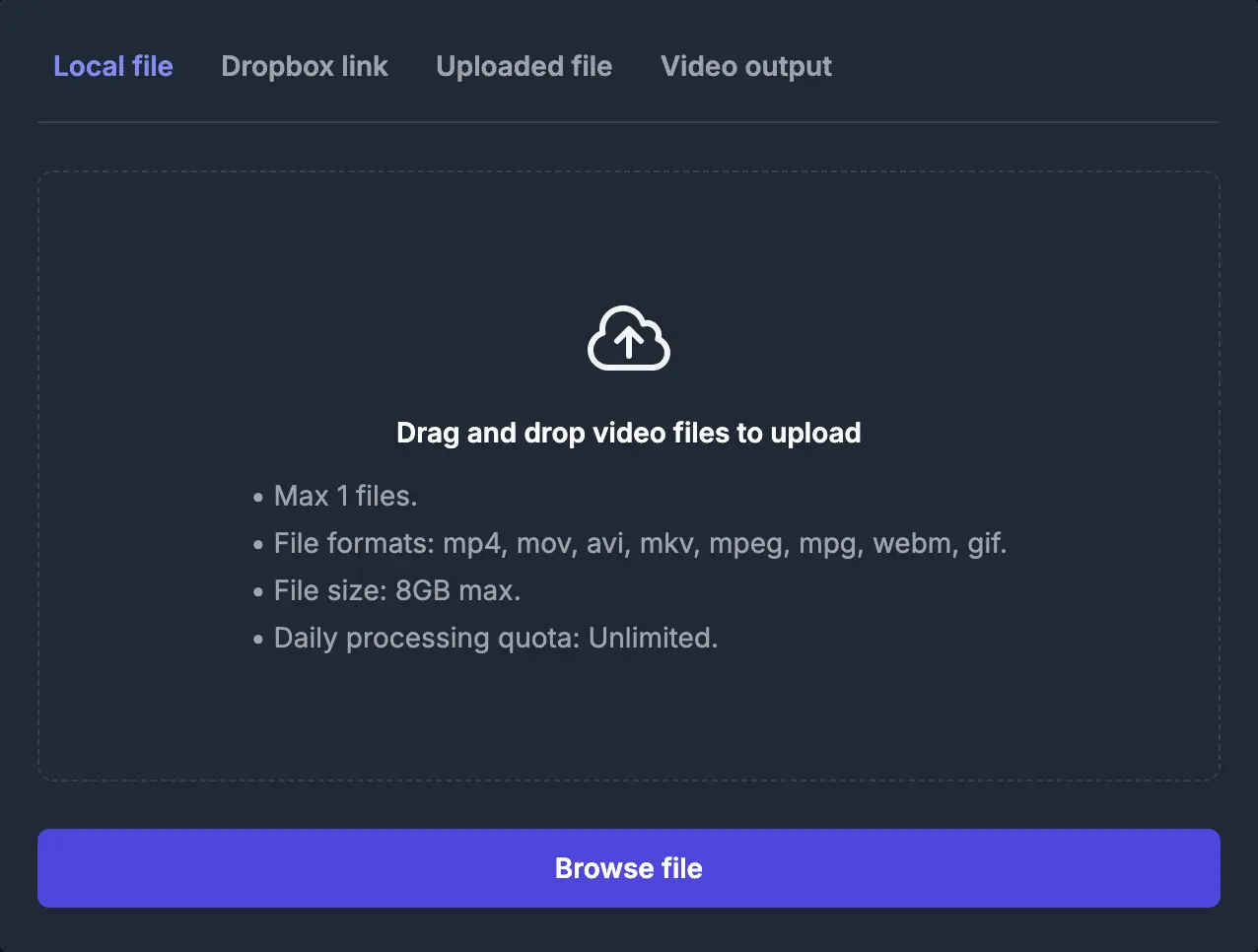
Head to Vidio’s Video Stabilizer and upload the video you want to stabilize. The tool supports various formats and resolutions. The basic plan allows up to 1GB per file and three files per day.
2. Choose Your Border Type
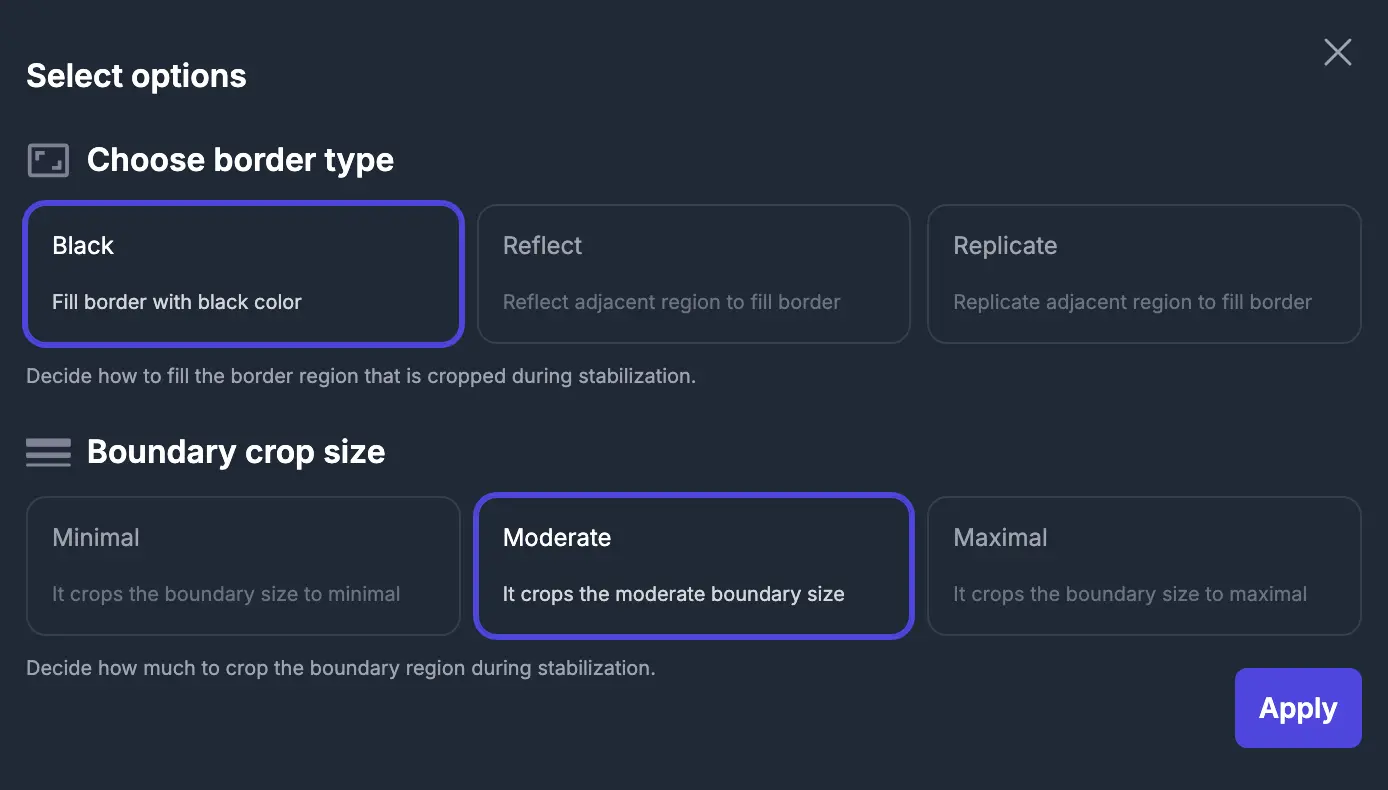
When stabilizing a video, the edges may shift due to correction, causing gaps in the frame. Vidio offers three ways to handle these gaps
- Black.Fills the empty regions with a black border, suitable for a clean and simple look.
- Reflect.Mirrors the video content near the edges, blending the borders for a seamless effect.
- Replicate.Extends adjacent video areas to fill gaps, preserving continuity.
3. Set the Boundary Crop Size
Cropping adjusts how much of the video edges are removed to stabilize the frame:
- Minimal.Keeps most of the original frame, with slight stabilization.
- Moderate.Strikes a balance between stabilization and cropping.
- Maximal.Crops more extensively to ensure maximum stability, ideal for extremely shaky footage.
4. Apply Changes and Preview
After selecting your options, click Apply to process the video. Preview the results to ensure the stabilization meets your needs.
5. Download Your Stabilized Video
Once your video is stabilized and reviewed, Vidio provides two download options. The Free Download allows you to export the video in a low resolution (640p) with a watermark, making it accessible at no cost. For higher quality and a professional finish, the Premium Download supports resolutions up to 2K without watermarks. This option is ideal for creators looking for polished outputs suitable for sharing or professional use.
Why Use Vidio's Video Stabilizer?
These features allow greater customization, ensuring your video stabilization fits your creative or professional requirements. Whether you need subtle fixes or intense corrections, Vidio’s Video Stabilizer has the tools to deliver. Vidio's video stabilizer has been recognized as one of the top online stabilizers in Filmora's guide on the best tools for stabilizing videos. This acknowledgment highlights its effectiveness and ease of use, solidifying its place among leading solutions for creators seeking smooth and professional-quality video stabilization. You can explore more about the comparison in Filmora's guide [2].
Top related tools
5AskVIDIO
Ask our AI agent anything you want
This assistant can help you with guidance on what tools to use for your video editing needs.
Ask now