Removing Video Backgrounds Without Adobe Tools


Introduction
Removing a video’s background can dramatically improve production value, allowing you to place subjects in new scenes or simply eliminate distractions. Traditionally, achieving this required green screens or complex manual editing in software like Adobe After Effects (using rotoscope or chroma key tools). However, recent AI-powered online tools now make background removal possible with just a few clicks – no Adobe software needed. These web-based services employ video object segmentation algorithms to automatically identify the foreground and either make the background transparent or replace it - vidio.ai, vidio.ai. This report will explore how to remove video backgrounds using various online tools, covering different video formats and styles, free vs. paid solutions, and a detailed look at the VIDIO background remover. We’ll also compare the tools’ features, pros, cons, and best use cases.
Challenges and Considerations by Video Type
Before diving into tools, it’s important to note that background removal results can vary depending on the type of video content and footage quality:
-
Talking Head Videos: These typically feature a person speaking toward the camera with minimal movement. AI removers usually excel here, since there is a well-defined human subject and fairly static background. Good lighting and contrast between the person and background will yield the best cut-out results - vidio.ai. Most tools (even free ones) can handle a single-person talk quite accurately, though fine details like hair strands can still be tricky for some algorithms.
-
Product Demo Videos: These might show objects (e.g. gadgets, clothing) being displayed or used. Many AI tools have been trained primarily on people, so they may struggle slightly more with non-human subjects or multiple objects. For best results, ensure the product has clear edges and distinct color from the backdrop. Some tools (like SocialBook’s remover) “work well only with human subjects” and are less effective for objects - bigvu.tv. If the demo includes a person interacting with a product, the tool needs to keep both as foreground – some advanced removers let you manually select multiple foreground elements if needed.
-
Animated or Cartoon Content: Removing backgrounds from animated videos or game footage is hit-or-miss. Simpler animations with flat colors can actually be easier to separate by chroma key or AI if the background is a solid color. But if the animation has complex backgrounds or stylistically similar foreground and background, AI segmentation might not recognize the subject. Few off-the-shelf tools are specifically tuned for cartoons, so expect to review the output and possibly do manual cleanup. Using high-contrast animation (e.g. a character with bold outline) will help.
-
Complex Scenes: Footage with multiple moving people, busy backgrounds (crowds, patterned walls), or a shaky camera presents a challenge. Advanced tools claim to handle “complex backgrounds such as crowded scenes and moving objects,” but even they warn that “shaky footage may affect accuracy” and that high foreground-background contrast is important - vidio.ai, vidio.ai. In other words, too much motion or poor video quality can confuse the AI. For these cases, tools that allow manual corrections (masking or brush edits) are preferable.
Best Practices: Regardless of video type, you can improve results by prepping your footage. Try to use clips with a clearly defined main subject and minimal camera shake. Avoid very low-resolution or grainy clips. If possible, trim the video to the segment where the subject is present throughout, as many tools struggle if the subject enters or leaves the frame or if there are scene cuts - help.runwayml.com. Following these practices will help the AI produce a cleaner background removal.
Web-Based Video Background Removal Tools (Free & Paid)
Dozens of online tools can remove video backgrounds automatically. Below we detail some of the leading options – ranging from completely free solutions to freemium and paid services. All of these run in the browser (no software install) and use cloud or in-browser AI to process your video. We’ll highlight their features, pricing models, and ideal use cases.
VIDIO – AI Video Background Remover

-
AI Precision and Speed: VIDIO uses state-of-the-art video object segmentation to precisely separate foreground from background, aiming to make the background fully transparent - vidio.ai. The process is GPU-accelerated, enabling “ultra-fast background removal” in the cloud - vidio.ai. In practice, this means quicker processing of your uploads compared to some older tools.
-
Ease of Use: The interface is designed to be beginner-friendly – “no installations, nothing to learn”, with background removal in just a few clicks - vidio.ai. There are two modes to remove backgrounds: an automatic mode that detects the subject for you, or a manual click selection. The workflow is simple: 1) Upload a video file (MP4, MOV, AVI, etc. are supported - vidio.ai) via drag-and-drop, 2) Click on the foreground object/person you want to keep (this creates an initial mask), and 3) click “Propagate” to apply that mask across all frames - vidio.ai. In many cases you can skip manual clicking and let the auto mode find the subject automatically - vidio.ai, but the click-to-select feature gives more control if needed (similar to creating a custom rotoscope mask).
-
Output and Editing Features: Unlike basic removers, VIDIO provides a suite of editing capabilities once the background is removed. You can export the video with a transparent background (e.g. as a ProRes video with alpha channel, or as a GIF) - vidio.ai, which is useful if you plan to composite the subject onto other footage. You can also do background replacement within the tool – e.g. swap in a new image or use preset designs as the backdrop - vidio.ai. Other handy features include the ability to blur the background (for a depth-of-field focus effect) or blur the foreground (for privacy, say to anonymize a person or object) - vidio.ai. There are even creative options like applying filters to either the background or foreground to make the subject pop - vidio.ai. In summary, VIDIO goes beyond just removal – it’s an all-in-one editor tailored to background manipulation tasks.
-
Quality and Limitations: According to VIDIO’s FAQs, the tool is designed to handle various footage types, even with complex or busy backgrounds and moving subjects - vidio.ai. Users have successfully removed backgrounds without using a green screen, thanks to the AI’s ability to detect the subject automatically - vidio.ai. However, there are practical limits – very shaky or low-contrast footage can reduce accuracy - vidio.ai. For best results, ensure the subject contrasts with the background (e.g. no green shirt on green wall) and that the camera is relatively steady. Another limitation is that the free version adds a watermark and may restrict output resolution or video length - vidio.ai. Advanced features like 4K export or longer durations are reserved for paid plans.
-
Pricing: VIDIO uses a freemium model. The basic plan is free to try with some limits (e.g. watermark on output, possibly a cap on video length or file size) - vidio.ai. For higher usage, there are paid options. Uniquely, VIDIO operates on a credit system for its premium tier: you can buy credits (e.g. 10 credits for $7.90 as a pay-as-you-go) or subscribe monthly (e.g. 80 credits for $12.90/mo under the Pro plan) - vidio.ai, vidio.ai. Each credit corresponds to processing a certain amount of video (the site indicates rates like 1 credit = 1 video minute for some resolutions). In practical terms, casual users might stick to the free plan for short clips, but professionals can opt for a subscription to remove watermarks and unlock features like 1080p/4K output and priority processing. Example: The Premium pay-as-you-go pack (10 credits for $7.9) is good if you just occasionally need to process a video or two - vidio.ai. Frequent creators, however, would benefit from a subscription (Pro or Business plans) which dramatically lowers the per-minute cost and lifts most limits - vidio.ai, vidio.ai. Overall, VIDIO’s pricing is flexible – there’s “a free tier (with limits) and paid plans for higher usage” - vidio.ai, allowing you to scale up as needed.
-
Use Cases: VIDIO is well-suited for content creators who want a professional result without a steep learning curve. If you are a YouTuber, marketer, or educator needing to remove yourself (or an object) from the background and maybe replace it with something else, VIDIO provides an end-to-end solution. The ability to export with transparency is great for video editors who plan to import the footage into other editing software (e.g. to overlay the subject on different backgrounds in a larger project). It supports high resolutions (up to 4K) for production-quality work - vidio.ai, which is a big plus for filmmakers or businesses making polished videos. Keep in mind the upload limits on the free plan (e.g. 1 GB file size on free) and consider a paid plan if you need to process many or long videos.
Example of AI background removal using VIDIO (subject is isolated on a transparent checkerboard background) - vidio.ai, vidio.ai.
Unscreen
-
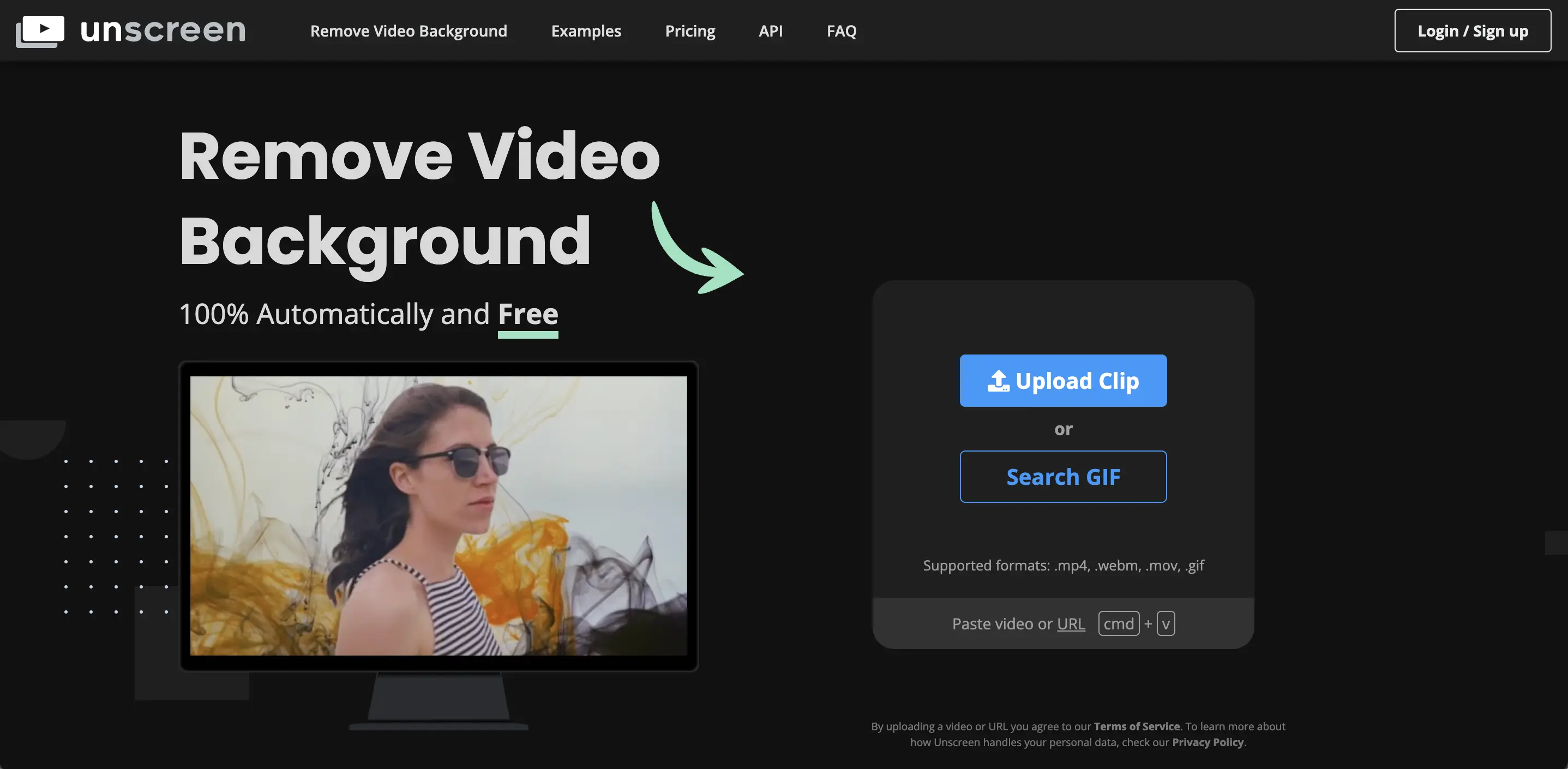
Features: Using Unscreen is straightforward – you upload a clip (or even just paste a video URL) and the site will process it to “generate a high-quality result” without any manual work - unscreen.com, unscreen.com. There’s no need to select colors or draw masks; Unscreen’s AI does the segmentation on its own. After processing, it gives you options to download the result or to replace the background. Unscreen provides a set of fun background templates (e.g. scenes like city streets, offices, or abstract colors) you can apply behind your subject with one click - reccloud.com. You can also upload a custom background or simply choose a solid color or transparency. This makes it easy to create quick composites (for example, putting yourself on a virtual backdrop for a presentation).
-
Output Formats: One limitation of Unscreen’s free version is that you cannot directly download a full-length video with the background removed. Instead, free users can download either a short animated GIF or a sequence of still frames (PNG images) - reccloud.com. The GIF is also capped to a few seconds, which is useful only for preview or meme-type animations. No audio is retained in these free outputs (since GIF/PNG have no audio). To get a real video file (e.g. MP4) without background, you need to use the paid version.
-
Pricing: Unscreen operates on a paid credit model for full capabilities. There are two paid options: a Subscription (which charges per video minute processed, around $1.98 per minute of video as of latest pricing) and a Pay As You Go (approximately $4.99 for a one-off single minute) - reccloud.com. The subscription is more cost-effective if you have regular content to process, while pay-as-you-go might suit a one-time project. Paying users get watermark-free results, full-length HD video downloads, and support for audio. The service essentially generates a zip bundle (Unscreen Pro Bundle) containing an MP4 with alpha channel or a series of frames + alpha matte that you can import into other software. There’s also an Unscreen Pro plugin for Adobe Premiere/AfterEffects for subscribers, but since we’re avoiding Adobe tools, you can simply download the processed video directly from the site instead - unscreen.com.
-
Use Cases & Performance: Unscreen is ideal if you need a quick, no-frills solution for short clips or GIFs – for example, creating a sticker of a person with background removed, or a short reaction clip with transparency. It’s entirely automatic; the flip side is you have no fine-tuning control. If the AI struggles (for instance, cutting off part of a semi-transparent object or mixing up foreground/background on a complex scene), you cannot manually correct it in Unscreen. Quality-wise, users have found Unscreen decent for subjects with clear edges and distinct backgrounds. But for busy scenes or non-human subjects, it may not be as “smart.” In fact, newer tools like Cutout.pro or VIDIO claim more accuracy. In a comparison test, results from Cutout.pro were “faster and more professional than Unscreen” in some scenarios - bigvu.tv. Still, Unscreen remains a go-to for many because of its simplicity and free preview capability. Note: The free version’s limitations (no full video export) mean it’s not truly usable for publishing content unless you pay – as one review put it, free versions of tools like Unscreen “are not useful because you cannot export the complete video” - bigvu.tv. So, consider Unscreen’s free mode mainly as a trial to gauge output quality; for any serious use, you’ll need to budget for the paid service.
CapCut (Online Video Editor)
CapCut is a popular video editing app by ByteDance (the makers of TikTok) that also has a web-based editor. It includes a powerful AI Background Remover effect as part of its toolkit. Unlike specialized background removal sites, CapCut is a full multi-track video editor – but we highlight it here because it offers background removal for free and with no watermarks on output.
-
Features: In CapCut’s online editor (accessible via browser after logging in), you can remove a video’s background by applying the “Remove Background” effect. The AI will detect the primary subject (especially good at recognizing human figures) and cut out the background automatically. It’s essentially like using a green screen effect but no green screen is needed. CapCut allows further editing on the same timeline: after removing background, you can layer the subject over a new background, add text, transitions, etc., since it’s an editing suite. This is convenient if you want to do more than just remove the background – for example, you can create a TikTok video where you appear over gameplay footage or product images, all within CapCut. The one-click background removal is reported to “automatically recognize people and objects” fairly well, given its TikTok-oriented AI training.
-
Pricing: CapCut is fully free to use the background remover and all other main features. Initially, CapCut rose to popularity by offering advanced editing (and effects like auto background removal) with no watermark or hidden charges - bigvu.tv. This means you can export your video without any CapCut logo or branding (unlike many free editors). However, as of late 2023/2024, CapCut has introduced some pro features and certain usage limits. There were user reports of a forced outro watermark for some exports, but CapCut has options to remove it (and they advertise no watermark editing). In general, you can assume that using the web editor or mobile app to remove background will not cost you, and you can produce full videos for free – making it arguably the best completely free solution for background removal at the moment - bigvu.tv.
-
Limitations: Because it’s free, CapCut is massively popular, and its background AI is very good for human subjects (the typical use case is a person overlaying themselves on another clip, e.g. dancing in front of a meme video). But it might be less accurate for other scenarios like pets or intricate objects. Also, since CapCut is a general editor, it might not handle super long high-res videos smoothly in the browser – there could be performance limits on what you can upload. It is cloud-based for some functions (especially in the web version), so a fast internet connection is needed. One other consideration: CapCut’s strength is when you’re already planning to edit the video (cuts, music, etc.) along with removing the background. If you purely want a quick cutout with transparent background download, CapCut might be overkill (and it doesn’t output ProRes with alpha like specialized tools; you’d have to use green screen and chroma key in another editor as a workaround if transparency is needed). But for social media content creators, CapCut is an excellent choice – it’s “easy to use, produces professional-looking results, and best of all, it’s free!” - bigvu.tv, which makes it perfect for TikTok-style videos or any scenario where budget is zero.
Kapwing
-
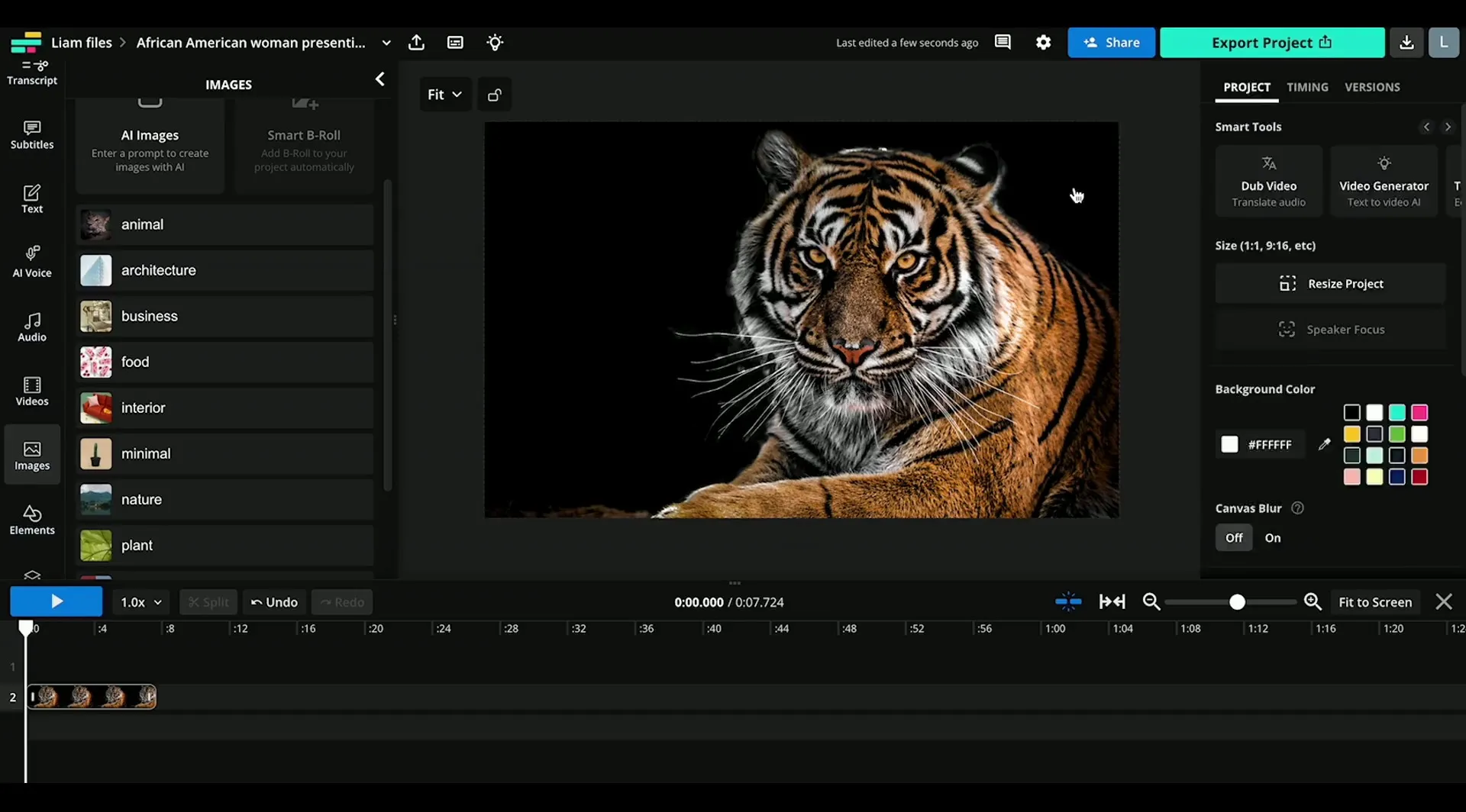
Features: Kapwing’s background remover can “isolate people from the background of a video for free, without a green screen.” - kapwing.com In practice, you upload your video to Kapwing’s editor, then use the Erase > Remove Background tool. The AI will detect the prominent subject (usually a person or foreground object) and make the rest transparent. Kapwing then lets you add a new background layer if desired (you could upload an image to serve as the new backdrop, or use a color fill). Because Kapwing is a full editor, you can also combine this with other edits – trimming the clip, adding subtitles, overlays, etc. Many YouTubers and social media managers use Kapwing for its versatility. One neat feature: it works on both desktop and mobile browsers, so you could even do a quick background removal from your phone without installing an app - kapwing.com.
-
Pricing: Kapwing offers a free tier, but with some significant restrictions. Free accounts can try the background remover and even see the preview after processing; however, any exported video will carry a Kapwing watermark on the output unless you upgrade - kapwing.com. Also, free users are limited in video length/resolution (historically Kapwing capped free exports to 7 minutes and 720p, for example). To get unwatermarked, full-quality exports, you’ll need a Kapwing Pro plan (paid subscription) - kapwing.com. The Pro plan lifts most limits, allowing HD or higher resolution and longer duration, and of course no watermark. So while you can technically remove a background for free with Kapwing, you’d likely not want the final video with a watermark if it’s for public use.
-
Use Cases: Kapwing is a good choice if you need an all-in-one online editor that includes background removal. For instance, if you’re making a marketing video and you want to remove the background of a spokesperson video and then add text, logos, and other scenes, Kapwing lets you do it all in one place. It’s also collaborative (you can share projects, which is useful for teams). The background removal quality is decent for clear-cut subjects; it may struggle on very complex backgrounds similar to how Unscreen does. It’s best for straightforward cases like a person against a relatively plain background. One advantage is that Kapwing is continuously improving its AI tools (as noted in user reviews, their auto-subtitle and other AI features “get better and better every week” which bodes well for the background remover too) - kapwing.com. In summary, if you don’t mind paying for a Pro subscription (or using the free version just for testing or personal fun with the watermark), Kapwing offers convenience – editing and background removal under one roof, in your browser.
VEED.io
-
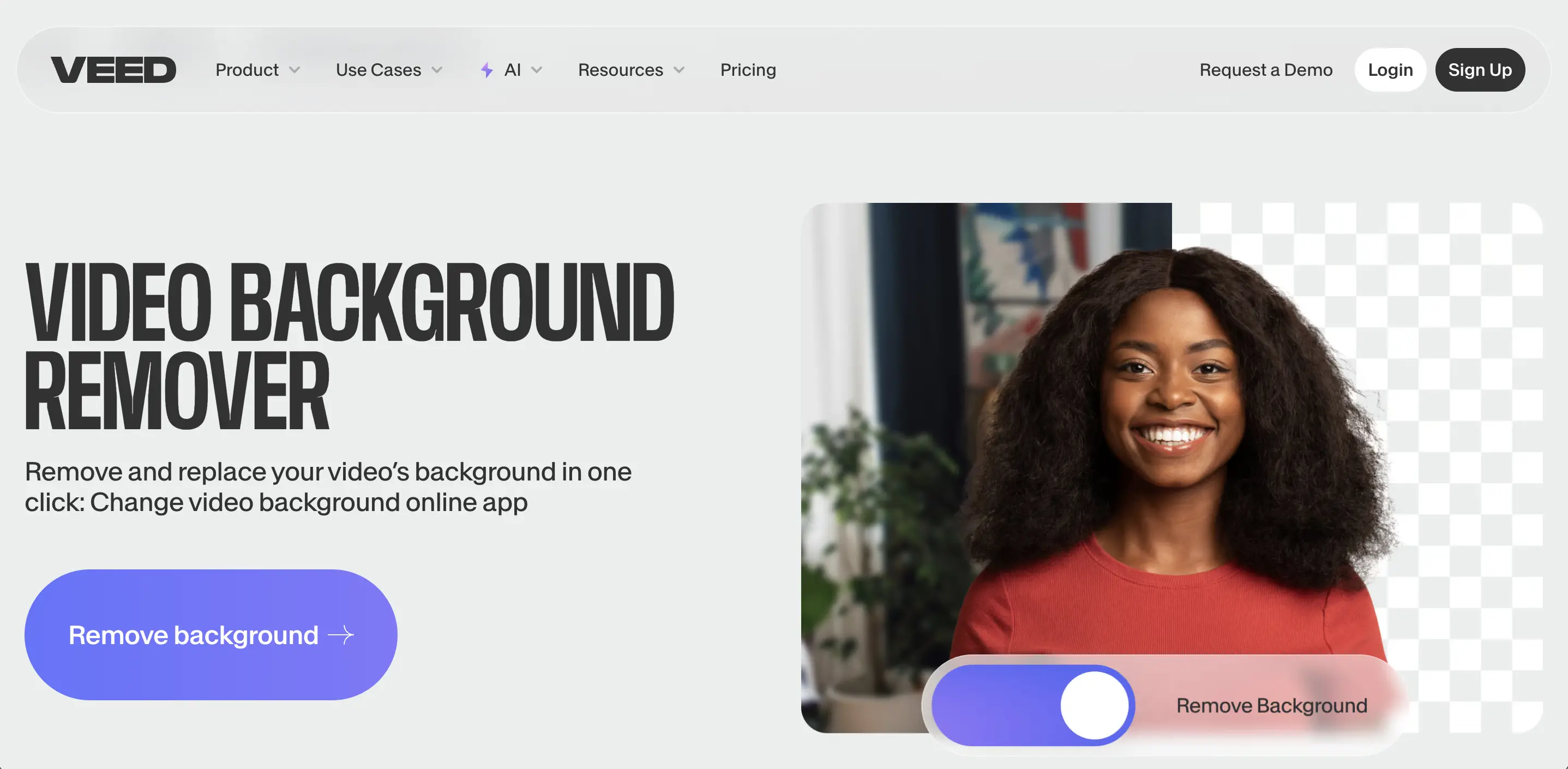
Features: VEED’s background removal is marketed as a one-click tool: you upload your video, go to the editor, and toggle on the background remover. The tool then automatically removes the background from your video without requiring a green screen - youtube.com. VEED allows you to then insert a new background or keep it transparent. It also supports replacing green screen backgrounds specifically (they have a Chroma Key tool), but the AI remover works even if the background isn’t a single color - veed.io. Beyond background removal, VEED’s platform includes features like auto-captions, noise removal, translations, and more, so it’s part of a larger content creation suite.
-
Pricing: VEED has a free tier with limited functionality and watermarked exports, and several paid plans for full features. The background removal tool is available to free users as a trial, but to export without watermark and at high quality, a paid plan is needed (such as their Basic or Pro subscriptions). VEED’s site mentions “the free video editor lets you replace...background... You can choose a transparent background” - cyberlink.com, but in practice note that the free plan likely limits the output resolution/duration. Paid plans will give you 1080p or even 4K export and longer video length support, along with brand kit and other pro features.
-
Use Cases: VEED is suitable for those who want a quick online solution to remove a background and maybe do minor edits, but with a slightly more polished interface. Some users find VEED’s UI very user-friendly for tasks like cutting and adding elements. If you’re creating a video where you need to replace a Zoom call background or make a creative TikTok, VEED can do it. Its background remover is pretty good with people (similar to others – it finds the person and removes everything else). If VEED has an edge, it might be in offering a lot of post-processing tools that can be combined (e.g., after removing background, you could use their video filters, add background music, or even do a quick resize for different social platforms). On the downside, since it’s not exclusively focused on background removal, extremely tricky cases might not be handled as well as a dedicated tool. It’s a trade-off between convenience and specialization. Many reviews put VEED and Kapwing in the same category – you might choose based on which interface you prefer or if you already have a subscription to one. Both significantly speed up simple video production tasks for non-editors.
Cutout.pro
Cutout.pro is a dedicated AI background remover service that works for both images and videos. It stands out for its support of high-resolution output and larger files, aiming to deliver professional-quality results.
-
Features and Quality: Cutout.pro’s Video Background Remover is a fully automatic tool – you upload your video and it removes the background without any user masking. It supports videos up to 4K resolution and file sizes up to 2 GB for input (which is higher than many browser tools allow) - bigvu.tv. In the free preview mode, it will process the video and typically show you a short segment of the result. Users and independent tests have noted that Cutout.pro’s results are quite impressive – it often handles fine details and motion better than some competitors. One review noted “the results were faster and more professional than Unscreen and SocialBook” when using Cutout.pro - bigvu.tv. This suggests the algorithm is strong. It also lets you add a replacement background after removal: you can fill with a solid color (including green if you want to create a green-screen effect), or even upload another image/video to put behind the subject - reccloud.com, reccloud.com. However, the built-in library of stock backgrounds is limited (fewer preset scenes to choose from compared to Unscreen’s or others) - bigvu.tv – the expectation is the user will provide their own new background if needed.
-
Pricing: Cutout.pro uses a credit (pay-per-use) system. They allow a free preview of 5 seconds of your video at low resolution (360p) - bigvu.tv, bigvu.tv. This is just to verify the effect. To download the full video with background removed, you must spend credits. The pricing is roughly $0.15 per second of video for pay-as-you-go - reccloud.com. They offer bundles, e.g., 1 minute might cost $19 (and larger packages for many minutes at cheaper bulk rates) - bigvu.tv. This can get pricey for long videos; however, it’s transaction-based so you only pay for what you need without a subscription. The free preview mechanism is nice because you get to see the quality on a short snippet before deciding to purchase the full result. Essentially, free = preview only, and paid = high-quality complete video (HD or 4K) with no watermark.
-
Use Cases: Cutout.pro is ideal for those who need high-quality output for professional projects and are willing to pay per video. For example, if you have a short marketing clip or a product showcase where you must remove the background cleanly and maintain full HD/4K quality, Cutout.pro can deliver that. It’s also one of the few that explicitly allow 4K export, which is important for film or TV content creators. The lack of a subscription can be a pro or con: it’s cost-efficient if you only occasionally need this service (no recurring fee), but if you have daily videos, the cost per second may add up quickly. One other scenario: since Cutout.pro handles up to 2GB files, it might be able to process longer or higher-bitrate videos that other browser tools choke on. Just remember that in the free mode you only get a 5-second clip – enough to judge quality but not for any real usage - bigvu.tv. To get the full video, you’ll have to purchase credits. This tool is a good match for users who demand quality and are working with footage where other free tools aren’t giving satisfactory results.
Runway ML (Runway AI Video Editor)
Runway ML (simply called Runway now) is a cutting-edge online platform for AI-assisted video editing. One of its many features is background removal, which it refers to as the “Green Screen” or “Remove Background” tool. Runway is more advanced than other tools listed here and is used by professionals for complex tasks, thanks to its combination of automation and manual control.
-
Features: Runway’s background remover allows you to do semi-automatic rotoscoping. You start by importing your video into Runway’s web interface. Then, unlike one-click tools, you are encouraged to highlight the subject manually in a frame (or a few frames) to guide the AI - help.runwayml.com, help.runwayml.com. You can simply click on the subject and the system creates a mask; you can add additional clicks or brush areas to include any parts the AI missed. These become keyframes for the mask. The AI then propagates the mask through the video, frame by frame, to separate the background. If the subject moves or the initial mask wasn’t perfect, you can scrub through and refine by adding more keyframe masks or using a brush to correct details in certain frames - help.runwayml.com. This approach gives you far more control than tools like Unscreen, albeit with a bit more effort. After the mask is to your satisfaction, you can export the video with a transparent background or bring it into Runway’s timeline for further editing with other effects - help.runwayml.com, help.runwayml.com. Runway can export to common formats, and Pro plan users can even export alpha channels or ProRes with transparency - help.runwayml.com.
-
Performance: Runway’s AI is quite powerful – it was among the first to showcase video background removal without green screen in a user-friendly package. It tends to handle challenging cases better because you can train it with your manual mask inputs. That said, their documentation advises using clips with a clear main subject and avoiding very busy, low-quality, or extremely long clips for best results - help.runwayml.com. If you follow those guidelines, you can achieve very clean extractions, even with multiple subjects or complex backgrounds, by spending time on manual corrections. Essentially, Runway strikes a balance between automation and traditional rotoscoping, significantly reducing the time compared to doing it entirely by hand in something like After Effects.
-
Pricing: Runway is not completely free. It offers a free trial or free tier with limited credits (for example, a certain number of projects or exports per month, with caps on duration). To use it regularly, you’d need a subscription plan (they have varying levels that grant more export minutes, higher resolution support, etc.). For instance, a free plan might let you export a few seconds of video or use lower resolution, whereas a paid Pro plan will allow HD exports, longer sequences, and ProRes/alpha output. Given that Runway is a full platform (with many other AI tools like motion tracking, image generation, etc.), the subscription might be worthwhile if you’ll use those. If you only care about occasional background removal, paying for a whole subscription might be overkill – in that case, a per-use tool like Cutout.pro could be cheaper. But if you need the highest quality mask and the ability to fine-tune it without installing software, Runway is unmatched in the browser realm.
-
Use Cases: Runway is best for professional video editors, VFX artists, or serious content creators. If you have a difficult scene (say a person dancing in a crowd) where other automated tools fail, Runway’s method of guided masking can succeed. It’s also a great learning tool if you want to understand rotoscoping, since you see the mask propagation and can adjust it. Essentially, it can handle what others can’t, but you pay in either effort (manual work) or cost (subscription). Use Runway when precision is critical – e.g. short films, client projects, or any scenario where artifacts from automatic tools would be unacceptable and you don’t have a green screen. Many YouTube creators might not need this level of control, but video professionals appreciate it as a faster alternative to frame-by-frame editing in desktop software.
Other Noteworthy Tools
Aside from the major players above, a few other web-based tools and apps deserve mention:
-
SocialBook Video Background Remover: An online tool that, similar to others, uses AI to remove backgrounds. It has a free tier allowing processing of videos under 300MB - bigvu.tv, but with limitations (the free account gives you only 5 seconds of the result in MP4). It’s noted that SocialBook works best for human subjects and may not do well with other kinds of content - bigvu.tv. The service requires you to solve a captcha to preview, and downloading the full video in MP4 necessitates spending credits (1 second of video = 1 credit). They offer monthly plans starting around $9 for more credits - bigvu.tv. SocialBook is an option if you primarily deal with talking-head style videos and want a quick background removal with built-in background library. But given its constraints, many users might prefer other free options unless SocialBook’s particular workflow suits them.
-
Canva (Video Background Remover): Canva, a popular design tool, has introduced a Video Background Remover in Canva Pro - canva.com. It’s as simple as clicking a button in the Canva editor, and it works on short videos. However, it’s only available to Pro subscribers (Canva’s paid plan) or those on a free trial. If you already use Canva for design or video creation, this is a convenient way to remove backgrounds without leaving the app. The quality is decent for simple videos (e.g., a single person on camera). It won’t give you advanced options, but it’s literally one-click. This could be useful for educators or marketers who create slides or social media videos in Canva and need quick background cleanup.
-
Clipchamp: Microsoft’s Clipchamp (which comes with Windows 11 and also has a web version) added an AI background removal effect in its video editor. It’s found under Effects -> Background Remover in Clipchamp - reddit.com. This allows Windows users to remove backgrounds from their recordings directly in Clipchamp, which is free for basic usage. There have been some bugs (as seen on forums), but it “usually works pretty good” according to user feedback - reddit.com. Clipchamp could be a handy free choice if you’re on Windows, though it may not support as high resolution or as fine of quality as some dedicated tools.
-
Hugging Face / Open-Source Models: For the technically inclined, there are open-source AI models for video matting (like BGremover, MODNet, RVM – Robust Video Matting, etc.) available on platforms like HuggingFace Spaces. These allow anyone to try removing a background using community models. One such tool on HuggingFace lets you even run background removal on your webcam in real time - reccloud.com. The advantage is they can be free and not watermark outputs, but the disadvantages are they might be slower, occasionally error out, or require some coding knowledge to use effectively. These are more experimental but show what’s possible if you don’t want to rely on a single company’s service. If you’re comfortable with a bit of tinkering, you can find GitHub projects or HF Spaces that remove video backgrounds for free. Just be prepared for some quirks and limited support (as one article noted, the HuggingFace demo “occasionally experiences errors... just click the ‘Change Background’ button again” to retry - reccloud.com).
With the landscape of tools covered, let’s consolidate the comparison of key attributes below.
Comparison of Background Removal Tools
To summarize the options, the table below compares several online video background removers on their pricing models, features, and best use cases:
| Tool | Pricing Model | Features & Best Use Cases |
|---|---|---|
| VIDIO (vidio.ai) | Free tier (watermarked, limits on length/resolution) Paid credits or subscriptions (e.g. Pro plan $12.90/mo for 80 credits) - vidio.ai, vidio.ai. | - AI-powered precision; manual click selection or auto-detect modes. - High-quality outputs up to 4K, with transparent background export (ProRes/GIF) - vidio.ai. - Extra tools: background replacement, blur background/foreground, apply filters. Best for: Creators needing an all-in-one solution with editing features. Great for professional videos where 4K or fine control is needed, provided you have a subscription for longer projects. |
| Unscreen | Free preview (GIF or PNG frames only, very short clips) - reccloud.com Paid Pro: Pay-per-minute (approx $1.98/min on subscription) or pay-as-you-go (≈$4.99 one-off) - reccloud.com. | - 100% automatic removal; no user input required - unscreen.com. - Offers preset background templates and custom background upload - reccloud.com. - Free version export is limited to GIF/preview, no full video without paying - bigvu.tv. Best for: Quick background removal on short clips or stickers, especially of a single subject. Good for trying out effect or creating GIFs. For full video output, Pro is required – suited for those who need occasional simple removals and are willing to pay per use. |
| CapCut (Web) | Completely Free (no watermark on exports; some advanced features may require login) - bigvu.tv. | - General video editor with one-click Remove Background AI effect. - No-cost, no watermark solution for background removal and further video editing (text, music, etc.). - Optimized for human subjects (from TikTok usage); works on mobile or PC browser. Best for: Social media creators, vloggers, anyone on zero budget. Great for combining background removal with other edits in one tool. Not ideal if you need transparent alpha output or extremely fine control – but unbeatable value for straightforward needs. |
| Kapwing | Free tier (exports have watermark; limited length/quality) - kapwing.com Paid Pro subscription (required for unwatermarked HD exports) - kapwing.com. | - Online editor with smart background remover (AI isolates people from background) - kapwing.com. - Enables adding new background layers, overlays, subtitles, etc. in same workflow. - Multi-platform (works on desktop and mobile browser) and supports collaboration. Best for: YouTubers, marketers, or educators who want to do more than just remove background – e.g., create a composite video with additional elements. Good balance of ease and functionality if you have Pro; watermark makes free version unsuitable for final content. |
| VEED.io | Free tier (watermark, basic features) Paid plans (monthly subscriptions for HD exports, no watermark). | - One-click background removal toggle; also supports green screen chroma key. - Can replace background with images, video, colors; includes other AI tools (subtitles, noise removal). - Polished interface, similar use-case as Kapwing (full editing suite). Best for: Teams or individuals who prefer VEED’s UI/workflow for quick edits. Great for making promo videos, demos, etc., where you remove a background and immediately add logos/text. Needs paid plan for serious use (to avoid watermark and get high quality). |
| Cutout.pro | Free preview (5 seconds at 360p) - bigvu.tv Paid per video duration (approx $0.15 per second, volume discounts) - reccloud.com. | - High-quality automatic removal; handles up to 4K resolution, 2GB files - bigvu.tv. - Allows background replacement (solid color, custom image/video) after removal - reccloud.com. - No editing beyond background, but focuses on core quality – often outperforming others on tough footage - bigvu.tv. Best for: Users who require top-notch quality for important projects (marketing, film) and don’t mind paying per use. Ideal for one-off projects needing full HD/4K output with clean results. Not cost-effective for very long videos due to per-second pricing. |
| Runway ML | Free trial/limited free tier (few project minutes) Paid subscription plans (Pro, etc., with more export minutes and features). | - Advanced AI rotoscoping: user-assisted masks + AI propagation for precise control - help.runwayml.com, help.runwayml.com. - Can export with transparency, and offers many other AI video tools in platform. - Requires more effort/learning; essentially a lightweight online After Effects with AI help. Best for: Video professionals and creators dealing with complex scenes or requiring perfection. If other auto tools fail or you need to fine-tune the matte (e.g., around hair, multiple subjects), Runway is the go-to. Worth it for high-end work or frequent use of AI tools, given the subscription. |
Table: Comparison of various online video background removal tools, summarizing their pricing, capabilities, and ideal use cases. - vidio.ai, reccloud.com, bigvu.tv
Conclusion
Removing video backgrounds no longer requires specialized software or a studio green screen setup. With the rise of AI, web-based background removers have made this task accessible to everyone from casual users to professionals. In this report, we covered a range of tools – from completely free solutions like CapCut, to freemium web apps like VIDIO, Unscreen, and Kapwing, to pay-per-use high-end services like Cutout.pro and advanced platforms like Runway. Each comes with its own trade-offs in cost, ease, and quality.
When choosing a tool, consider the nature of your project. If you just need a quick effect for a short social media clip, a free tool (or free tier) will likely suffice. If you’re producing a polished marketing video or need longer content processed, investing in a paid plan or credits for a higher-quality tool is worthwhile. Also think about whether you need just the cut-out footage or an integrated editor to add new backgrounds and other edits. Tools like VIDIO, Kapwing, and VEED shine for integrated editing workflows, whereas Unscreen or Cutout.pro focus on the single task of background removal (to be used alongside other editing software).
It’s also important to set realistic expectations: even the best AI can struggle with certain frames (e.g., a person with very similar color clothes as the background, or fast motion causing blur). Review your output critically – some tools might let a few artifacts through. In critical applications, you might use an AI tool to get 90% of the work done and then manually clean up the remaining bits (for example, exporting a mask from Runway and fixing it in an editor).
In summary, removing video backgrounds without Adobe tools is not only possible in 2025 – it’s often the easiest and fastest way to do it. These AI services continue to improve rapidly. By selecting the right tool for your needs, you can achieve green-screen-like effects with little more than an internet connection and a few clicks. The era of needing advanced editing skills to isolate your subject in video is over – now anyone can “magically” transport themselves or their products onto any background they can imagine, thanks to the power of AI on the web. Enjoy your background-free video creation!
Sources: The information in this report was gathered from official tool websites, user guides, and credible reviews, including VIDIO’s documentation - vidio.ai, vidio.ai, comparative articles and tests - bigvu.tv, bigvu.tv, and industry blogs - bigvu.tv, to ensure up-to-date and accurate details on each tool. All citations are provided inline for reference.
Top related tools
4Ask our AI agent anything you want
This assistant can help you with guidance on what tools to use for your video editing needs.
Ask now