Best Browser‑Based Motion Graphics Tools for Beginners


Creating eye-catching motion graphics for marketing and social media is easier than ever with modern browser-based tools. These online platforms require no software installation, offer beginner-friendly interfaces, and often include rich templates to jumpstart your designs. Below we highlight some of the best options – both free and paid – and compare their features, pricing, ease of use, templates, and export capabilities.
VIDIO (AI Motion Graphics Generator)
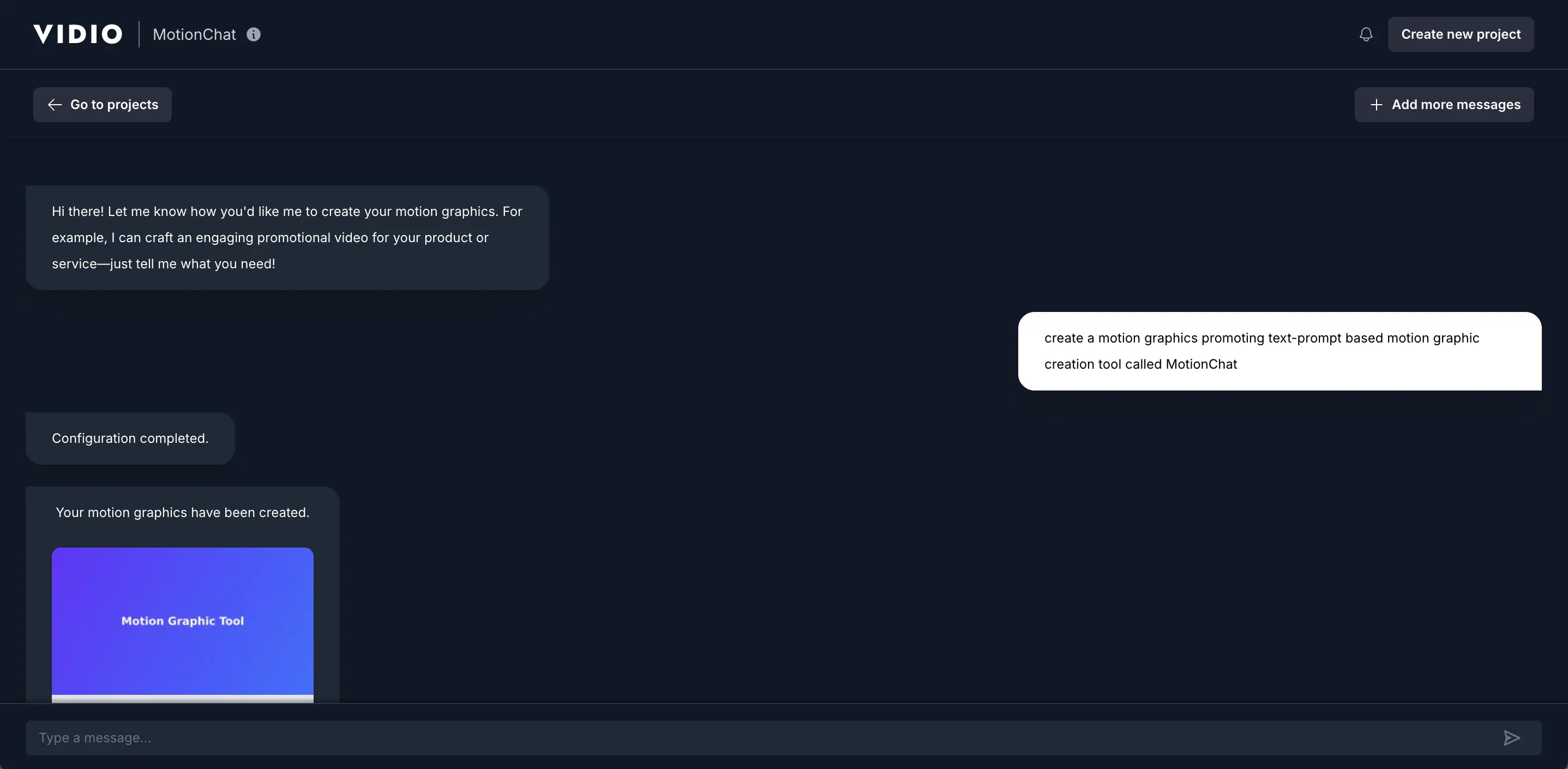
Key Features: VIDIO uses artificial intelligence to convert text prompts into dynamic, high-energy motion graphics within seconds - vidio.ai, vidio.ai. You simply describe the concept (e.g. “Bold intro with glowing text”) and the AI generates a slick animated video with synchronized music beats. No design skills are needed – it’s truly text-to-video automation. The tool offers various templates and animation styles to choose from, so you can match the look to your brand or tone - vidio.ai. Despite the simplicity, the output is high-quality and suitable for professional social content - vidio.ai.
Pricing: VIDIO provides a free tier (watermarked outputs) and pay-as-you-go credits for occasional use, as well as subscriptions for heavier users. The Premium plan starts at $7.90 (one-time purchase for 10 credits) and allows watermark-free exports - vidio.ai. For regular creators, the Pro subscription is about $12.90/month (billed annually) and includes a monthly allotment of credits at a lower per-video cost - vidio.ai. Higher plans (Business, etc.) offer even more credits and priority support. The free plan is a good way to test the tool, though your videos will bear a small VIDIO watermark - vidio.ai, vidio.ai.
Ease of Use & Interface: VIDIO’s interface is extremely beginner-friendly. The core of the experience is a simple text prompt box – you type a description of the motion graphic you want, select a template or style if desired, and let the AI do the rest - vidio.ai, vidio.ai. There aren’t complex timelines or editing controls to learn; the workflow feels as easy as chatting. This makes it ideal for marketers or small business owners who want quick results without learning traditional animation software. The platform handles the heavy lifting (like animation timing and effects) behind the scenes. Users have noted that the process “transforms manual editing into instant magic” by saving hours of tim - vidio.ai.
Template Library: While VIDIO can generate scenes from scratch, it also offers preset templates and styles to guide the AI’s output - vidio.ai. For example, you might pick a “fashion promo” or “sports highlights” style, and the AI will produce an animation tailored to that theme. These templates define things like color scheme, font, transitions, and visual effects, ensuring your video matches a certain vibe or brand aesthetic. This library of templates helps beginners achieve professional-looking results by giving the AI context for your project (e.g. energetic sale ad, elegant wedding title, etc.). You can still customize the text and some elements, but the template provides a polished starting point.
Export Options: VIDIO outputs finished motion graphics as standard MP4 video files, which are universally compatible with major platforms (Instagram, TikTok, YouTube, Facebook, etc.) - vidio.ai. After the AI generates your animation, you can download the MP4 and directly use it in ads, social posts, stories, or any marketing materials. (At this time, MP4 is the primary export format; other formats like GIF are not mentioned, but an MP4 can easily be converted to GIF if needed.) The resolution and length of exports may depend on your plan – for example, free users might be limited to shorter clips or lower resolution, whereas paid plans support HD videos and longer durations. Overall, the export process is simple: one click to download your video and then it’s ready to share - vidio.ai
Canva (Online Design & Animation Tool)
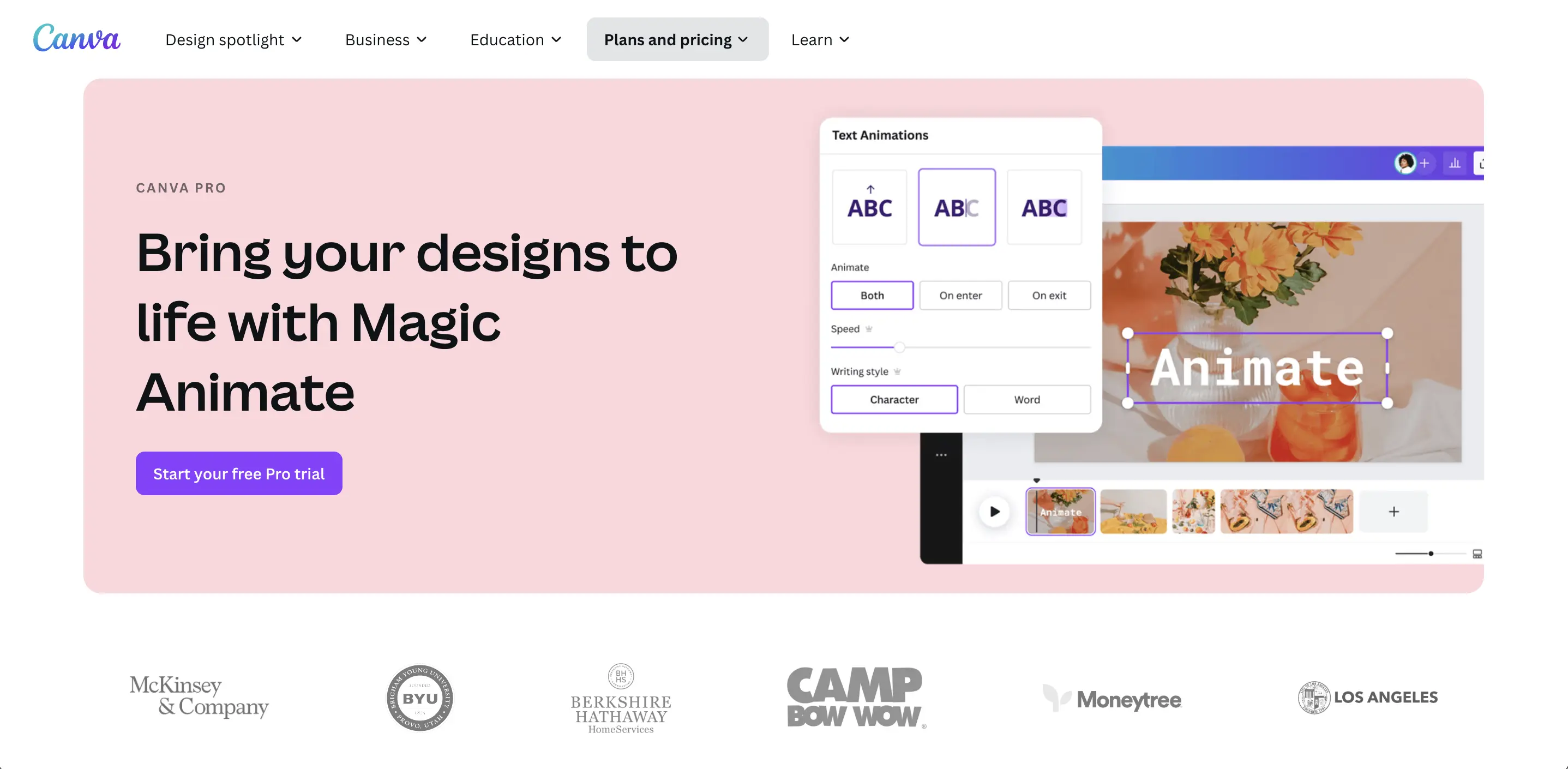
Pricing: Canva operates on a freemium model. The free plan is very generous – it includes access to the majority of Canva’s features and a large portion of the asset library. Free users get 5 GB cloud storage and over a million free photos and templates to work with - destruk.com, destruk.com. The free tier allows exporting designs with no watermark (unless you use premium stock media, which you can pay $1/image or so à la carte). For additional capabilities, Canva Pro costs $12.99/month for individuals (or around $119.99/year) - destruk.com, destruk.com. Pro unlocks multiple millions of assets, 1TB storage, premium templates, and advanced features like the background remover, brand kits, version history, and the magic resize (which lets you resize a design to multiple formats instantly), destruk.com, destruk.com. Canva Pro also lets you export in more formats (like SVG) and gives access to the content planner for scheduling social posts. There is also a Canva for Teams plan (priced per user) and special free access for nonprofits and educators, but for most, the choice is between Free and Pro. Ease of Use & Interface: Canva is widely praised for its intuitive, beginner-friendly interface. Even without prior design experience, users can quickly pick a template and customize it with a straightforward point-and-click editor. The interface is web-based and resembles a simplified combination of PowerPoint and Photoshop, tailored for ease. It features a side panel where you can search for elements or templates, and a canvas where you edit your design via direct manipulation. “Powerful, but still simple-to-use” is how one review described Canva’s experience - destruk.com, which sums up why it’s great for beginners. There are helpful touches like snap-to-grid alignment, one-click color palettes, and collaborative editing (you can share a design with teammates and edit together in real-time). Because Canva offers so many templates, the UI also includes a robust search and filter system to find the right design – for example, you can search “birthday Instagram Story” and get thousands of results - destruk.com. In short, Canva’s learning curve is very gentle, and it’s accessible via any modern browser (plus apps on mobile and desktop if needed).
Template Library: This is where Canva truly shines. Canva’s library contains pre-designed templates for almost every social media or marketing need imaginable. There are templates for social posts (Instagram, Facebook, Twitter, TikTok), stories, video ads, presentations, invitations, YouTube intros, and more. The free plan alone gives you over a million templates, graphics, and photos to start with - destruk.com. These templates are professionally designed, so beginners can just pick one and replace the placeholder text and images with their own content. Template categories are organized by platform and theme; upon logging in, you’ll see suggestions like “Instagram Post,” “Facebook Ad,” “YouTube Video Intro,” etc. You can also search within templates by keyword. For example, typing “sale animation” might show animated discount promo templates. Each template is fully customizable – you can change fonts, colors, durations of animations, etc., but you don’t have to start from scratch. Canva’s templates are a huge time-saver and ensure even novices can get polished results. (Note: Free users have access to a vast selection of templates, though some are marked Pro and require a subscription or one-time purchase to use.)
Export Options: Canva supports a variety of export formats. For static designs, you can download as PNG, JPG, or PDF (standard or print-quality) among others. For motion graphics or any design with animation, you can export as MP4 video or GIF - landingpage.tella.com. In practice, if you create an animated social media graphic in Canva (say with moving text and images), you’ll click the Download button and choose “MP4 Video” to get a video file, or “GIF” if you prefer an animated GIF for short looping animations - landingpage.tella.com. Canva will render the animation and provide the file for download. Video exports on the free plan are typically MP4 at up to 1080p resolution (full HD). One limitation: free users cannot export designs with a transparent background (that requires Pro, and only for static PNG or video with green screen workaround). But for most marketing content, the standard MP4/GIF options suffice. Canva also offers direct sharing/integration – you can publish your video straight to social platforms or schedule it if you have Canva Pro’s content planner. In summary, MP4 is the go-to format for animated posts (ensuring compatibility with all social media), while GIF export is handy for short looping graphics or embeds on websites - landingpage.tella.com
Adobe Express (formerly Adobe Spark)
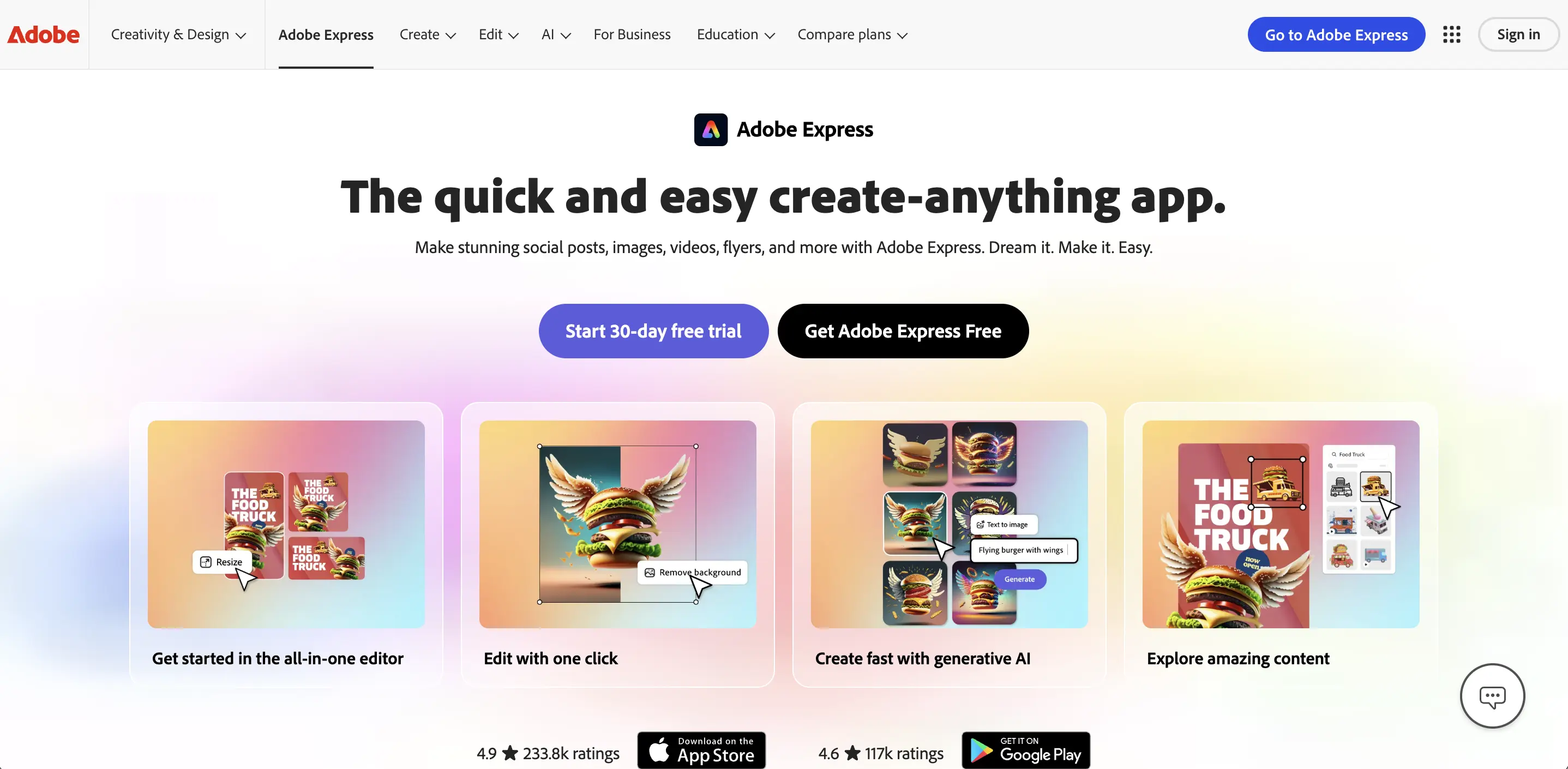
Pricing: Adobe Express offers a free plan and a paid Premium plan. The free plan includes a lot: thousands of templates, dozens of quick actions, some stock photos, basic editing features, and 2 GB of cloud storage - destruk.com. Free users can create and download projects, though certain premium templates or assets will be marked (you’d have to swap them out or upgrade to use them without watermark). The Premium plan costs $9.99/month (or about $99.99/year) - destruk.com. Premium unlocks the full content library (premium templates, 20,000+ Adobe Fonts, 160+ million Adobe Stock images), and features like the ability to add your own logos, fonts, and branding, create multiple Brand Kits, and use the content scheduler to plan social posts. It also expands storage to 100 GB - destruk.com. Notably, premium subscribers get access to additional Adobe apps: for example, Adobe Express Premium now often includes Adobe Photoshop Express and Adobe Premiere Rush as part of the package, plus the new Firefly AI features as they roll out. There is no watermark on exports even in the free version (unless you use paid stock media). Adobe Express frequently comes bundled or discounted for Creative Cloud subscribers, and there’s usually a 30-day free trial for Premium.
Ease of Use & Interface: Adobe Express is designed for simplicity, much like Canva. The interface is web-based, with a clean layout: a canvas in the center, main tools on the left sidebar (Templates, Text, Photos, Video, Background, etc.), and a context-sensitive properties panel on the right. Users have found Express “quick and easy to use for 90% of jobs, but with more powerful features available for when you want them.” - destruk.com. This nicely captures the balance Adobe struck – beginners can stick to the basics (dragging text and images, applying preset filters and animations), while experienced users can dig into adjustments and layer ordering if needed. The template browsing and search are straightforward, though as one review noted, the template selection isn’t as vast or searchable as Canva’s - destruk.com (still thousands of templates, just not millions). A big plus is the “Quick Actions” menu on the home screen – you don’t even have to open a full project to do tasks like converting a file or resizing an image - destruk.com. This is very user-friendly for non-designers who just need a fast tool. Moreover, Express’s integration means if you ever feel limited, you can easily open your project in a more advanced Adobe app. But for most social graphics and small motion clips, Express’s interface is delightful: visual, guided, and not overwhelming. It also has mobile apps, so you can start a design on your browser and later tweak it on your phone or vice versa.
Template Library: Adobe Express includes thousands of templates for social media, flyers, logos, banners, and even short video stories. While its library is smaller than Canva’s, it covers all the popular use cases. Templates are categorized by platform (Instagram story, Facebook ad, YouTube thumbnail, etc.) and by theme (sale, event, holiday, business, etc.). According to a Zapier review, template-wise Express falls behind Canva in quantity, but you’ll still find plenty of quality options - destruk.com. The templates often have a stylish, modern aesthetic (leveraging Adobe’s design expertise). Premium members get a larger selection, but even free users have a solid base to choose from.
One standout feature: Express lets you create Brand Kits (with your logo, colors, and fonts) and many templates are “brand-aware.” That means you can apply your Brand Kit to a template and it will auto-adjust the colors and fonts to match your brand – very useful for businesses aiming for a consistent look. Also, the content scheduler templates allow you to create a series of posts with consistent style. For video, Express provides templates for things like Instagram Reels or promotional videos, where scenes are pre-animated – you just swap in your text and media. Overall, while you might need to do a bit more tweaking to find the perfect template (per the review, sometimes you have to “spend a few minutes tweaking” to get it just right - destruk.com), the library is robust enough for most marketing needs.
Export Options: Adobe Express supports exporting your projects in all common formats needed for marketing. Static designs can be downloaded as JPG, PNG, or PDF. For motion graphics and videos, you can export as MP4 video (the primary format for any animated content). In fact, Express’s video editor mode only exports to MP4, since that’s ideal for sharing on social platforms - eatsupport.tees.ac.uk. If you create an animation or video in Express, you’ll hit the download/share button and typically get an MP4 file. You can choose the resolution (720p or 1080p) depending on your needs and plan. Express doesn’t export GIFs directly through the design interface, but note that one of its Quick Actions is “convert video to GIF,” which you can use if you need a GIF version - destruk.com. It also has a quick action to convert images to PDF or vice versa. Another notable export capability is direct publishing: Express can share your design straight to Facebook, Instagram, or other accounts if you link them, or generate a link to an Adobe Express web page for your project. But typically for motion graphic use, you’ll download the MP4 and upload it manually to your social platform for highest quality. There’s no watermark on exports even on free plan (unlike some competitors), which is great. In summary, MP4 video downloads are the main output for animations in Adobe Express - eatsupport.tees.ac.uk, and the process is easy – just a couple clicks from project to file.
VistaCreate (formerly Crello)
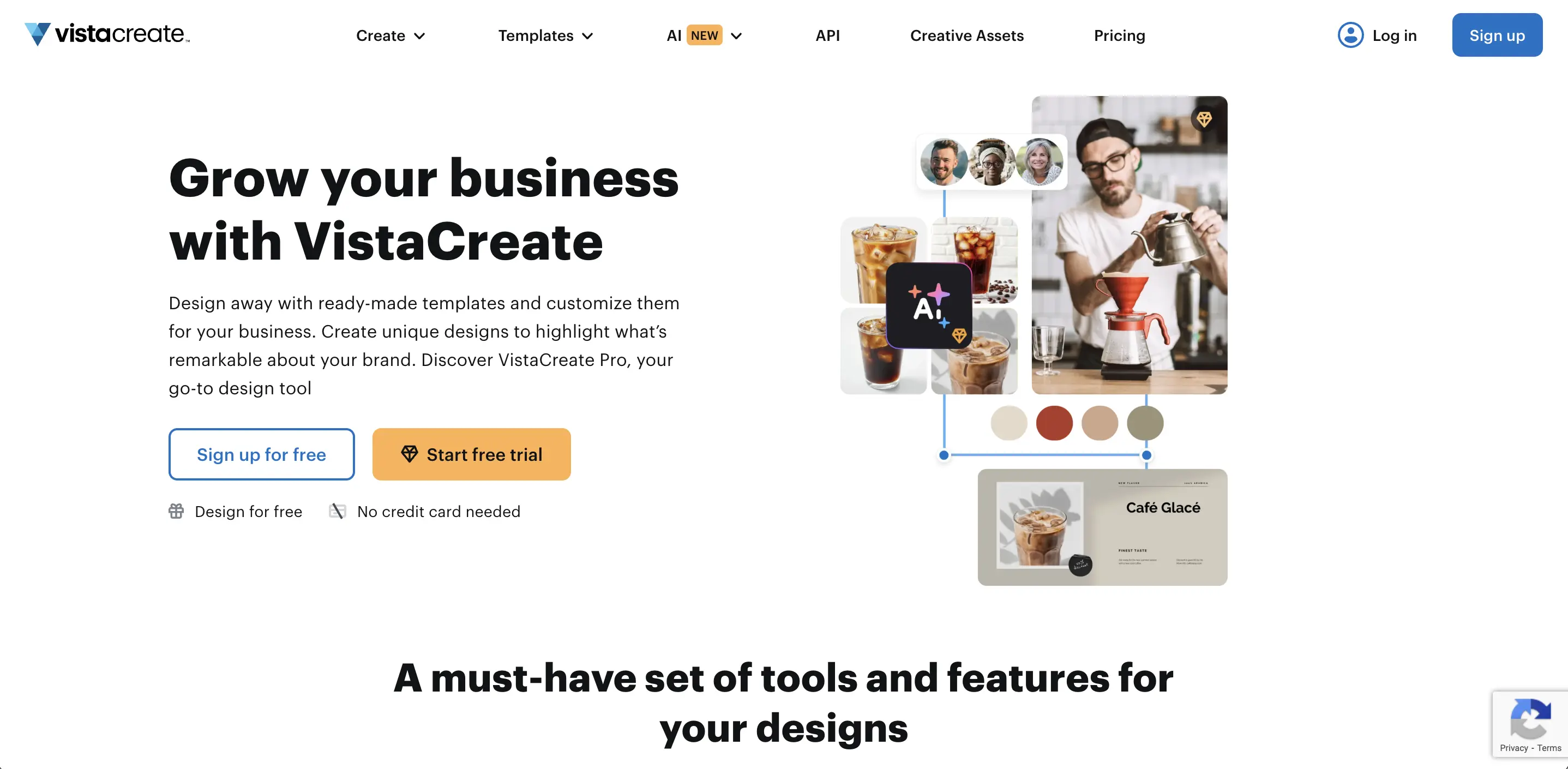
Pricing: VistaCreate stands out for how much it offers in its Free plan. The free plan is forever free and includes the vast majority of features: you get access to 100,000+ design templates in all categories (virtually all templates are available to free users) - destruk.com, destruk.com, over 1 million free media assets, the ability to download designs (even animated ones) without watermark, and even a generous 10 GB of storage for your uploads/projects - destruk.com. This means a casual user could potentially use VistaCreate indefinitely without paying, unlike some tools that heavily gate their content. The Pro plan is priced at $13/month (or about $10/month if paid annually) - destruk.com, destruk.com. Pro unlocks unlimited storage (versus 10 GB), expands the stock library to 70M images/videos, allows creating multiple Brand Kits and collaborating with team members, and enables the one-click resize tool for designs - destruk.com. It also allows exporting designs with transparent backgrounds and gives priority support. There isn’t a tiered range of plans – just Free and Pro (and an Enterprise option for larger organizations). Given how much is in the free version, many users might not need to upgrade unless they require team features or a specific Pro asset. It’s worth noting that VistaCreate often runs promotions or is included free for certain VistaPrint customers. But in any case, it’s one of the more affordable options when you do go Pro, and you can month-to-month it.
Ease of Use & Interface: VistaCreate’s interface is very user-friendly and nearly identical to Canva’s in layout. This is intentional – Crello was often called a “Canva alternative.” Users get a home dashboard with template categories; clicking one opens the editor, which has a sidebar of objects (Text, Photos, Videos, Music, Objects, etc.) and the canvas in the center. The learning curve is minimal: if you can edit a PowerPoint slide, you can edit a VistaCreate design. Drag in an element, select and type to change text, use the top toolbar to change colors or fonts. Animating an element is often as simple as toggling an “animate” option and choosing an effect (for example, making text pop up or an image slide in). A review noted that VistaCreate’s free plan comfortably goes toe-to-toe with Canva and Adobe Express in capabilities - destruk.com, implying it doesn’t skimp on what you can do. One-click style switches are nice: Vista has a “Styles” feature to change the color palette and font of any template instantly - destruk.com, which helps if you’re not sure what looks good. Also, because everything is online, there’s no installation needed – you just sign up and start designing in your browser. The inclusion of advanced features (like video timeline trimming or keyframe animation) is limited – VistaCreate keeps it simple, which is good for beginners. Overall, if you find Canva easy, you’ll find VistaCreate easy; if you’ve never used either, VistaCreate provides tooltips and tutorials to get you started quickly.
Template Library: VistaCreate offers over 100,000 design templates across social media posts, stories, ads, presentations, banners, and printables - destruk.com. Importantly, virtually all these templates are available on the free plan (according to their website and user reviews, they did not heavily restrict template access for free users) - destruk.com, destruk.com. This is a huge plus for budget-conscious creators. The templates are modern and cover a wide range of styles – whether you need a funky Instagram video, a professional LinkedIn post, or a cute Pinterest pin, you’ll find starting points. Many templates come in animated form (marked with a little “play” icon), which is great for motion graphics; you can also take any static template and add motion by inserting animated elements or videos. VistaCreate also has templates for specific video formats like YouTube intros/outros, TikTok videos, Instagram Stories, etc., which have the optimal dimensions and some preset animations. Another benefit is their print design templates (flyers, business cards, etc.) since VistaPrint is their parent company – you can design in VistaCreate and then order prints, though that’s outside our scope. Template search is straightforward, though not quite as refined as Canva’s (the library is large but not in the millions). Still, you can search by keywords and filter by format. VistaCreate’s template quality and quantity are on par with top tools, meaning beginners have a wealth of inspiration to choose from. And if you upgrade to Pro, you get some extras like creating your own unlimited custom templates and resizing existing ones to new formats with one click.
Export Options: VistaCreate allows you to download your designs in multiple formats, similar to other tools. Static designs can be exported as JPEG, PNG (including transparent PNG on Pro), or PDF. For motion graphics, you have two main options: MP4 video or GIF. According to VistaCreate’s help center, if you create an animated design (either using an animated template or adding animations yourself), you can download the result as an MP4 video or as a GIF file - support.create.vista.com. This is perfect for social media — MP4 is ideal for posting videos on Instagram, Facebook, LinkedIn etc., while GIFs can be great for Twitter or email embeds where silent looping animations are effective. The editor’s Export button will automatically suggest relevant formats; e.g., if you made an Instagram Video Story, it will default to MP4. You can often choose the resolution (most likely 1080p for videos). Free users have full download abilities, but note that some formats like transparent PNG or resizing outputs are Pro-only. Also, the Pro plan allows you to export in SVG for static vector designs. For most marketing needs, the free plan’s exports are sufficient: you’ll get a high-quality MP4 or standard GIF without watermarks. Additionally, VistaCreate offers a direct posting feature to social media if you connect accounts, and even a logo maker that exports PNG/SVG. But in summary, the key export for motion work is MP4 video (for any animated content of significant length) and GIF (for short, looping animations), both supported natively - support.create.vista.com.
Animaker (Animated Video Maker)
Pricing: Animaker operates on a tiered subscription model with a free plan for basic use. The Free plan lets you try out most features with some limits: you can create videos up to 2 minutes long, with a small Animaker watermark, and you’re limited to a certain number of downloads per month (currently 3 downloads/mo in HD with watermark) - speechify.com. Free users can access a subset of templates and assets (some premium ones will be marked off), and exports are capped at HD 720p. To remove watermarks and unlock more content, you’ll need a paid plan. The first paid tier is Starter, around $35/month (or ~$228/year, which averages ~$19/mo if annual) - speechify.com. Starter allows 15 minute videos, Full HD 1080p quality, more premium assets, and more downloads per month - speechify.com. Next is Pro at about $79/month (or ~$49/mo annual) - speechify.com, which extends to 30 minute videos, 2K resolution, a larger asset quota, and advanced features (like custom fonts, more characters, etc.). Finally, there’s an Enterprise plan for teams and unlimited use, with 4K exports and reselling rights - speechify.com, speechify.com. It’s worth noting that Animaker’s pricing was updated in 2025: some sources cite a Basic plan at $20 (annual) and Starter at $35 – effectively, Starter is the main individual plan now. Students and educators can sometimes get discounts. While Animaker isn’t the cheapest, those prices reflect the robust animation capabilities and the fact that you’re getting a cloud-based alternative to something like Adobe After Effects or Toon Boom (which have steep learning curves). If you only need occasional use, you might stick with Free (with watermark) or subscribe just for a month for a project.
Ease of Use & Interface: Animaker is built to be user-friendly for those new to animation. It uses a visual drag-and-drop interface with a timeline at the bottom, similar to video editing software but much simpler. Users have reported that Animaker has a **“user-friendly interface” and that anyone can create animated videos with it regardless of experience level - speechify.com. The workspace includes a stage where you arrange characters and text, and a timeline where you set when each element appears, moves, or exits. For beginners, Animaker provides lots of guided content: there are tutorials, a knowledge base, and tooltips explaining each function - speechify.com. Many complex actions (like animating a character walking in) are handled by selecting a preset from a menu rather than manual keyframing. This step-by-step approach (“build your scene, then animate it”) demystifies the animation process. The template system also helps ease of use: you can start with a template that already has a sequence of animated scenes and then just edit text or swap characters. One thing to note: because Animaker offers more animation control, it’s slightly more complex than a pure design tool like Canva. You will need to use the timeline to synchronize things and might spend a bit more time tweaking animations. However, compared to learning full animation software, Animaker is a breeze. It breaks down the process into approachable steps and even advanced features like character lip-sync are automated. In summary, Animaker is beginner-friendly for its category (animation) – it’s designed so that marketers and content creators can animate without prior training, though complete novices should expect to invest some time learning the basics.
Template Library: Animaker provides 10,000+ ready-to-use templates for various types of videos - animaker.com. These include templates for social media video posts, promo videos, Instagram stories, video ads, business presentations, whiteboard explainer videos, and more. Essentially, if you need a starting point – say a “Facebook Marketing Promo” – Animaker likely has a template where the scenes, animations, and timings are pre-built. You can just edit the text placeholders and swap logos or images, and you’ll have a polished animation. There are also template categories for intros, outros, video menus, etc. One thing Animaker is known for is its extensive character library. Templates will often feature characters (cartoon people or objects with faces) that act out scenes. You can use them as-is or customize the characters (Pro plans let you build custom characters by choosing hairstyles, outfits, etc.) - speechify.com. Animaker also offers a large library of stock videos and photos (some via integration with services like Getty or Giphy), particularly useful in their “video maker” mode where you combine live footage with animations. Free plan users get access to a decent selection of templates and assets, but some premium templates (especially longer or more complex ones) are reserved for paid plans. Nonetheless, many reviews praise Animaker’s range of templates and assets as being a key advantage for quickly producing professional-looking results - speechify.com. For example, you’ll find templates with trendy flat design animations, kinetic typography (animated text) templates, etc., all categorized by use-case. This library means even if you’re not an animator, you can start with a template that matches your vision and just customize the content – Animaker takes care of the animation logic.
Export Options: Animaker’s export options are straightforward but somewhat limited in formats. You can export your video as an MP4 video file (this is the primary option) - speechify.com. Videos can be downloaded in various resolutions depending on your plan: Free allows HD 720p, Starter allows HD 1080p, Pro allows 2K, and Enterprise 4K. Animaker also recently enabled GIF export for short animations, available on some plans or for shorter duration projects (for instance, a quick animated graphic can be exported as GIF if it’s just a few seconds). However, one notable limitation mentioned in a review is that Animaker exports to MP4 only (no direct export to other video formats or animated SVG/Lottie) - speechify.com. This isn’t an issue for most marketing uses, since MP4 is universally accepted. If you need an animated GIF and the feature isn’t directly available, a workaround is to export MP4 and then use a separate converter (though Animaker’s higher-tier plans might allow GIF download up to a certain number per month as indicated in their plan details - speechify.com). Animaker also supports direct sharing to platforms like YouTube or Facebook from within the app, which can save time if you connect your accounts. But generally, you will download the MP4 and then post it or embed it as needed. There is also a feature to generate a shareable video link (Animaker will host the video for you to share a link, useful for client review). Keep in mind that on the free plan, exports come with an Animaker watermark and outro card - speechify.com, speechify.com, and you have a limited number of downloads per month. Paid plans remove the watermark and allow more downloads. In conclusion, Animaker focuses on standard video outputs (MP4), ensuring compatibility with all major platforms, and keeps the process simple for the user.
Powtoon (Animated Presentation & Video Maker)
Key Features: Powtoon is an online tool for creating animated videos and presentations, often used for marketing, training, and educational content. It’s known for its large collection of characters, props, and scene templates that let you build animated explainer-style videos without drawing anything yourself - saasgenius.com. You can choose a style (modern edge, whiteboard sketch, cartoon, infographic, etc.) and Powtoon provides pre-made graphics and scenes in that style. Key features include: a drag-and-drop timeline editor where you build your video scene by scene; a library of hundreds of templates and ready-made scenes (e.g. a “subscribe to our channel” animated outro, or a “meet the team” slide) - saasgenius.com; and a variety of animation effects for text and objects (entrances, exits, hand-drawn writing effects, etc.). Powtoon also supports adding voiceovers and background music easily – you can record narration in the app or upload audio, and there’s a built-in music library. One notable feature is Powtoon’s focus on presentations as well as videos. You can create a slide deck that is animated (like an engaging alternative to PowerPoint) and even present it live or export to PDF if needed. For marketing users, Powtoon’s integration shines: it has direct export or share options to YouTube, Vimeo, Facebook, HubSpot, etc., making distribution easier - saasgenius.com. They also introduced Powtoon Capture for screen recording and webcam recording, so you can incorporate screencasts with animations (good for product demos or webinars). Overall, Powtoon’s feature set is geared toward making it simple to “make anything interesting™” by adding visuals and animation to your message, with no prior animation skill.
Pricing: Powtoon offers a free plan with significant restrictions, and several paid tiers. The free plan allows creating videos of up to 3 minutes with Powtoon branding (watermark and outro) and 100 MB storage. However, free users cannot download videos as MP4 – you can only share them via Powtoon’s viewer or export to YouTube with a watermark. Because of these limits, most serious users will consider a paid plan - saasgenius.com, saasgenius.com. The paid plans as of 2025 are: Pro at about $19/month (when billed annually) - saasgenius.com. Pro removes watermarks, allows downloads in full HD, up to 10 minutes video length, 2 GB storage, and up to 5 exports per month - saasgenius.com. Next, Pro+ at $59/month (annual) increases to 20 min length, 10 GB storage, unlimited exports per month, and access to more premium assets like royalty-free stock videos - saasgenius.com. The top tier is Agency at $99/month (annual) which provides 100 GB storage, up to 30 min videos, reseller rights, and allows collaboration with multiple accounts - saasgenius.com. (There’s also an Enterprise offering for large teams with custom pricing.) If paying monthly (not annual), the prices are higher (e.g. Pro ~$29/mo). Powtoon’s pricing is on the higher side compared to some competitors, and some reviews mention that it’s more expensive than other tools for what it offers - saasgenius.com. However, they do run promotions for educators and students, and the value can be justified if you create a lot of polished animations with it. For marketers making occasional social videos, the Pro plan at ~$19/mo (annual) is usually sufficient – it gives you MP4 downloads and removes the watermark.
Ease of Use & Interface: Powtoon is often praised for being beginner-friendly and “fun” to use. It has been around for over a decade, so its interface is mature and refined for ease. One review highlighted Powtoon’s step-by-step building process that breaks down complex animation into bite-size steps, making it easy to follow - saasgenius.com, saasgenius.com. The interface is similar to a slide presentation app: you build your video scene by scene (each scene is like a slide). On each scene, you can position characters, text, and props. Timing and animations are controlled on a timeline, but it’s a simplified timeline where each object has an appearance duration and you can drag when it enters/exits. Powtoon provides many presets – for example, you can add a “hand” that will automatically animate writing or moving an object, or apply a “smart animation” to make an object jump or rotate without you keyframing it. The combination of templates and an easy customization panel makes it straightforward: you pick a style, pick scenes, then edit text and swap colors to match your brand - saasgenius.com, saasgenius.com. If you’re not a designer, Powtoon’s assets are pre-illustrated, so you won’t be creating visuals from scratch. This can be somewhat limiting for advanced users who want more creative freedom, but it greatly helps newcomers (it’s noted that advanced users might find the template-centric approach restrictive, but for beginners it’s ideal - saasgenius.com). The interface also includes preview and quick share options, and a decent amount of guidance – Powtoon has many tutorials, an active community forum, and even an onboarding wizard. Additionally, because it’s been used widely in education and business, a lot of third-party YouTube tutorials exist. All in all, Powtoon’s learning curve is low, and you can get a simple animated video done in 20 minutes or less by plugging content into a template. It’s a bit more complex than something like Canva (due to timeline), but users consistently rate Powtoon’s usability highly - saasgenius.com, saasgenius.com.
Template Library: Powtoon comes with an “incredible collection of templates, themes, characters, backgrounds, and scenes,” as one review put it - saasgenius.com. When starting a new project, you can choose from a variety of templates based on your goal: marketing video, infographic, product demo, announcement, social clip, etc. These templates are fully designed sequences with animated transitions. You can also start with “blank” but in a chosen style (e.g. infographic style will load a set of themed assets). The themes/styles include cartoon, whiteboard (where a hand draws on a whiteboard), modern edge (more corporate sleek animations), infographic, and more – giving different looks to your video. Within each style, the character sets and graphics are consistent, so you can maintain a coherent look. Powtoon claims to have hundreds of scene templates and assets; for example, there are characters in various poses and industries (business people, teachers, doctors, etc.), backgrounds like office scenes or abstract shapes, and props/icons for almost any concept (from social media icons to charts and devices). Many of these assets are free; some premium ones might be marked for higher-tier users. For social media content, Powtoon’s template library has specific quick video templates (like a 15-second sale promo or Instagram story format templates). It also offers templates for presentations that you can play as slide decks. The template library is integrated with search, so if you type “marketing” or “holiday” you’ll see related templates. An advantage of Powtoon’s library is that it’s been expanded over years of user feedback, so most common video topics have a starting template. And you can mix and match: use a scene from one template and another scene from a different one in the same video. This library approach, combined with easy customization, is why many consider Powtoon a top choice for making engaging content quickly – it provides the creative building blocks up front.
Export Options: Powtoon offers several export and publishing options, especially for paid users. If you have a paid plan, the primary export is MP4 video – you can download your Powtoon as an MP4 file to your computer (in SD, HD, or Full HD depending on plan). This is crucial for uploading to platforms like Instagram (which require a video file). Powtoon also has direct upload integration: you can publish directly to YouTube, Vimeo, Facebook, or LinkedIn from within Powtoon’s interface - saasgenius.com, by linking your accounts. This is convenient as it skips the download step. Additionally, Powtoon can export as PowerPoint or PDF for presentation use – essentially it snapshots each slide, which is more for static presentations. For Pro+ and higher, you have the option to export with transparent background video (MOV with alpha channel) which some use to overlay animations on other videos. There’s also an animated GIF export option, but it may be limited to short clips or certain plans. The free plan does not allow MP4 download – free users can only share a Powtoon via a link or embed (and it will have branding). Paid plans remove the Powtoon watermark/branding on exports - powtoon.com. As for quality, Pro downloads are up to Full HD 1080p, Pro+ can do Full HD and possibly 4K for some plans (though 4K might be limited to Agency). A nice feature: Powtoon’s platform is online, so your projects are saved in the cloud and you can re-export in different qualities anytime. They also support collaboration on Agency plan, where multiple team members can work on a project and share it internally. In summary, to get the most out of Powtoon’s export capabilities, a paid plan is needed – then you can download your videos as standard MP4 files and use them anywhere. Integration with social platforms is a bonus that can streamline your workflow (e.g., one-click to push your video to YouTube when done). The focus remains on MP4 since that’s the most useful format for distribution.
InVideo (Online Video Editor & Motion Graphics Maker)

Pricing: InVideo offers a free plan along with two main paid plans (and recently, additional AI-specific plans). The Free plan is quite generous in content: it gives access to over 6,000 templates and 3M+ standard media library assets - zebracat.ai. Free users can create videos up to 15 minutes long, but exports will have an InVideo watermark and there are monthly limits (currently, watermarked exports up to 60 videos per month and some limits on premium stock usage) - zebracat.ai, zebracat.ai. The free plan is great for trying out the platform or making internal drafts, but you’d upgrade to remove watermarks for public-facing content. The first paid tier is the Business Plan, which is about $15/month (billed annually; $30 if month-to-month) - zebracat.ai. Business plan removes all watermarks, allows 60 HD exports per month without watermark - zebracat.ai, and grants you some premium stock usage (e.g., 10 iStock premium media assets per month are included) - zebracat.ai. It also includes 10GB cloud storage and the ability to create custom brand kits. The next tier is Unlimited Plan at $30/month (annual; $60 monthly) - zebracat.ai. Unlimited gives you unlimited exports (no monthly cap) - zebracat.ai, more premium stock (120 iStock per month), 100GB storage, and priority support. Both paid plans let you use the Advanced editor fully and include the mobile app subscription. In 2025, InVideo also launched InVideo AI plans (Plus and Max) geared toward their newer AI video generation features - zebracat.ai, zebracat.ai. Those have separate minute-based pricing (e.g., Plus ~$25/mo for 50 AI video minutes, Max ~$48/mo for 200 minutes) - zebracat.ai – relevant if you heavily use text-to-video or AI avatar features. However, for most looking at motion graphics tools, the Studio (Business/Unlimited) plans are the focus. There is no watermark on any paid plan exports. In summary, InVideo’s free plan is one of the better free offerings (lots of templates and no time limit on projects, just watermark) - zebracat.ai, and the paid plans are reasonably priced given the stock media included and robust features.
Ease of Use & Interface: InVideo strikes a balance between template-based simplicity and a more hands-on video editing approach. If you choose a template and stick mostly to replacing text and images, it feels very easy – similar to editing a slideshow. The interface in storyboard mode basically lets you edit scene by scene with prompts. However, if you switch to the Advanced Timeline (to adjust timing or layers), it becomes more akin to a traditional video editor with multiple tracks. Overall, it’s designed so that beginners can get results without touching the timeline, but more savvy users have the control if needed. Users often commend InVideo for its “mix of ease of use with strong tools” – it’s easier to learn than pro software like Adobe Premiere, but far more capable than very basic tools - zebracat.ai. The UI has a lot of features, so it can be initially a bit overwhelming compared to something like Canva. That said, it provides tutorials and an active community. Also, the AI text-to-video is a huge ease-of-use boon: you can literally paste your script and let the system auto-create the initial cut, which massively reduces the effort needed - zebracat.ai, zebracat.ai. From there, tweaking is drag-and-drop. Another aspect is performance – since it’s browser-based, heavy projects might feel slow on older computers, but InVideo has made improvements (and being cloud-based, some rendering is server-side). A review in 2025 noted that InVideo’s free plan gives you more than many others (like Canva or Animoto) and is easier to use than advanced tools - zebracat.ai, zebracat.ai. The learning curve is moderate: not as instant as Canva, but most marketers can pick it up in a day or two of playing around. In summary, InVideo is beginner-friendly given its scope, using templates and AI to simplify video creation, and offering a clear path to more advanced editing when you’re ready.
Template Library: InVideo provides one of the largest template libraries in the space – over 6,000 templates (some sources even say 7,000+ now) covering virtually every social platform and video type - zebracat.ai. These include templates for YouTube intros, Facebook ads, Instagram reels, TikTok videos, LinkedIn video posts, slideshow videos, list videos, and more. The templates are very polished, with trendy animations and transitions. Many are designed specifically for marketing: you’ll find templates titled like “Summer Sale Promo” or “Real Estate Listing Video” or “Travel Instagram Story.” Using a template is straightforward: it loads a sequence of scenes with placeholder text/images, and you just edit each one. This drastically speeds up content creation, as the timing and visual style are done for you. InVideo also categorizes templates by aspect ratio (wide 16:9, square 1:1, vertical 9:16) so you can pick one appropriate for the platform you’re targeting. Additionally, InVideo’s integration of stock media means that templates can come pre-filled with relevant video clips that you can replace or keep. For example, a fitness promo template might already include a stock video of people exercising behind the text. If you don’t have your own footage, you can use these or swap them with a different stock clip from the library. Another neat thing: you can save your customized templates for re-use (helpful for recurring series). And if you’re starting from scratch, InVideo’s “text-to-video” template wizard essentially automates template selection by analyzing your script and picking scene templates to match (like a list scene for a list item, etc.). Overall, InVideo’s template library is a major strength – it keeps content creation quick and ensures even novices can create professional-quality videos quickly and easily - speechify.com.
Export Options: InVideo allows you to export videos in standard formats suitable for online use. All videos are exported as MP4 files (up to the resolution your plan supports, which is 1080p Full HD for Business and Unlimited). The export process is simple: once your video is done, you click Export, and InVideo will render the video (cloud-rendering, so you wait a bit and then download the MP4). There is no watermark on paid-plan exports, while free plan exports will have a small watermark. InVideo does not offer direct GIF export, since it’s more focused on full video content, but you could take a short exported MP4 and convert to GIF externally if needed. It’s worth noting that InVideo, unlike some simpler tools, can handle longer videos (up to 15 minutes on paid plans, even 30+ minutes on Unlimited or if you request extended limits). This means you could create not just short social clips but even longer form videos like webinars or YouTube content. For those, MP4 is the format you’ll use. InVideo also supports video resolutions and aspect ratios: you can choose vertical or square and it will export appropriately sized MP4 files (e.g., vertical 1080x1920 for stories/reels). The platform does not currently support exporting to editable formats like project files (it’s not a local software, so you can’t get say an After Effects file – but you can always re-edit in InVideo itself since projects are saved online). One unique feature: if you have the mobile app, you can export on desktop and then access the video on mobile or vice versa, since projects sync. Additionally, InVideo added an “Instagram publish” feature recently where you can push a video to Instagram via their mobile app. But generally, downloading the MP4 and uploading to your social platform manually is the way to go, ensuring best quality and control. In terms of file formats, MP4 (with H [264]. encoding) covers 99% of needs for web and social, so it’s a wise choice that InVideo focuses on that. The bottom line: you get a high-quality MP4 video as output, suitable for all major platforms, with no format hassle – just render and share. *
Comparison Table of Key Features and Pricing
Below is a side-by-side comparison of the highlighted tools, focusing on whether they offer a free plan, entry-level pricing, and a snapshot of their Key Features:
| Tool | Free Plan | Paid Plans (Starting) | Key Features (Summary) |
|---|---|---|---|
| VIDIO | Yes – Free tier (watermarked exports) vidio.ai | Premium credits from ~$7.90 one-time; Pro subscription from ~$12.90/mo vidio.ai vidio.ai | AI text-to-video generation in seconds; no design skills needed; offers templates/styles for different looks vidio.ai vidio.ai ; exports in HD MP4 ready for social vidio.ai . |
| Canva | Yes – Free for 1M+ templates & 5 GB storage destruk.com destruk.com | Pro at $12.99/mo (or $119.99/yr) destruk.com destruk.com ; Canva for Teams available | Drag-and-drop design tool; extremely intuitive UI; huge template library (social posts, ads, videos) destruk.com ; basic animation effects for text/elements; integrates millions of stock images/videos; exports as MP4 or GIF for animations landingpage.tella.com . |
| Adobe Express | Yes – Free (basic features, 2 GB storage) destruk.com | Premium at $9.99/mo (adds brand kits, 100 GB storage, full content library) destruk.com | Quick Actions (remove background, convert to GIF, etc.) for speed destruk.com ; advanced editing options like layers & color filters in a simple UI destruk.com ; thousands of templates (though fewer than Canva) destruk.com ; tight integration with Adobe Stock and other Adobe apps destruk.com ; exports images or MP4 video (no watermark on free). |
| VistaCreate | Yes – Free (100K+ templates, 1M+ free assets, 10 GB storage) destruk.com destruk.com | Pro at $13/mo (unlimited storage, 70M assets, team features) destruk.com destruk.com | Canva-like tool with a large free content offering; 100K templates across social, web, print destruk.com ; brand kit with one-click style adjustments destruk.com ; includes animations and video templates; exports as JPG/PNG/PDF and animated MP4/GIF support.create.vista.com . |
| Animaker | Yes – Free (up to 2 min videos, 3 downloads/mo with watermark) speechify.com speechify.com | Starter ~$35/mo, Pro ~$79/mo (monthly plans; cheaper if annual) speechify.com speechify.com | 2D animation studio in-browser; library of animated characters & scenes speechify.com ; auto lip-sync for voiceovers speechify.com ; 10K+ templates for explainer videos, promos, etc. animaker.com ; supports text-to-speech and rich text animations speechify.com speechify.com ; exports in MP4 (HD/2K/4K by plan) speechify.com . |
| Powtoon | Yes – Free (3 min videos with Powtoon branding; limited export options) saasgenius.com | Pro $19/mo; Pro+ $59/mo; Agency $99/mo (annual pricing) saasgenius.com saasgenius.com | Animated video/presentation maker; very beginner-friendly step-by-step interface saasgenius.com ; hundreds of templates and styles (whiteboard, cartoon, etc.) saasgenius.com ; large asset library of characters & props; can share via link or direct upload to YouTube/Vimeo saasgenius.com ; paid plans allow MP4 downloads in HD. |
| InVideo | Yes – Free (6000+ templates, 3M standard assets; watermark on exports) zebracat.ai zebracat.ai | Business $15/mo; Unlimited $30/mo (annual rates) zebracat.ai zebracat.ai ; (Separate AI plans from $28/mo) zebracat.ai | Online video editor with timeline + templates; AI text-to-video feature generates videos from scripts zebracat.ai ; huge stock library (20M+ assets) zebracat.ai zebracat.ai ; supports team collaboration and brand kits; ideal for marketing videos, listicles, promos; exports in Full HD MP4 (no watermark on paid) zebracat.ai . |
Each of these tools enables creators to produce engaging motion graphics directly in the browser, without installing software. The best choice depends on your specific needs – for quick social posts with animated text, a simple template-driven tool like Canva or VistaCreate might suffice. For more character animation or explainer videos, Animaker or Powtoon offer specialized capabilities. If you want a blend of advanced video editing with templates, InVideo or Adobe Express could be more suitable. And for cutting-edge ease, VIDIO’s AI-powered approach can generate an instant starting point for your motion graphic, which you can then refine. By leveraging one or more of these platforms, even a total beginner can create professional-looking marketing videos and social media graphics that incorporate motion – all with just a web browser and a bit of creativity. Happy animating!
Top related tools
4Ask our AI agent anything you want
This assistant can help you with guidance on what tools to use for your video editing needs.
Ask now