How to Stitch Videos Online Easily: A Guide for Content Creators

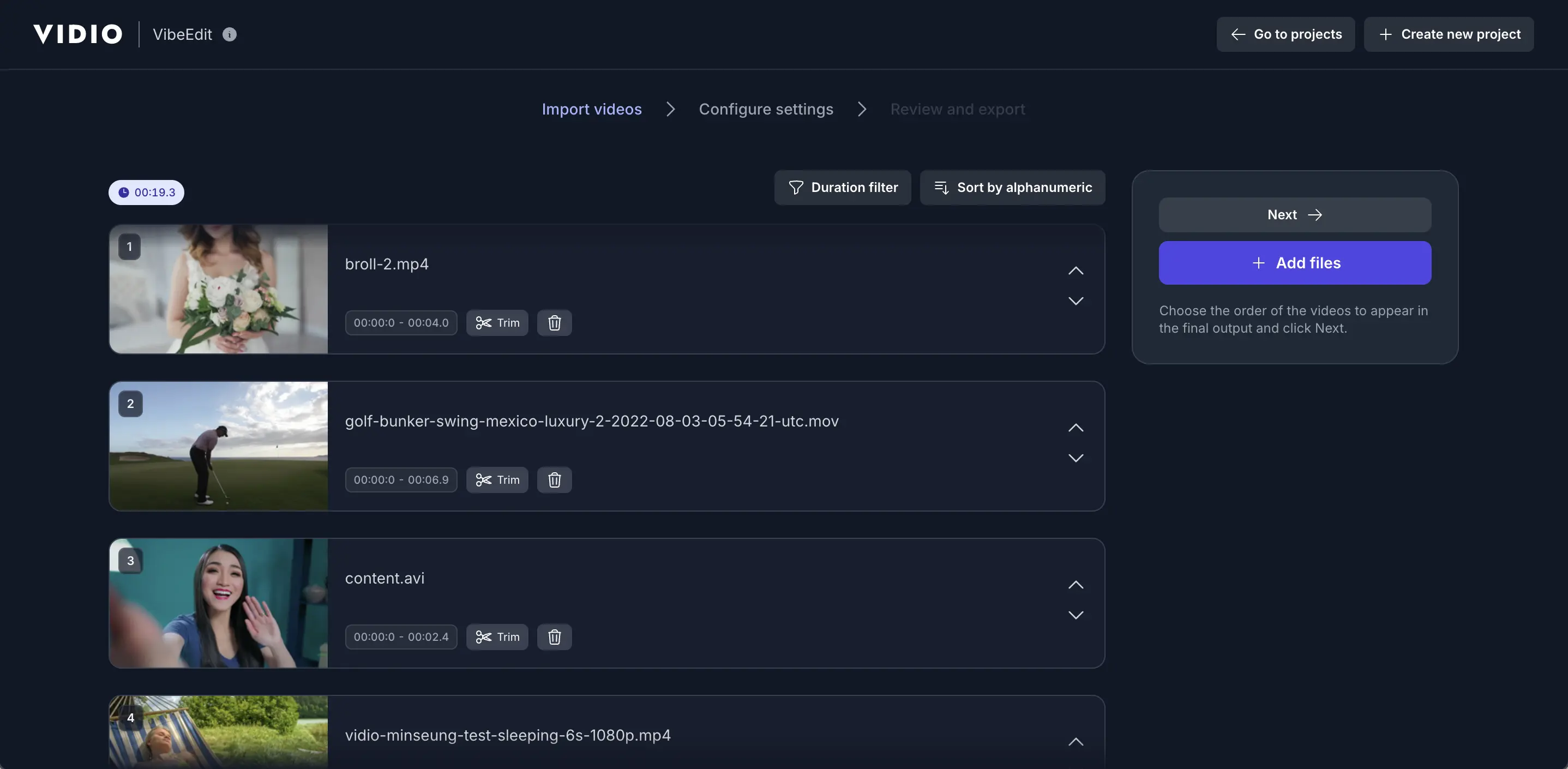
Stitching video clips together is a common task for content creators, marketers, and casual users. Whether you’re making a highlight reel, a tutorial, or a social media video, combining multiple clips into one smooth video is often needed. The good news is that you don’t need complex software or technical skills to stitch videos online – several free tools can do it in just a few clicks. In this guide, we’ll focus on VIDIO’s free online video stitching tool, showing how it works step-by-step. We’ll also compare it to other popular video joiners like Kapwing, Adobe Express, and Canva. You’ll see how all these tools let you combine video clips easily on any device, so you can quickly produce high-quality merged videos without hassle.
VIDIO is an AI-powered video editing platform designed to make video creation effortless. It “simplifies the video creation process, making it accessible even for those with no prior editing experience” [1]. In practice, VIDIO’s Video Stitcher (aka video merger) tool lets you drag-and-drop multiple clips and stitch them together into one seamless video [2][3]. It handles everything automatically – resizing clips, adding transitions or audio tracks if needed, and rendering the final video using fast GPU-accelerated processing [4]. The result is a high-quality merged video, all done in your browser with no software to install. We’ll explore VIDIO’s features and ease-of-use below, then give a clear step-by-step on using it. Finally, we’ll look at other best video stitching tools online (Kapwing, Adobe Express, Canva), with a quick comparison of their pros and cons.
VIDIO’s Free Online Video Stitcher: Features and Advantages
VIDIO’s video stitching tool lives on the web, so you don’t need to download anything. You simply visit the VIDIO video merger page, and you can start uploading. The interface is intuitive and drag-and-drop – users upload clips, arrange them, and let the AI merge them. VIDIO uses advanced AI algorithms to combine clips into a polished, professional-quality video [2]. Key features and advantages include:
- AI-Powered Automation: VIDIO’s tool automatically handles the complex editing work. As you upload and order your clips, the AI merges them into a single video seamlessly [2][3]. You don’t need to manually trim or align clips (though you can make simple edits if desired).
- Easy Drag-and-Drop Workflow: Upload your videos with a simple drag-and-drop or by clicking the upload button. VIDIO displays the progress as files upload[3]. When uploads finish, you can drag clips into the desired sequence. This makes it trivial for anyone to get started – just “drag, order, export” in three steps [3][5].
- Supports Common Formats: The tool accepts almost any standard format (MP4, MOV, AVI, WEBM, etc.) and handles files up to 3GB in size [6]. This flexibility means you can combine footage from different cameras or sources without converting formats first.
- High Speed and Quality: VIDIO’s backend uses GPU acceleration and parallel processing, so stitching happens quickly [7]. You get a smooth final video without long waits. The tool also automatically resizes videos and lets you customize output settings like aspect ratio or adding a separate audio track [4].
- No Steep Learning Curve: The whole process is designed to be user-friendly. VIDIO’s own description emphasizes that there are “no steep learning curves” [2]. Even beginners can merge clips without training – the system takes care of the technical details in the background.
- Free and Web-Based: VIDIO’s stitching tool is free to use in your browser. There’s no watermark or hidden fees for basic merging. According to VIDIO’s platform description, you can create “professional-quality videos effortlessly” using its AI tools [8][2], and that includes the video stitcher.
In summary, VIDIO’s video stitcher stands out because of its ease of use and automation. It hides all the complexity behind a simple interface. As one G2 reviewer noted, VIDIO makes editing “easy to grasp” even for users who haven’t used video editing software before [8]. Next, let’s walk through exactly how you would stitch videos together using VIDIO’s tool.
Step-by-Step: Stitching Videos Together with VIDIO
Using VIDIO to merge videos is straightforward. Here are the basic steps you’d follow:
- Open the VIDIO Online Stitching Tool: Go to the VIDIO website’s Stitch Videos Together page (https://www.vidio.ai/tools/stitch-videos-together). There’s no need to download any software – this runs in your browser.
- Upload Your Video Clips: Click the upload area or drag-and-drop the video files from your computer or device. As you do this, VIDIO shows an upload progress indicator [3]. You can upload multiple clips at once. (VIDIO supports common formats like MP4, MOV, AVI, etc., and files up to 3GB [6].)
- Arrange the Clips: Once your clips are uploaded, VIDIO lets you drag them into the order you want. Click and drag each clip in the timeline or clip list to rearrange them. You can also trim individual clips or mute the audio if needed, using the tool’s simple editing options. The interface is very visual, so arranging clips is easy even for beginners [3].
- Merge (Export) the Video: After ordering your clips, click the Merge or Export button (the exact label may vary). VIDIO’s AI will automatically stitch the clips together. Thanks to its web-based GPU processing, this step usually completes quickly – often within seconds for short videos [3][4].
- Download the Final Video: When merging finishes, VIDIO provides a combined video file for download. This output is a high-quality MP4 that you can save to your computer or share. Because VIDIO handles resizing and formatting automatically, the final video is ready for use on YouTube, Instagram, or any other platform without additional adjustments [4].
That’s it! In just a few clicks, you’ve combined multiple video clips easily into one. The whole process is fully online and user-friendly, requiring only basic actions like clicking and dragging. Users benefit from the quality of an AI-driven pipeline without needing any editing expertise [3][8]. If you ever need to merge more clips or change the order, you can simply repeat these steps and export again.
Best Video Stitching Tools: Kapwing, Adobe Express, and Canva
Besides VIDIO, there are several other popular online tools for merging videos. Here’s a quick comparison of 2–3 other video stitching tools, highlighting their pros and cons:
- Kapwing (Online Video Editor): Kapwing offers a browser-based Merge Video tool that is very easy to use. You simply upload clips and drag them to combine [9]. Its interface is intuitive and works on desktop, mobile, or tablet, so you can edit on the go [10][11]. Kapwing’s merger supports most formats (MOV, MP4, WMV, WebM, etc.) and even lets you overlay clips if needed [10][11]. Pros: Free to start, thousands of editing tools, no downloads required [11]. Cons: On the free plan, exports are limited to 720p and 4 minutes; longer or HD videos will have a watermark [12]. (Upgrading removes watermarks and length limits.) Overall, Kapwing is great for quick merging with some simple enhancements, but heavy users may find the free limits restrictive.
- Adobe Express (Merge Videos Tool): Adobe Express (formerly Adobe Spark) has a free Merge Videos quick-action that is also very straightforward. In fact, Adobe notes that its video merger is “fast, free, and easy to use” [13]. To use it, you upload your clips (each clip can be up to 1 hour long), arrange them in order, trim if necessary, and then download the stitched result [13]. Pros: No watermark on the merged output, supports all major formats (MP4, MOV, WMV, AVI, etc.) [14], and works on both desktop and mobile. Because it’s part of Adobe’s platform, it leverages Premiere technology for good quality edits [13]. Cons: You must sign in with an Adobe account (free). The editing features are basic, focused on merging and trimming, so it may lack some of the extra creative tools others have. For a simple online merge that yields a professional-quality result quickly, Adobe Express is a strong choice [13].
- Canva (Video Compilation Maker): Canva, known for design templates, also offers a free video joiner/editor. Its Video Compilation or Merge feature lets you upload multiple clips, drag them into a Canva project, and combine them into one video [15][16]. The interface is very beginner-friendly with drag-and-drop editing and pre-designed layouts. Pros: Lots of templates and design elements (graphics, music, text) to enhance your merged video. You can trim clips and add transitions in a simple way [16]. Cons: Requires a (free) Canva account to use and download, and the free plan may add a small Canva logo on exports (depending on your design). It’s less of a dedicated merger and more of a general video editor, but it’s excellent if you want an all-in-one tool for simple stitching plus creative flair [15][16].
Each of these tools – Kapwing, Adobe Express, Canva (and VIDIO) – are among the best video stitching tools available online. They all let you combine video clips easily without special software. In summary:
- If you want full AI automation and speed, VIDIO’s tool handles the job with one-click merging and advanced features [7].
- If you prefer a simple web editor with extras, Kapwing or Canva might suit you, with lots of creative options (at the cost of sign-in or watermarks).
- If you want a no-frills, professional result, Adobe Express merges with minimal steps and the power of Adobe’s engine [13].
Conclusion
In the end, stitching videos online has never been easier. Tools like VIDIO’s free video stitcher let anyone combine clips with a few clicks, handling the technical work under the hood [2][3]. Whether you use VIDIO or another platform, you can achieve a polished merged video at high speed, without complicated editing software. To recap:
- VIDIO – AI-powered, user-friendly, and no cost. Upload, arrange, and merge; quality results in seconds [2][3].
- Kapwing – Versatile browser editor; great for free users who don’t mind the 720p/4min limit [11][12].
- Adobe Express – Fast, ad-free merging with Adobe’s quality, ideal for quick edits [13][14].
- Canva – Design-rich tool for making creative compilations, perfect if you also want to add templates and text [15][16].
All of these let you combine video clips easily and share online instantly. For the easiest experience, try VIDIO’s free tool – it’s designed specifically to make video stitching a breeze, even for first-time editors. With its intuitive drag-and-drop interface and AI smoothing everything together [7][4], VIDIO is an excellent choice to start with. Give it a go today and see how fast and simple your video editing can be!
Sources: Official tool pages and user guides for VIDIO [17][1], Kapwing [9][11][12], Adobe Express [13][14], and Canva [15][16].
[1] [8] VIDIO Reviews 2025: Details, Pricing, & Features | G2
https://www.g2.com/products/vidio/reviews
[2] [3] [4] [5] [6] [7] [17] Vidio - Reviews, Pricing, Features, Alternatives & Deals | SERP
https://serp.co/products/vidio.ai/reviews/
[9] [10] [11] Video Merger: Merge Video Clips Online for Free
https://www.kapwing.com/tools/merge
[12] Is Kapwing Free?
https://www.kapwing.com/help/is-kapwing-free/
[13] [14] Merge Videos: Combine Your Videos For Free | Adobe Express
https://www.adobe.com/express/feature/video/merge
[15] Merge Videos Online: Free Video Merger :: 哇哇3C日誌
https://ez3c.tw/search/Combine video/a4BBlX
[16] Free Video Compilation Maker: Compile Videos Online | Canva
Top related tools
4Create with VibeEdit
Stitch Your Clips Seamlessly with AI
Describe how you want your clips joined, any effects, music, or text overlays