Top 5 AI Face Blurring Tools for Privacy and Content Protection

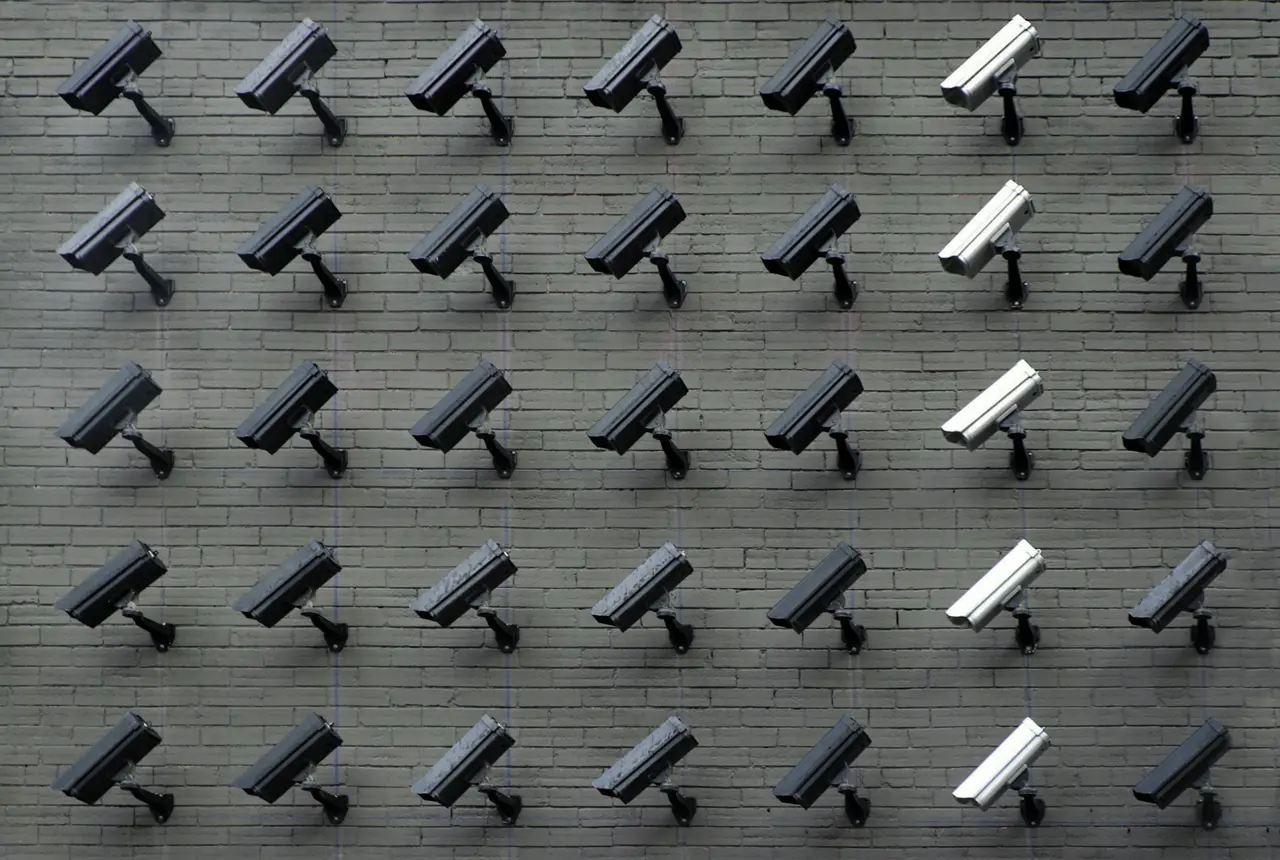
Protecting identity in photos and videos is a growing priority for journalists, content creators, and privacy-conscious users. Blurring faces or other identifying features (the “AI face blur tool” function) lets you share footage without revealing personal identity, supporting everything from citizen journalism to family privacy.
Modern AI-powered blurring tools automatically detect and mask faces, making it far easier than manual editing. This article reviews the 5 top face-blur solutions – including online services and software – comparing ease-of-use, supported media (video/image), auto-detection accuracy, batch or real-time support, export quality, privacy, pricing, and ideal use cases. A summary comparison table is provided below, followed by detailed sections on each tool and a recommendation.
| Tool | Ease of Use | Media | Auto Face Detection | Batch/Real-Time | Max Export Quality | Privacy (Local vs Cloud) | Price |
|---|---|---|---|---|---|---|---|
| VIDIO AI Face Blur | Very easy (web app, one-click blur) | Video | Yes (AI auto-detects, tracks) | One video at a time (no real-time) | Up to 4K (full HD/4K export) [1] | Cloud-based (online service) | Free trial / Subscription |
| YouTube Studio Blur | Moderate (built into YouTube Studio editor) | Video | Yes (auto-detect on upload) | One video (no batch) | Up to original upload (HD/4K) | Cloud (on YouTube servers) | Free (included with YouTube) |
| Signal Blur Tool | Very easy (in-app button) | Image (photos) | Partial (mobile AI libraries) | Single image (no batch) | Original photo resolution | Local (on-device) | Free (open-source) |
| BlurMe (blur.me) | Very easy (browser, drag/drop) | Photo/Video | Yes (AI auto-detects all faces) | Yes (multi-image/video) | Up to 4K export | Cloud (web-based processing) | Free tier; Paid monthly/yearly |
| Descript | Moderate (web/desktop editing suite) | Video (MP4, etc.) | No (manual blur overlays) | No (one project/video at a time) | Up to 4K (selectable) | Local app or cloud (depending on plan) | Freemium (free plan + paid) |
1. VIDIO’s AI Face Blurring Tool
Ease of use: VIDIO’s face blur tool is a web-based service – simply upload your video and click “Blur Faces”. The interface is one-click and user-friendly, so even non-editors can blur footage quickly.
Supported media: Currently focused on videos (it is designed for video anonymization), so you upload video clips (MP4, MOV, etc.) for processing.
Accuracy (auto vs manual): This tool uses advanced AI to automatically detect and track faces throughout the clip. In most cases it finds all visible faces and applies a mosaic or blur. You can usually select which faces to blur if multiple are detected. Manual masking isn’t needed for standard use, but you can often fine-tune by specifying faces in the UI. In practice its AI face recognition is high-quality for clear, front-facing people, and it includes motion tracking for moving subjects.
Batch processing/real-time: It processes one uploaded video at a time (no real-time or live blur). However, the service can handle long clips (many tools claim support up to 4K/60fps footage), and often you can queue multiple files sequentially. (Some enterprise plans may allow bulk jobs.)
Export quality: VIDIO’s tool preserves HD quality and reportedly supports 4K export [1], meaning it can output your blurred video in the same resolution (or up to 4K) as your original. The output is immediately downloadable once processing finishes.
Privacy/security: Because it is entirely cloud-based, your video is uploaded to VIDIO’s servers for processing. They claim secure handling of data, but unlike on-device tools (see Signal below) it is not fully local. For ultra-sensitive footage, keep in mind the data does leave your computer. (VIDIO notes that usage is encrypted and temporary, but details on retention aren’t public.)
Pricing: VIDIO offers a free trial tier (usually limited minutes per month) and subscription plans for professional use. The website advertises a “try it for free today” and higher-tier paid plans for frequent heavy users.
Ideal use cases: This tool is ideal for journalists or businesses who want a quick, AI-powered online solution. For example, news agencies can upload raw video of protests or public events and instantly blur bystanders’ faces without manual editing. Marketers or educators sharing user-generated videos can likewise ensure privacy. Because it’s web-based, it’s great for users who need results fast without installing software. (For very sensitive content, verify your organization’s data policy since it involves cloud processing.)
2. YouTube Studio’s Face Blur (Built-In Editor)
Ease of use: The YouTube Studio editor includes a built-in “Face Blur” feature (no extra tools needed) [2]. To use it, upload your video to YouTube, go to Content → Editor, then select Blur → Face blur. Once YouTube processes the video for face detection (seconds to minutes), it will highlight each detected face. You simply check the boxes for the faces you want to blur and hit Apply. The UI then lets you refine blur boxes, choose oval or rectangular shapes, and drag them along the timeline.
Supported media: Only video (no photos). You must upload your content to YouTube. After editing, you publish changes; the blurred video replaces your original on the platform. (It’s not a standalone editor for offline video.)
Accuracy (auto vs manual): YouTube’s tool automatically detects faces using its vision API [2]. It generally finds people in the frame, though very small or obscured faces might be missed. After detection, you can track moving faces by using the “Track object” option [3], which smoothly follows a person as they move. If needed, you can also add custom blurs anywhere on screen (for objects, license plates, etc.). In practice, accuracy is good for clear shots, but it’s best suited to straightforward videos. Complex scenes with many faces might require some manual fixes (you can add multiple boxes or redo if necessary).
Batch processing/real-time: It only handles one video at a time via the web interface. No batch or live processing.
Export quality: The edited video is saved and re-processed by YouTube. The final quality will be up to your original video’s resolution (up to 4K if you uploaded 4K). Note however that YouTube does re-encode videos, so very sensitive lossless needs might be impacted by YouTube’s compression. In general, output is good enough for most creators.
Privacy/security: Since this operates on YouTube’s servers, it’s fully cloud-based. Your unblurred video is on YouTube and processed there, which means you should already trust YouTube with the content. If you only blur and not make other edits, note that YouTube often keeps the original for revert. (Also, if an unedited video has 100,000+ views, YouTube may not allow any edits except face blurs [4].) This isn’t a private solution – it’s tied to public/private video hosting on Google’s platform.
Pricing: Free. Anyone with a YouTube channel can use it at no additional cost (as long as you can edit the video).
Ideal use cases: Best for YouTubers and creators who already publish on YouTube. For example, if you filmed a street interview or protest, using Studio’s face blur lets you censor bystanders before re-publishing. It’s also handy for occasional blurring needs without leaving the YouTube ecosystem. Keep in mind it only works after the video is uploaded, so it’s not useful for unposted videos or non-YouTube workflows. [2][3]
3. Signal’s Blur Tool (Image/Photo Privacy)
Ease of use: Signal’s blur feature is built into the app’s image editor. On Android or iOS, open a photo in Signal (prior to sending it), tap the pencil/edit icon, then tap the new Blur tool (raindrop icon). It’s extremely simple: tap the “face” button to auto-detect faces, or use the brush to manually blur areas.
Supported media: Photos only. (Signal added this during privacy protests.) It does not blur video frames – just still images (though you could manually extract frames and edit, but not a native feature).
Accuracy (auto vs manual): Signal uses your device’s built-in face detection libraries (Android/iOS) to identify faces. This usually finds prominent faces, but as Signal notes, “These system libraries are not perfect. They don’t detect every face 100% of the time” [5]. Therefore, Signal wisely provides a manual blur brush to cover any missed spots. In practice, auto-detect works for front-facing portraits and clear shots, but if someone is at an odd angle or very small, you’ll need to paint over manually.
Batch processing/real-time: None. You edit one photo at a time before sending.
Export quality: The blur is applied to the image within the app. When you send or save the photo, it retains its original resolution and quality (the blur is just a local filter).
Privacy/security: All processing is local on the device [5]. The blur algorithm leverages on-device libraries, and no image data is sent to any server. This means your photos and their faces never leave your phone for this process – a big plus for highly sensitive privacy needs. Signal’s design ensures that the face detection is done in-app, so it’s as secure as using a local photo editor.
Pricing: Free. Signal is a nonprofit app with no charges or ads.
Ideal use cases: Perfect for messaging apps. For instance, activists can blur faces in photos before sharing to protect colleagues, or a user can censor family faces for privacy when posting to social networks. It’s also handy for anyone who wants quick face censors on mobile. Since it only works on images, for video blurs you’d export frames or use another tool. [6][5]
4. BlurMe (blur.me) – Web AI Face Blur Service
Ease of use: BlurMe is a 100% online tool – no downloads or installs. Go to the BlurMe website and upload your video or photo. The interface is a simple drag-and-drop, with options to start the blur process. It’s highly user-friendly, aiming for just a few clicks to blur everything.
Supported media: Both video and images. BlurMe is designed for either photos or video clips. It explicitly advertises face-blurring for “videos or images online, instantly”.
Accuracy (auto vs manual): BlurMe’s AI automatically finds every face in your uploaded media [7]. It will then blur all detected faces. You can fine-tune by selecting a face to keep clear if needed, or manually paint extra blur on any region [7]. Its AI is advertised as capable of handling very crowded scenes and “multiple moving faces” [8][9]. In practice, users report very high detection rates: most faces are caught, even in motion, and multiple faces can be blurred simultaneously. The interface also offers options like pixelation instead of blur.
Batch processing/real-time: Yes, you can process multiple files at once [10]. BlurMe lets you upload or queue several photos/videos in one go (useful for batch jobs). There is no real-time live-blur; it’s an offline upload-then-download workflow, but they claim it finishes “in seconds” for typical videos.
Export quality: BlurMe supports high-quality output. According to its key features, it offers 4K export and preserves the original resolution when possible [8]. The blurred video/photo you download maintains HD quality (no extra compression beyond the blur effect).
Privacy/security: It processes in the cloud. The site doesn’t specify on-device execution, and you have to upload files to their server. (There is no sign of local-only processing). So like VIDIO, it’s cloud-based – your video is temporarily stored on BlurMe’s server. They emphasize security compliance (GDPR/CCPA), but fundamentally this is not private in the sense of “completely offline.” If you trust them, it’s very convenient, but it’s not end-to-end local.
Pricing: Freemium. BlurMe lets you try basic blurring for free, but heavier use requires credits or a subscription. For example, they have a Standard plan ($84/yr) that grants monthly credits for up to 11 minutes of video blur [11]. The exact free quota isn’t clear (zero credits for “trial user”), but in general it’s a paid service after a trial.
Ideal use cases: BlurMe is great for social media and small businesses needing quick privacy edits. For example, an NGO might blur dozens of volunteer photos before publication, or a vlogger might quickly censor faces in a travel montage without touching a video editor. Because it runs in any browser, it’s handy on both desktop and mobile. Its automation makes it suited for non-technical users who want “set-and-forget” face blurring [8][12].
5. Descript (Video Editor with Blur)
Ease of use: Descript is a full-featured transcription-based video editor. It has a learning curve, but adding blur is relatively straightforward once you know the interface. You import a video (MP4, MOV, etc.) into a Descript project, then use the ‘Blur’ or ‘Mask’ tools on video clips. The marketing page highlights “three quick steps”: sign up, upload video, and export blurred video [13]. Blur effects can be applied like any other effect in its timeline.
Supported media: Video (it handles standard formats via the app or web). Descript also supports images, but the blur tools are geared toward video production.
Accuracy (auto vs manual): No built-in AI face detection. Descript’s blur features are manual: you draw a box or shape over the area you want to blur in the video. You can keyframe it to follow motion, but it won’t auto-find faces. In other words, it’s a traditional video editor approach. The advantage Descript offers is ease and collaborative editing (including transcripts), but the face blurring itself is user-directed, not automatic.
Batch processing/real-time: No batch processing and no live capture. It’s an offline editing workflow – you edit one video project, then export.
Export quality: High. You can export up to the original video’s resolution (Descript supports up to 4K). The site says you can adjust resolution or format before exporting [14]. Because it’s a modern NLE, it will output in high quality (often bit-for-bit same as source) unless you downsample.
Privacy/security: If using Descript’s cloud transcription, your audio/video may be uploaded to their servers. However, you also have a desktop app version, so processing can be local. In any case, the blur is done on your machine (or in project files). Compared to an unknown online service, Descript is a reputable company, but it’s not fully “local only” by default.
Pricing: Freemium. Descript offers a free plan (with limited “screen hours” for editing) and paid tiers for advanced features. The basic blur and editing functions are available on free (as the page suggests), but long videos or team features require subscription.
Ideal use cases: Best for creators already using Descript for podcast or video editing. If you’re making a tutorial or corporate video with sensitive info, Descript allows adding blur where needed, plus all its other tools (captions, transcription, collaboration). For example, a YouTuber editing a vlog can blur a computer screen or a face by manually overlaying a blur box in Descript. It’s not the fastest for bulk blurring, but integrates smoothly into a production workflow. [15]
Comparison Table
| Feature | VIDIO AI Face Blur | YouTube Studio | Signal (Photos) | BlurMe (blur.me) | Descript |
|---|---|---|---|---|---|
| Ease of Use | Very easy – one-click web interface | Moderate – in-browser editor | Very easy – in-app button | Very easy – browser drag/drop | Moderate – requires project setup |
| Media Types | Video only | Video only | Image only (photos) | Images & Video | Video only (MP4/MOV, etc.) |
| Automatic Detection | Yes (AI face detection & tracking) | Yes (auto face detect) | No (face detect via OS APIs) | Yes (auto face detect) | No (manual blur overlay) |
| Batch Processing | Limited (one upload at a time) | No | No | Yes (multiple files) | No (one video per project) |
| Real-Time Blur | No (post-processing) | No (post-upload editing) | No | No | No |
| Max Export Quality | Up to 4K (retains original quality) | Up to original upload (HD/4K) | Original image resolution | Up to 4K | Up to original (HD/4K) |
| Platform (Local vs Cloud) | Cloud/web-based | Cloud (YouTube server) | Local (on-device only) | Cloud/web-based | Local app or cloud |
| Price | Free tier + subscription options | Free | Free (open-source) | Freemium (free + paid plans) | Freemium (free + paid plans) |
Sources: Tool documentation and reviews [6][2][8][15][12].
Conclusion: Which Face Blur Tool is Best?
All five tools above can help protect privacy, but they suit different needs:
- For quick online video blurring: VIDIO and BlurMe are outstanding. They use AI to blur faces automatically after you upload. VIDIO is great for journalists and enterprises needing a dedicated privacy tool. BlurMe is equally powerful for general users, bloggers, or businesses (with built-in compliance hints) [12]. Both support 4K export and handle multiple faces easily.
- For YouTube creators: YouTube Studio’s built-in blur is incredibly convenient and free, since it’s part of your existing workflow [2]. It’s perfect if you only need to censor a face or license plate in a video you’ve already uploaded.
- For mobile messaging: Signal’s local blur tool is unmatched for photos. It works offline and is totally free, making it ideal for protesters or everyday users who want to share images safely [6][16]. (Just remember: it only blurs still photos.)
- For detailed editing: Descript is best if you already use it for editing and just need some blur along the way. It’s less of a one-click solution, but as part of a broader editing toolkit (text transcription, captions, etc.), it’s very powerful [15]. Good for educational videos, tutorials, and workflows where you manually mark what to blur.
In summary, choose a tool based on your workflow. Use web AI blurring tools (VIDIO, BlurMe) when you need fast, automatic blur of entire videos. Use YouTube Studio if your content is already on YouTube. Use Signal on mobile for photos. Use Descript for granular control in a comprehensive editing session. Each of these privacy tools for video editors can be “the best face blur app” depending on the scenario. Ultimately, they all help ensure you can share video or images publicly without revealing identities, whether for journalism, social media, or personal privacy.
[1] AI Face Blurring Online - Vidio.ai
https://www.vidio.ai/tools/ai-face-blurring
[2] [3] [4] Blur your videos - YouTube Help
https://support.google.com/youtube/answer/9057652?hl=en
[5] [6] [16] Signal >> Blog >> Blur tools for Signal
https://signal.org/blog/blur-tools/
[7] [8] [10] BlurMe - Blur Face in Videos and Photos Online, Instantly!
https://startupfa.me/s/blurme?utm_source=www.blur.me
[9] 6 Best Face Blur Apps to Blur Faces in Videos in 2025
https://www.blur.me/blog/face-blur-app/
[11] Pricing plans - BlurMe
[12] How to Blur Faces Easily: 5 Best Tools for Photos and Videos
https://www.blur.me/blog/how-to-blur-faces-5-best-tools/
Top related tools
5Ask our AI agent anything you want
This assistant can help you with guidance on what tools to use for your video editing needs.
Ask now