Best Alternatives to CapCut in 2025: Top Video Editors for Every Creator

CapCut has become a wildly popular video editing app, especially among TikTok users and short-form creators. It’s free and packed with trendy effects, helping millions of creators churn out polished videos on mobile[1]. However, CapCut isn’t without limitations. The free version watermarks every export (and caps resolution at 1080p)[2], and despite recent desktop versions, it remains a mobile-first tool lacking advanced editing features like multi-track timelines or robust color grading[3]. These constraints – watermarking, a mobile-centric workflow, and limited pro features – leave many creators searching for the best alternatives to CapCut as their needs grow.
In this comprehensive guide, we’ll explore top CapCut alternatives tailored to different users – from TikTokers and YouTubers to marketers, educators, and professional editors. Each alternative is evaluated for key features, pros/cons, supported platforms (Windows, Mac, web, mobile), pricing (free vs paid), and ideal use cases. Whether you’re a casual creator looking to remove that pesky watermark or an experienced editor needing more power, here are the best options to consider.
Best CapCut Alternatives for TikTok Creators (Mobile Apps)
Short-form video creators on TikTok, Instagram Reels, or YouTube Shorts often prioritize speed, trendy effects, and mobile convenience. The following apps are excellent CapCut alternatives for quick, on-the-go editing:
- InShot (iOS, Android) – A lightweight, user-friendly editor with all the essentials for social videos. InShot offers trimming, filters, transitions, text overlays, and preset aspect ratios for vertical videos. It even includes handy AI tools like auto-captions and background removal[4][5]. Pros: Simple interface ideal for beginners; rich library of music, stickers, and effects updated regularly[6][7]. Supports up to 4K exports and multiple formats for TikTok, Instagram, etc. Cons: The free version adds a watermark on exports[7] (you can upgrade to remove it[8]), and it lacks advanced multi-layer editing or desktop syncing[9]. Best for: TikTokers, students, and casual creators who need quick, polished clips on mobile.
- KineMaster (iOS, Android) – A powerful mobile editor offering features that rival some desktop apps. KineMaster supports multi-track video and audio layers, chroma key (green screen), and even 4K exports[10]. Pros: Robust toolset (transitions, effects, voiceovers) for a phone app; fine control with frame-by-frame trimming. Cons: Free version is watermarked and ad-supported; requires a subscription for watermark-free exports and full assets. The interface can feel crowded on a small screen. Best for: Creators who edit on the go but want pro touches (e.g. YouTubers or Instagram creators who primarily use mobile).
- VN Video Editor (iOS, Android, macOS, Windows) – A free app often touted as “the new CapCut” due to its similar interface and features. VN is completely free with no watermarks[11], making it extremely appealing. It offers an intuitive timeline, lots of effects and templates, and easy drag-and-drop editing. Pros: No cost and no export logos; cross-platform availability (mobile and desktop) to continue edits on a computer. Cons: Occasional bugs and a less polished UI compared to paid apps. Lacks some advanced effects and the extensive music library that CapCut or InShot provide. Best for: Beginners and TikTok/Reels creators who want CapCut-like editing functionality without paying or dealing with watermarks[11].
Best CapCut Alternatives for YouTubers and Content Creators
Long-form content creators on YouTube or those making vlogs and tutorials often outgrow CapCut’s basic toolkit. They need more powerful software (usually on desktop) for multi-track editing, advanced effects, and higher output quality:
- Wondershare Filmora (Windows, macOS; plus mobile versions) – A popular cross-platform editor built for YouTubers and intermediate creators. Filmora combines a drag-and-drop interface with a wide range of effects, transitions, and growing AI features[12][13] (like an AI smart cutout, auto captions, and even text-to-video tools). It hits a sweet spot between simplicity and sophistication. Pros: Very user-friendly for its feature set[14]; offers lots of templates and stock media via Filmstock library[15]. Supports advanced needs like picture-in-picture, keyframe animations, and 4K exports[13]. One-time lifetime license option makes it affordable for long-term use[16]. Cons: Lacks some high-end tools (no multicam editing or VR support)[17]. The free trial outputs a watermark on videos[18], so you’ll need a paid plan for unbranded exports. Occasionally lags on heavy projects or high-res footage[18]. Best for: YouTubers, small businesses, and educators who want more control than mobile apps provide, but with a gentle learning curve.
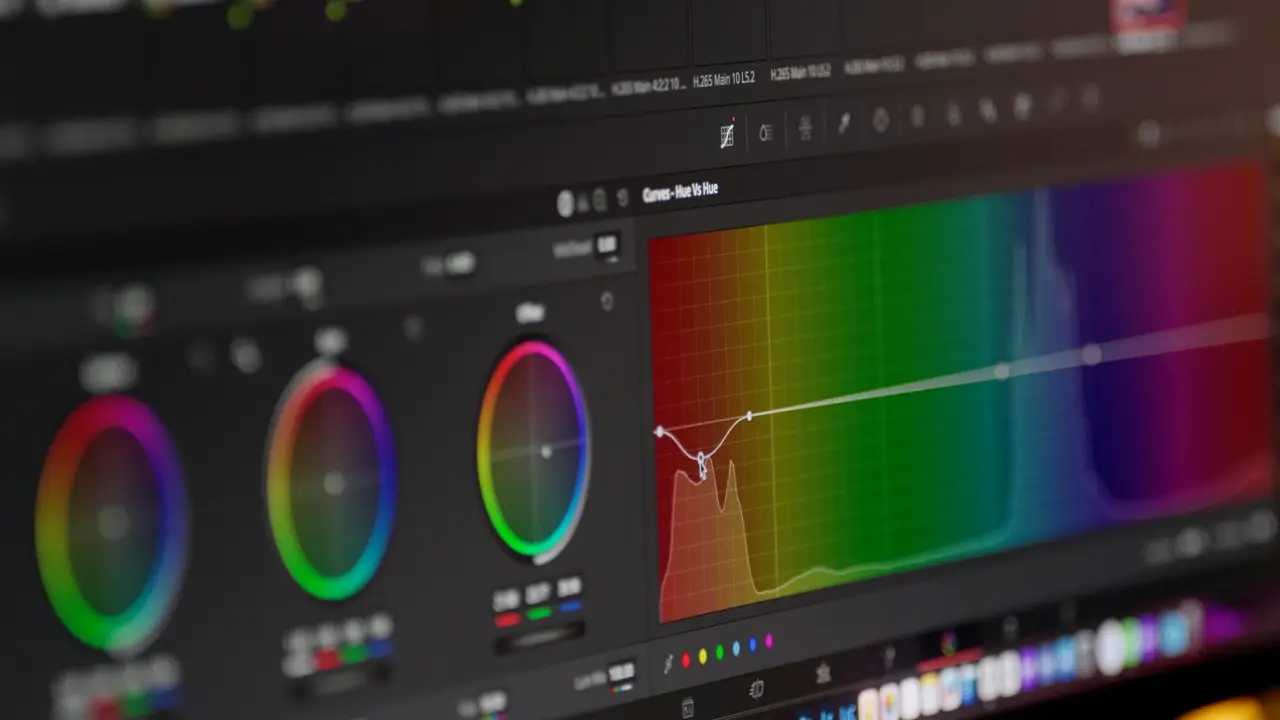
- DaVinci Resolve (Windows, macOS, Linux) – A professional-grade editor that’s remarkably free for most features. DaVinci Resolve is known for its industry-leading color grading and audio post-production tools[19][20]. In recent versions it’s added user-friendly improvements and even AI-powered tools (e.g. for object removal or smart reframing). Pros: The free version offers almost the entire toolkit without any watermarks or resolutions limits – you can export in HD, 4K, etc. watermark-free[21]. Incredible depth in color correction, visual effects (through Fusion), and audio editing (Fairlight) all in one app. Multi-track timeline, keyframing, motion tracking – everything a pro might need. Cons: A steep learning curve for newcomers[22]; the interface can overwhelm if you’re used to simple apps. Requires a decent computer, and project files can be large. Best for: Serious creators and aspiring professionals. Many YouTubers start on free DaVinci to get advanced capabilities without paying Adobe-level prices. If you’re willing to invest time learning it, the results can look broadcast-quality.
- Adobe Premiere Rush (Windows, macOS, iOS, Android) – Adobe’s streamlined video editor geared towards online content creators. Premiere Rush is simpler than Premiere Pro, focusing on quick edits and cross-device syncing. Pros: Easy timeline editing with just enough tools (transitions, titles, basic color and speed adjustments). Cloud sync lets you start on your phone and finish on desktop, or vice versa. Integrates with Adobe Creative Cloud for sending projects to Premiere Pro when you’re ready to upgrade. Cons: Limited features compared to full editors – no advanced compositing or plug-ins. Free plan is limited to three exports (no watermark though), after which a subscription is required. Best for: Amateur YouTubers or Instagram video makers who want a step up from pure mobile apps but aren’t ready for complex software. It’s a nice bridge between mobile editing and the full Adobe Premiere experience.
- Clipchamp (Web, Windows) – A browser-based editor now owned by Microsoft (and bundled with Windows 11). Clipchamp offers a template-driven, beginner-friendly experience for making YouTube videos or marketing clips quickly. It provides an array of stock footage, music, and even text-to-speech and auto-captioning via AI[23]. Pros: Web-based convenience with cloud storage; the Windows app is tightly integrated for PC users. Free exports up to 1080p without watermark[24][25], which is great for a free plan. Good for collabs or sharing due to the web platform. Cons: Can be slow to render, especially in 4K or on slower internet[26]. Not as flexible as true desktop software (limited tracks and effects). Some features and content require a paid subscription. Best for: Beginners or casual YouTubers who want a quick, template-based workflow. Also useful for educators or small businesses needing a fast way to produce simple videos on Windows.
Best CapCut Alternatives for Marketers and Social Media Teams
Marketers, brands, and social media teams often need to crank out content quickly and consistently. Key needs include templates for branding, easy text and subtitle tools, team collaboration, and often AI features to automate editing tasks. Here are top alternatives, including an AI-powered standout:
- VIDIO’s VibeEdit (Web) – VibeEdit is a cloud-based AI video editor that can speed up your workflow dramatically. It’s designed to automatically create highlight reels and promotional clips from your raw footage, using AI to do the heavy lifting. With VibeEdit, you can upload your video files and let the AI handle tasks like stitching together the best moments, trimming out silences or “boring” parts, detecting scene changes, generating captions, and even overlaying background music – all in a few clicks. Pros: Ease of use is a major draw – non-editors can produce a professional-looking edit without a steep learning curve. The browser-based interface means no software install and it works on any device. It offers AI-driven features such as auto scene detection and smart jump cuts, which save tons of time in cutting down footage. Because it’s cloud-based, collaboration is simpler (share a link with team members to review or tweak). There’s a free tier available for basic usage, and videos export without any CapCut-style watermark (paid plans offer higher limits)[27]. Cons: As an AI tool, the customization is a bit more limited compared to manual editing – you might need to fine-tune the AI’s selections for a perfect result. It’s best with short-form and highlight videos (e.g. social media clips, event recaps); it’s not intended for long-form, cinematic editing. Best use cases: Social media marketers can use VibeEdit to turn webinar recordings or product demos into snappy promo videos. TikTok and Instagram creators can quickly generate multiple variants of a video to test which one performs best. Even educators or trainers could use it to distill long lectures into bite-sized “best of” segments for easier student consumption. Overall, VibeEdit’s AI-driven workflow makes video editing 3–5× faster for those who want results without spending hours in a timeline.
- VEED.io (Web) – A full-featured online video editor popular with marketing teams and agencies. VEED is known for its collaboration features (multiple team members can work on projects in the cloud) and a rich set of tools like auto-subtitle generation, translations, progress bars, and brand presets[28][29]. Pros: No software download needed; offers templates geared for social media ads, intros, etc. Has handy AI tools (background noise removal, text-to-speech, even basic AI avatars for presenters). Cons: The free version watermarks your videos, so you’ll likely need a paid plan for serious use. Can be pricier than some competitors, especially for larger teams. Best for: Social media teams that need to churn out lots of videos with consistent branding. It’s great for collaboration and quick turnaround on client projects, interviews, or captions-heavy content.
- Canva Video Editor (Web, iOS, Android, Windows) – Canva isn’t just for graphics – its video editor has become a go-to for marketers who love working with templates. It provides thousands of pre-made video templates (for ads, stories, slideshows, etc.) and an intuitive timeline within Canva’s familiar drag-and-drop interface[30][31]. Pros: Huge asset library (stock videos, images, music) and brand kit features to maintain consistent colors, fonts, logos across your videos. Basic AI magic tools like “Magic Resize” and auto-generated animations can save time[32]. Enables quick text overlays, animations, and even some screen recording. Cons: Geared toward simplicity – you won’t get advanced editing options (no complex keyframing or fine audio editing)[33]. The free plan is generous but will include Canva watermarks on premium assets and limits exports to 1080p[34]. Heavy projects may feel sluggish since it’s web-based. Best for: Small business owners and marketers who need to create promo videos, social ads, or explainer videos quickly with a professional look. Also useful for educators making informational content with a polished, templated style.
- Animoto (Web) – A long-standing online video maker oriented towards marketing and slideshow-style videos. Animoto lets you combine photos, video clips, text, and music using drag-and-drop templates optimized for different platforms. Pros: Very easy to use – you select a template, drop in your media and text, and Animoto arranges everything with preset animations. Great for turning a batch of product photos or customer testimonials into an engaging video in minutes. No video editing experience needed. Cons: Limited creativity – you’re mostly confined to the template styles (which, while professional, can be restricting for advanced users). The free plan adds an Animoto watermark on videos[35], and higher quality or longer videos require a paid subscription. Best for: Quick promo videos, real estate slideshows, event recaps set to music, or anytime you need a no-fuss video made from static images and text (marketers, sales teams, and non-techies love it).
Best CapCut Alternatives for Educators and Trainers
Educators and tutorial creators often need features like screen recording, annotations, captions, and easy sharing, which go beyond CapCut’s focus. Here are tools better suited for instructional content:
- TechSmith Camtasia (Windows, macOS) – A powerhouse for creating tutorials, lectures, and training videos. Camtasia combines a screen recorder with a full editing suite, allowing you to capture your screen (with webcam overlay) and then add effects and annotations all in one tool[36][37]. Pros: Extremely friendly for educators – you can add callouts, arrows, highlights, quizzes, and other interactive elements for e-learning[38][39]. It has a huge library of royalty-free assets (music, icons, motion graphics) to spice up lessons[40]. Exports are high-quality with no watermarks in paid version, and it’s optimized for tutorial-style video workflows[41]. Cons: It’s a premium product – no fully free version (only a free trial, which watermarks exports until you buy)[42]. Not intended for fancy cinematic editing; lacks advanced color grading or compositing that pro film editors need[43]. Best for: Teachers, corporate trainers, and YouTubers making software demos or instructional videos. If you frequently record your screen or PowerPoint and need to edit that footage into a coherent lesson, Camtasia is tailored for you.
- WeVideo (Web) – A cloud-based editing platform often used in schools for its simplicity and collaborative features. WeVideo allows educators and students to create videos via a web browser, with support for screencasting, green screen effects, text overlays, and more. Pros: Multi-user plans make it easy for a class or team to work on video projects. Offers stock content and a straightforward interface suitable for kids and non-professionals. Because it’s online, students can edit from Chromebooks or any device and save projects to the cloud. Cons: Free version is quite limited (short video duration and lower quality, plus watermark). The full features require a subscription. Performance depends on internet speed, and advanced editing is not its forte. Best for: K-12 classrooms, student projects, or educators who want a no-software solution for basic video creation. It’s also useful for quick administrative videos or announcements by school staff.
- OpenShot or Shotcut (Windows, macOS, Linux) – For educators on a budget who need a straightforward editor, open-source programs like OpenShot and Shotcut are excellent alternatives. They are completely free desktop editors with no watermarks[44][45]. Pros: Free forever, with decent feature sets: you can do timeline editing, add titles, transitions, and export in various formats. Shotcut is more powerful (supports 4K, lots of effects, keyframes) while OpenShot is very simple and easy to start with. Cons: The interfaces are a bit basic and not as polished or guided as paid software. Fewer learning resources and support compared to commercial products. They might lack specialized tools like Camtasia’s screen recording or quiz embeds, requiring separate solutions. Best for: Schools or individuals who can’t invest in paid software – these let you accomplish standard video editing tasks without cost. Great for creating lecture videos, trimming recorded classes, or having students learn the basics of editing.
(Educators might also consider Clipchamp or Canva mentioned earlier, as both offer education discounts/plans and easy editing for simple educational content.)
Best CapCut Alternatives for Professional Editors
For those doing professional work – be it YouTube careers, filmmaking, marketing agencies, or broadcast – a more advanced editing suite is required. CapCut’s simplicity becomes a bottleneck at this level. The following are industry-favorite alternatives with far more horsepower:
- Adobe Premiere Pro (Windows, macOS) – An industry standard used by everyone from full-time YouTubers to Hollywood filmmakers[46]. Premiere Pro offers a comprehensive suite of advanced tools: multi-track editing with unlimited video/audio tracks, precise cutting and ripple edits, keyframe animations, color grading via Lumetri, a huge ecosystem of plugins/effects, and tight integration with Adobe’s Creative Cloud (After Effects, Photoshop, Audition, etc.)[46][47]. Pros: Virtually any professional feature you might need is here – including AI-powered tools in recent versions (Auto Reframe, scene edit detection, even AI-assisted masking and audio denoise)[48][47]. Constant updates keep it on the cutting edge (e.g. in 2025 it added Generative AI fills and improved transcript-based editing). No output limitations or watermarks (it’s a fully paid product). Cons: Premiere comes with a steep learning curve for newcomers and can feel overwhelming[49]. It’s also subscription-based (about $20–21/month just for Premiere) which can add up[50]. High system requirements – it may lag or crash on underpowered machines, especially with 4K/8K footage[51]. Best for: Professional video editors, videographers, and serious content creators who need reliability, depth, and integration in their workflow. If you collaborate with others in the industry, Premiere’s format/project compatibility and widespread use are big advantages.
- Apple Final Cut Pro (macOS) – Apple’s pro video editing software, favored by many creators and indie filmmakers on Mac. Final Cut Pro offers a very fast, optimized editing experience with a unique magnetic timeline and powerful media organization (great for documentary or long projects). It supports advanced multicam editing, excellent color correction and HDR support, and a rich plugin ecosystem like Motion templates. Pros: One-time purchase (no subscription), and it’s optimized to run exceptionally well on Mac hardware – smooth playback and renders, especially on Apple Silicon chips. Friendly interface that’s easier to grasp than some others, without sacrificing pro capabilities. Cons: Mac-only (not available on Windows). The workflow differs from track-based editors, so it may trip up editors used to Premiere/Avid initially. Fewer major updates nowadays, and some high-end features (e.g. detailed audio mixing or certain VFX) aren’t as robust as in Premiere or DaVinci without extra plugins. Best for: Professional editors invested in the Apple ecosystem, YouTubers with Macs who want a step up from iMovie, and anyone who values speed and efficiency in editing over a steep learning curve.
- DaVinci Resolve Studio – (Mentioned above in the YouTuber section, but worth noting for pros) The paid Studio version of DaVinci Resolve unlocks even more advanced tools (like more AI effects, noise reduction, 10-bit + 8K support, collaboration tools, etc.) and is a fraction of the cost of some competitors (a one-time ~$300). Many professional colorists and post-production houses use DaVinci for finishing major projects. If you need high-end color grading or are working in film/TV, DaVinci is often the go-to. Best for: Those who want the absolute top-tier grading and are willing to invest time to master it – or teams collaborating on large projects (Resolve’s multi-user collaboration on the same timeline is a killer feature for studios).
- Other Notables: Avid Media Composer remains a staple in Hollywood and broadcast editing – known for rock-solid handling of huge projects and collaborative workflows – but it’s likely overkill for most creators switching from CapCut. CyberLink PowerDirector (Win/Mac, with mobile app) is another feature-rich prosumer editor that offers a mix of advanced features and ease of use[52][53] (it has multi-cam editing, motion tracking, lots of AI effects and even 360° video editing[54]). PowerDirector might be a good fit for freelancers or enthusiasts who want many of Premiere’s capabilities with a friendlier interface and lower cost – just note the free version has a watermark[55]. HitFilm (recently rebranded as FXhome) is great for those who want advanced VFX compositing along with editing in one program (popular with gamers and indie filmmakers). And for Mac users who found CapCut too limiting, iMovie is actually a decent free alternative for basic editing with Apple polish[56][57], though you’ll eventually outgrow iMovie and move to Final Cut or Premiere as your skills advance.
Comparison of Top CapCut Alternatives
For a quick overview, here’s a comparison of some of the best CapCut alternatives discussed, including platform availability and whether they impose watermarks on free exports:
| Tool | Platforms | Free/Paid | Watermark on Free? | Ideal For |
|---|---|---|---|---|
| VibeEdit (VIDIO) | Web (browser-based) | Free tier; Paid plans | No – Free exports are unbranded[27] | Marketers & creators who want AI-driven, fast highlight edits. |
| InShot | Android, iOS | Free (basic); Pro upgrade | Yes – Upgrade removes watermark[8] | Mobile social video editing (TikTok, Reels) for beginners. |
| Filmora | Windows, macOS, iOS, Android | Free trial; Paid license | Yes – Free trial adds watermark[18] | YouTubers and intermediate editors needing easy but powerful tools. |
| DaVinci Resolve | Windows, macOS, Linux | Free (Base); Paid Studio | No – Full features in free version[21] | Advanced editing and color grading for serious creators (no cost barrier). |
| Adobe Premiere Pro | Windows, macOS | Paid (Subscription) | No | Professional editors requiring comprehensive tools and Adobe CC integration. |
| Canva Video Editor | Web, Win, iOS, Android | Free (Basic); Pro subscription | Yes – Free exports may include minor watermark[34] | Marketers and teams making templated social videos quickly. |
| Camtasia | Windows, macOS | Paid (Free trial available) | Yes – Trial exports are watermarked[42] | Educators and professionals creating tutorials and how-to content. |
| VEED.io | Web | Free (Limited); Pro plans | Yes – Removed on Pro[58] | Online collaboration and quick edits for teams and agencies. |
| Clipchamp | Web, Windows | Free (Basic); Subscription for premium | No – 1080p free exports without watermark[24] | Beginners and Windows users needing easy editing with templates. |
Table Notes: “Watermark on Free” indicates if the tool imprints a logo or text on output videos in its free version. Many free plans (InShot, Filmora, VEED, etc.) do add watermarks, whereas fully free/open-source tools (like DaVinci, Shotcut) and some services (Clipchamp’s basic tier) do not. Consider this when choosing, as watermarks can be a deciding factor if you’re posting content professionally.
Summary and Recommendations
Choosing the best alternative to CapCut ultimately depends on your needs and level of editing expertise:
- For TikTok/Reels Creators: Mobile-first apps like InShot or VN Video Editor will feel familiar and let you create viral short videos quickly. They offer lots of effects and are perfect for on-phone editing, though VN stands out by giving you watermark-free exports for free[11]. If you enjoyed CapCut’s mobile workflow but want to dodge its watermark or subscription, start here.
- For YouTubers and Vloggers: Step up to a cross-platform editor like Filmora for a balance of simplicity and advanced features, or dive into DaVinci Resolve if you need pro-level control without spending money. Premiere Rush or Clipchamp are also great if you’re transitioning from mobile to desktop and want a gentle learning curve with cloud syncing. As your channel grows, you might eventually move to Premiere Pro or Final Cut Pro for ultimate control.
- For Social Media Marketers: Embrace tools that speed up content creation. VIDIO’s VibeEdit is highly recommended for cutting down long videos or compilations into snappy highlights using AI – saving you hours of manual work. For more hands-on editing with collaboration, VEED.io provides an all-in-one online workspace. And if design consistency is key, Canva’s video editor lets you apply your branding in a snap across all your visual assets.
- For Educators and Explainers: Camtasia is a standout choice, combining screen recording and editing with education-friendly features (quizzes, annotations) – ideal for instructional design. If budget is an issue, try free options like Shotcut/OpenShot or use Clipchamp on Windows for basic lecture video editing. The goal is to choose a tool that streamlines adding captions, highlights, and visual aids to your lesson videos.
- For Professional Editors: You’ll likely gravitate toward industry-standard software. Adobe Premiere Pro remains a top choice for all-around editing and integration with other creative tools[46], while Final Cut Pro on Mac offers speed and optimization. Many pros now use DaVinci Resolve for its unbeatable color grading suite – some even round-trip edits (e.g. cut in Premiere, grade in DaVinci). If visual effects are a big part of your workflow, consider HitFilm or pairing your editor with Adobe After Effects. And for long-form projects or collaborative studio environments, Avid Media Composer might be in the conversation, though it’s not as necessary for most content creators.
In conclusion, CapCut is a fantastic starting point – it proved that video editing can be accessible to everyone. But as you’ve seen, there is a rich landscape of alternatives ready to take you to the next level, whether you need AI-driven automation, more creative freedom, or professional polish. Evaluate what matters most for your projects (be it no watermarks, specific features, or cross-platform convenience) and pick the tool that aligns with your creative workflow. With the right editor in hand, you’ll be able to bring your video ideas to life faster and better, watermark-free and without limits![3][59]
[1] [2] Is CapCut Pro Worth It? Full Breakdown Before You Buy - OpusClip Blog
https://www.opus.pro/blog/is-capcut-pro-worth-it
[3] [4] [5] [6] [7] [9] [12] [13] [14] [15] [16] [17] [18] [21] [23] [24] [25] [26] [30] [31] [32] [33] [34] [38] [39] [40] [42] [43] [45] [46] [47] [48] [49] [50] [51] [52] [53] [54] [55] [58] Top 11+ CapCut Alternatives for PC, Mobile, and Online – EComposer
https://ecomposer.io/blogs/review/capcut-alternatives
[8] [10] [11] [44] Best CapCut Alternatives (2025): Mobile, Desktop & Web Tools for Creators
https://www.miracamp.com/learn/capcut/best-alternatives?utm_source=chatgpt.com
[19] [20] [22] [28] [29] [36] [37] [41] [56] [57] Top 7 Alternatives To Capcut in 2025 | TechSmith
[27] Pricing Plans - Vidio.ai
Top related tools
4Create with VibeEdit
Bring Your Best CapCut Alternative Edits to Life
Specify edits like trimming, transitions, music style, text overlays, and pacing.