How to Blur License Plates in Video Using VIDIO’s AI Tool

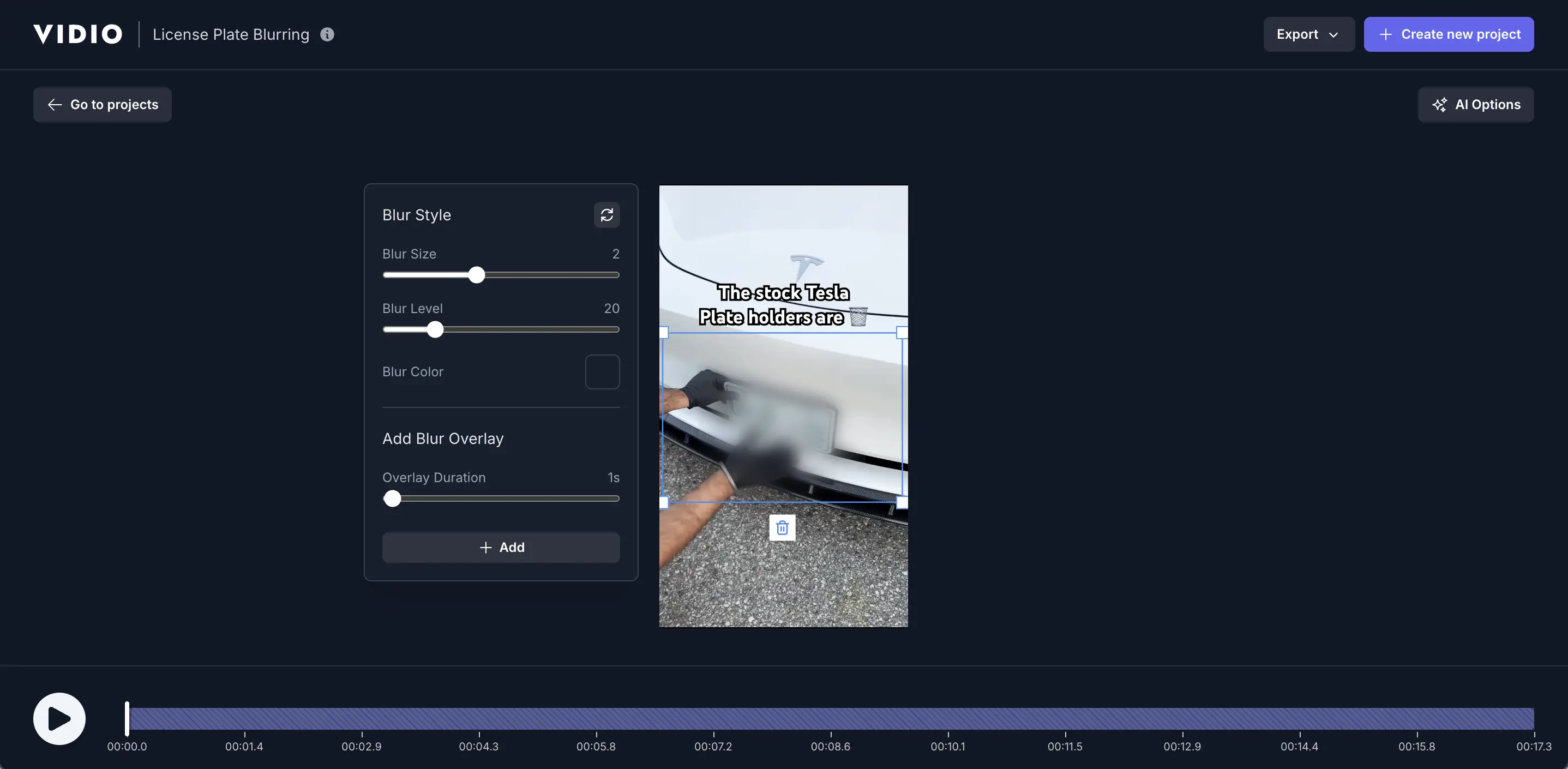
Blurring out license plates in videos is an essential step to protect privacy in today’s world of online content. A vehicle’s license plate can reveal sensitive personal information about its owner – details that could be misused by criminals or lead to privacy breaches if exposed publicly [1]. To prevent such risks, many responsible content creators and organizations make it a standard practice to obscure license plates (along with faces or other identifying details) before sharing videos [2]. Whether you’re a YouTuber filming on the street, a car seller showcasing a vehicle, or just a privacy-conscious individual, blurring license plates helps safeguard identities and demonstrate professionalism. In this guide, we’ll show you how to blur license plates in a video quickly and effectively using VIDIO’s AI-powered license plate blurring tool.
Blurring license plates manually in editing software can be extremely tedious – imagine pausing a video to mask each plate frame-by-frame, especially if dozens of cars appear [3]. Fortunately, VIDIO offers an AI-driven tool that automates this entire process. This online tool uses advanced computer vision to automatically scan your footage, detect all license plates, and apply a blur effect, saving an immense amount of editing time [4]. You can even choose which plates to blur or leave visible, giving you control over the outcome. In the following sections, we provide a step-by-step tutorial on using VIDIO’s license plate blurring tool, highlight its key features and benefits, and share practical tips for the best results.
Step-by-Step Guide to Blurring License Plates with VIDIO
Follow these instructions to anonymize license plates in your video using VIDIO’s AI tool:
- Access the VIDIO License Plate Blurring Tool: Open your web browser and go to VIDIO’s license plate blurring tool (available on the VIDIO.ai website). There’s no software to install – the tool runs entirely online in your browser. This convenience means you can get started immediately on any device.
- Upload Your Video: Click the “Upload” button (or a drag-and-drop area) to select the video file that contains license plates you want to blur. The tool supports common video formats (like MP4, MOV, etc.), so choose your footage and upload it. Once the video is loaded into the application, you’ll typically see a preview frame or timeline ready for analysis.
- Automatic Plate Detection: After uploading, sit back as VIDIO’s artificial intelligence analyzes your video. The tool will automatically detect every visible license plate in each frame of the footage – you do not need to manually draw boxes or mark anything. The AI is trained to recognize license plate patterns and numbers, even as vehicles move through the scene. This automatic detection spares you from painstaking manual tracking on each frame[4].
- Select Which Plates to Blur: Once detection is complete, the interface will highlight or list all the license plates found in the video. You can now choose which plates you want to blur. By default, you’ll likely want to blur all detected plates for maximum privacy. However, VIDIO’s tool gives you the flexibility to de-select any plate if, for some reason, you don’t need it blurred. (For example, a dealership might choose to leave their own lot’s plate visible for branding, while blurring customer plates.) Simply review the detected plates and confirm which ones should be censored.
- Apply the Blur and Process the Video: With your selections made, click on the “Blur” or “Process” button to let VIDIO do its magic. The AI will now automatically blur the selected license plates across the entire video. This means it inserts a blur effect (usually a mosaic or Gaussian blur) over each chosen plate and tracks it frame-by-frame as the vehicles move. The processing time will depend on your video’s length and resolution, but it’s usually quite fast compared to manual editing. Grab a quick coffee – in most cases, the automated blur will finish much sooner than it would take you to do it by hand!
- Preview the Results: After processing, use the built-in video player to preview the blurred video. Play through several sections to ensure every license plate you wanted hidden is properly obscured. You’ll notice that the blur follows the plates smoothly even when cars drive around or the camera moves – the AI tracking keeps the plate covered at all times[5]. If anything looks amiss (for example, if a plate was missed or you accidentally left one unselected), you can go back a step, adjust your selection, and re-process. Otherwise, you’re ready to finalize the video.
- Download the Blurred Video: Once you’re satisfied that all necessary plates are blurred, hit the “Download” or “Export” button to save the edited video to your device. VIDIO will render out the video with the blurs applied. The output retains your original video quality, with the only change being that the specified license plates are now obscured. Save this file as your shareable video – all the sensitive plate information is now anonymized, and you can confidently upload or distribute the video without exposing anyone’s license number. (It’s wise to archive your original unblurred video separately, just in case – more on that in the tips below.)
By following these steps, you can transform a video with visible license plates into one where those plates are safely blurred out. The process requires just a few clicks on VIDIO’s intuitive interface, as opposed to the hours it might take to manually track and blur plates in traditional editing software.
Tips and Benefits of Using VIDIO’s License Plate Blurring Tool
Using an AI-powered tool like VIDIO not only makes the blurring process easier, but also provides additional advantages. Here are some key benefits of VIDIO’s license plate blurring tool, along with practical tips to help you get the most out of it:
- Saves Time and Effort: One of the biggest benefits is how much time you save. Manually drawing blur masks and tracking them through a video can take 20–30 minutes per video (or more) and still leave room for human error [6]. In contrast, VIDIO’s AI does this automatically in a fraction of the time, freeing you from tedious frame-by-frame work. The automation ensures a faster turnaround and consistent results, even if you have multiple videos to edit [7].
- Accuracy and Complete Coverage: AI detection is thorough and consistent. The tool won’t “forget” to blur a plate once it’s detected – every instance of that license plate in the video will be blurred. Even if cars move, turn at angles, or the lighting changes, the blur stays locked on target. The AI tracks plates across frames and adapts to motion or lighting variations to keep them censored [5]. This level of accuracy and persistence is hard to achieve with manual editing, ensuring that no frame is left unprotected.
- Privacy and Legal Compliance: By using VIDIO’s blurring tool, you’re taking an important step to protect people’s privacy and comply with regulations. In some regions, publishing a video that clearly shows someone’s license plate can lead to privacy violations or even legal trouble. There are cases where unblurred plates have triggered video takedowns or fines due to data protection laws [8]. Blurring plates helps you avoid these issues – it’s a simple preventive measure that keeps your content in line with privacy guidelines and respectful of individuals’ personal data. This is especially important for businesses (like car dealerships or rideshare companies) and journalists, but it applies to everyday YouTubers as well [9].
- Professionalism and Audience Trust: Taking the time to blur license plates (and other sensitive details) makes your videos look more professional. Viewers appreciate content creators who respect privacy. In fact, obscuring personal info like license numbers or faces demonstrates an ethical approach and attention to detail that can enhance your credibility. It shows you’re mindful of security and legal considerations. This added layer of professionalism can increase viewer trust and confidence in your content [10] – an important factor for anyone building a reputation online.
- Ease of Use – No Editing Skills Required: You don’t have to be a video editing expert to use VIDIO’s tool. The interface is designed for simplicity, guiding you through the upload, detection, and blur process with clear prompts. Because it’s a cloud-based web tool, no complex software installation or technical setup is needed. This ease of use means that content creators, vehicle sellers, or hobbyists can all achieve expert-looking blurring results with minimal effort. Essentially, you’re letting advanced AI do the hard work under the hood, while you just point and click through a few simple steps. It turns a once tedious task into a quick routine anyone can do.
- Scalability for Multiple Videos: If you have many videos to process (for instance, a car dealer with dozens of vehicle walkaround videos), an AI tool like this is invaluable. It can handle large batches of footage and numerous plates seamlessly, which would be impractical to tackle manually [1]. Because the detection and blurring are automated, you can run videos through the tool one after another and achieve consistent results every time. This scalability ensures that even as your content output grows, you can keep all sensitive details censored without a proportional increase in workload.
Practical Tips: To get the best results from VIDIO’s license plate blurring tool, keep these tips in mind:
- Use High-Quality Video: The AI will perform best when the license plates in your video are reasonably clear and visible. If possible, upload the highest resolution version of your footage. Plates that are extremely small, dark, or blurry in the original video are harder for any tool to recognize. Good lighting and clarity will help the AI detect and blur every plate reliably.
- Double-Check the Preview: Always review the entire video after blurring to make sure every plate you intended to hide is blurred in every scene. Scroll through or play back key sections where vehicles appear. If you notice an instance that isn’t blurred (perhaps a plate at an odd angle or partially obscured that the AI missed), you might need to re-run the tool with slight adjustments or contact VIDIO support. However, such misses are rare thanks to the robustness of modern AI. It’s just good practice to verify before you publish.
- Keep Original Copies: Once a video has been processed and the license plates are blurred, that detail is permanently removed from the visible footage. The blur effect cannot be easily reversed or removed from the exported video – which is exactly what you want for privacy. Therefore, save an original, unblurred copy of your video separately before processing. This way, you retain the raw footage for your archive or if you ever need to reference the unedited information. (For instance, law enforcement or insurance may require the original plate info in some cases – you wouldn’t be able to retrieve that from a blurred video since the data is completely obscured [11].) Working on a copy while preserving your original is a smart workflow for any kind of editing.
- Combine with Other Anonymization (if needed): License plates aren’t the only identifiers that might appear in your video. If there are people’s faces, street addresses, or other personal identifiers visible, consider blurring those as well to fully protect privacy. VIDIO offers additional AI tools (such as a face blurring tool) that you can use in a similar step-by-step way. Using these in tandem ensures your video is thoroughly anonymized. For example, a vlogger recording in public might blur strangers’ faces along with car plates in the background for a completely privacy-safe video. Always think about all forms of identifiable information in your footage and take advantage of AI to cover them up.
- Stay Consistent and Proactive: Make license plate blurring a routine part of your content creation or sharing process. It’s easier to blur plates before a video goes live than to deal with takedown requests or privacy complaints afterward. By integrating VIDIO’s tool into your workflow, you ensure every video you publish is pre-screened for privacy. This proactive approach can save you from headaches down the line and gives you peace of mind that you’re not inadvertently exposing anyone’s personal info. Plus, when viewers notice that you consistently protect privacy, it builds trust in your personal or brand image (as mentioned above).
By following these tips, you’ll use the license plate blurring tool effectively and avoid common pitfalls. The combination of VIDIO’s powerful AI features and your diligence in reviewing the output will result in clean, privacy-safe videos every time.
Conclusion: Blur License Plates in Seconds with VIDIO
Blurring license plates in video no longer has to be a painstaking manual task. With VIDIO’s AI-powered license plate blurring tool, what used to take hours of editing can now be done in just minutes. We’ve shown how the tool automatically finds and obscures plate numbers, helping creators and businesses protect privacy without breaking a sweat. The process is straightforward and remarkably efficient – perfect for everyone from a YouTube creator who films on city streets, to a car dealer preparing inventory videos for online listings, to anyone who values privacy and professionalism in their videos.
Now that you know how to blur license plates in a video using VIDIO’s step-by-step process, you’re ready to put it into practice. Take action today: head over to VIDIO’s license plate blurring tool and try it on your own footage. In just a few clicks, you can ensure that no sensitive license plate data will ever accidentally slip out in your shared videos. The end result is content that is safe to publish, respectful of privacy, and polished in appearance. Don’t let visible license plates compromise your video – use VIDIO’s AI tool to blur them out and share your stories with confidence! Your viewers (and any vehicle owners in your footage) will thank you for it, and you can hit “upload” knowing you’ve covered all your privacy bases. Enjoy your editing, and stay safe out there! [3][10]
[1] Why should you blur out license plates in videos? | Facit
https://facit.ai/insights/why-blur-license-plates-in-videos
[2] [3] [4] [9] [10] Blurring License Plates with AI Tools: The Fastest Method
https://borisfx.com/blog/blur-license-plate-in-video-fastest-method/
[5] [6] [7] [8] [11] Ways to Blur Number Plate in Video Automatically Using Spyne
Top related tools
5Ask our AI agent anything you want
This assistant can help you with guidance on what tools to use for your video editing needs.
Ask now