Changelog
XML Export for Premiere Pro: Load Clips with In/Out + Marker Descriptions
VIDIO Team
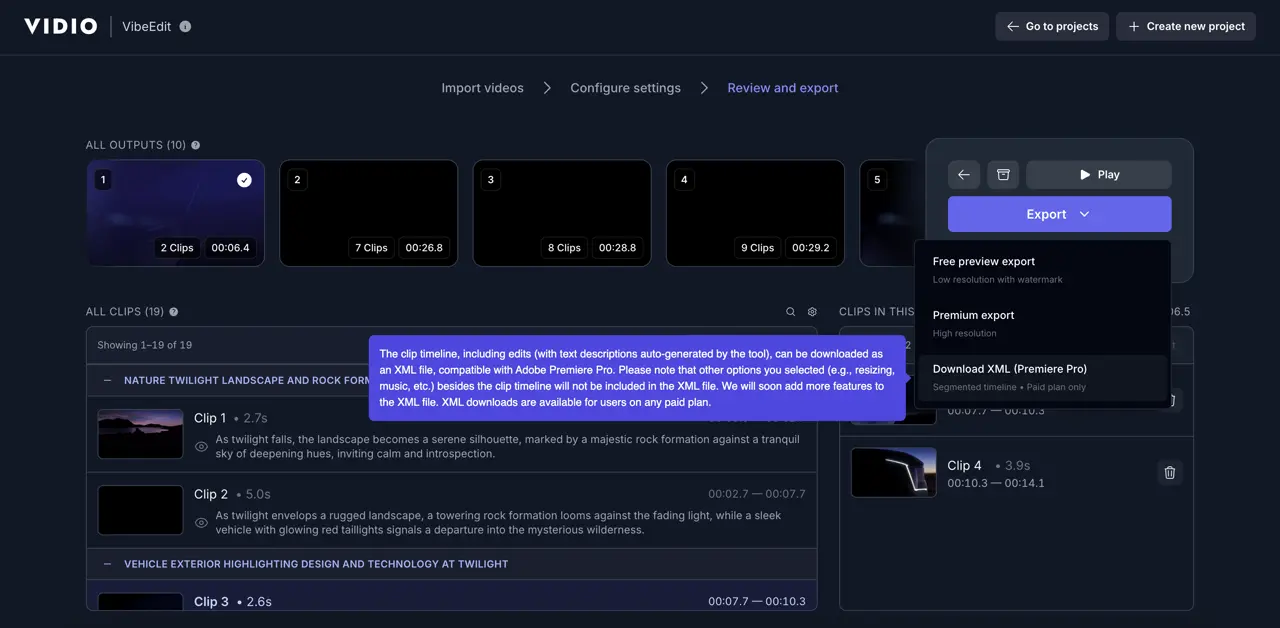
🎬 XML Export for Premiere Pro
Bring your VibeEdit highlights straight into Adobe Premiere Pro—with every clip pre-timed and every AI-generated description added as markers you can see in the Markers panel. Faster handoff, cleaner timelines, and quicker finishing.
What’s New
- XML Export: Download a Final Cut Pro–style XML from VibeEdit.
- Pre-timed Clips: Each clip includes In/Out so your Premiere timeline matches your VibeEdit highlights.
- Marker Descriptions: AI descriptions are embedded as timeline markers for instant search/navigation inside Premiere.
Why It Matters
- Speed: Skip manual re-assembly. Your master sequence is created with the correct order and timings.
- Precision: Use markers to jump, skim, and refine specific beats.
- Flexibility: Tweak cuts, transitions, and graphics right in Premiere.
How to Use
- In VibeEdit, export XML for your result.
- In Premiere Pro: File → Import… and select the XML.
- If prompted, point to the original media location.
- Open the new sequence; press M or open Window → Markers to view descriptions.
What Gets Exported
- Sequence with all selected clips in order.
- Clip In/Out aligned to your VibeEdit selections.
- Markers carrying AI descriptions/tags.
- Frame rate & resolution metadata to match your source.
Notes & Compatibility
- Designed for Adobe Premiere Pro (XML import).
- If audio is linked to your video, Premiere will reference it from the source file—no separate audio linking required.
- If your media moved, simply relink when prompted.
Pro Tips
- Use the Markers panel to filter, search, and jump by description.
- Add your own color labels to markers for editorial workflows.
Available now in VibeEdit. Export, import, and finish faster.
Top related tools
4Ask our AI agent anything you want
This assistant can help you with guidance on what tools to use for your video editing needs.
Ask now