How to Blur Faces in Videos Using VIDIO’s AI Tool

Why Face Blurring in Videos Matters
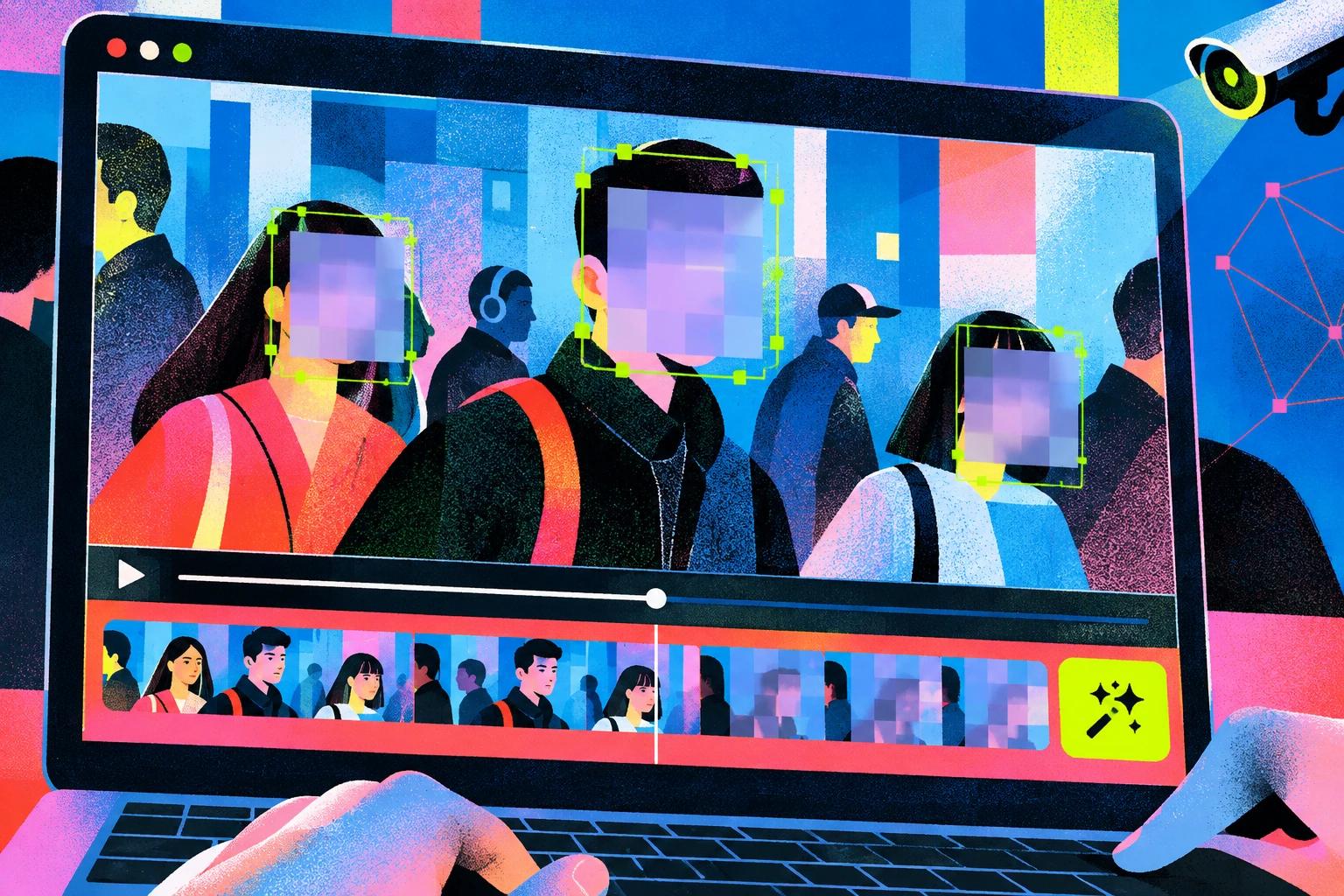
Blurring faces in videos is an important step to protect people’s privacy and safety. We often see TV news or YouTube videos with faces blurred out – this is to anonymize individuals who did not consent to being on camera or to safeguard vulnerable people (such as children or witnesses). By concealing faces, video creators can share content while preventing the identification of those on screen. In fact, blurring faces is often required by privacy laws (like GDPR in Europe) to treat someone’s appearance as personal data and avoid legal issues. Beyond legal reasons, it’s simply good practice – it shows respect for people’s anonymity, helps avoid unwanted attention or harm, and builds trust with viewers that you’re handling sensitive footage responsibly. In short, face blurring allows you to publish or share videos without compromising anyone’s privacy or security.
Overview of VIDIO’s AI Face Blurring Tool
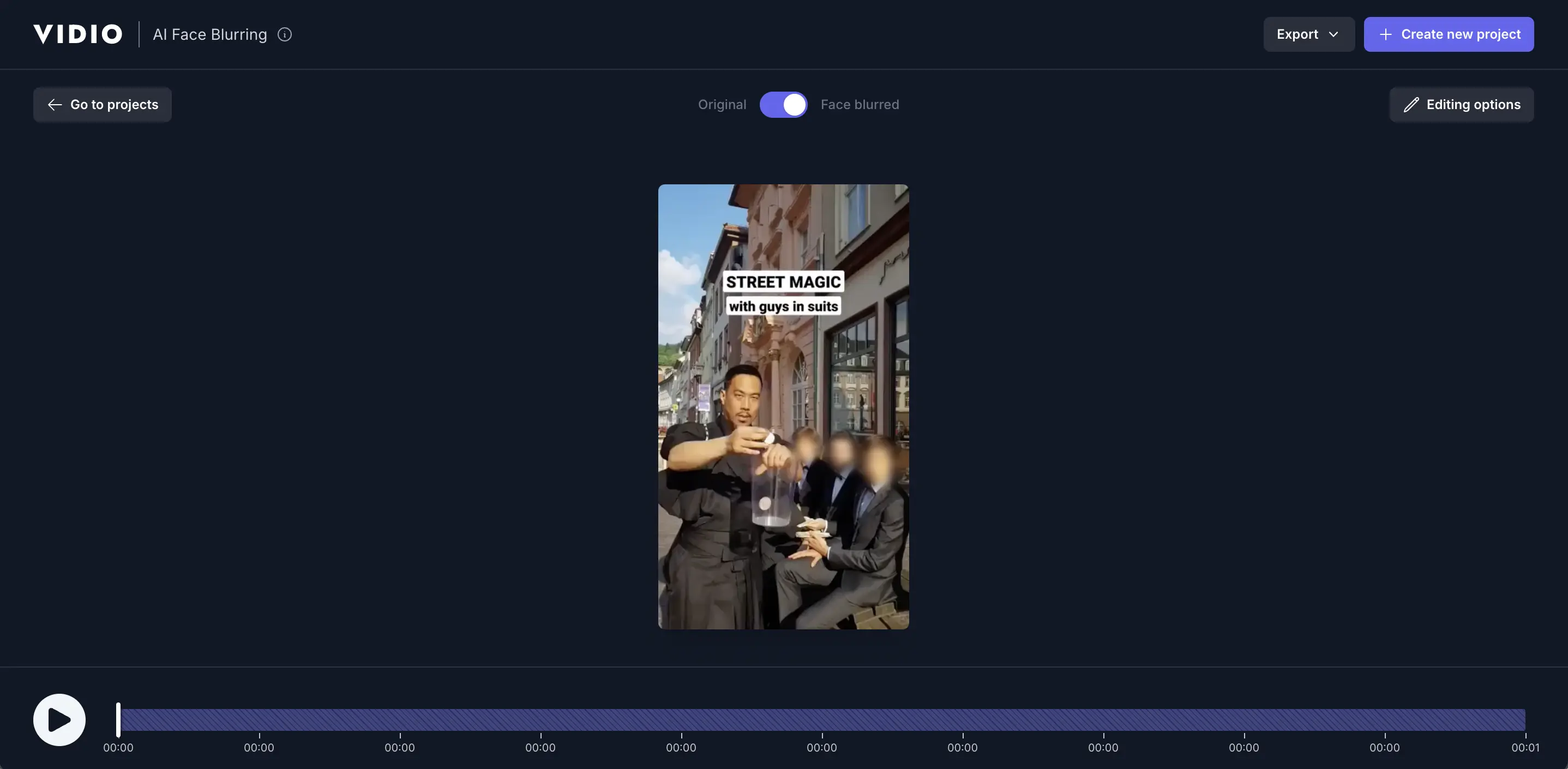
VIDIO’s AI Face Blurring tool is an online application designed to make face anonymization in videos easy for anyone. It uses artificial intelligence to automatically detect and blur faces in your video, saving you from doing it manually frame by frame. This tool is part of VIDIO’s next-generation video editing platform, and it’s especially useful for content creators, educators, businesses, or even investigative journalists who need to hide identities in footage (for example, reporters blurring a source’s face or license plate in a documentary). There’s no complex software to install – you simply use it through your web browser, and it takes care of the heavy lifting with just a few clicks. Below is a summary of key features that make VIDIO’s face blurring tool stand out:
- Automatic Face Detection & Tracking: The tool intelligently finds all faces in each frame of your video and keeps track of them even as they move. You don’t have to draw boxes or mark the faces yourself – the AI does it for you.
- Selective Blurring: You have control over which faces to blur and which to leave visible. The tool will detect multiple faces (even in a crowd) and let you select the ones you want to censor, so you can leave important subjects unblurred.
- Adjustable Blur Settings: VIDIO allows you to fine-tune the blur effect. You can adjust the blur size (the area covering the face) and the blur intensity to achieve the right level of anonymity. This means you can make the blur stronger or softer, and ensure it covers the whole face naturally.
- Fast, AI-Powered Processing: Blurring faces manually could take hours, but VIDIO’s cloud-based AI is very fast. It leverages GPU acceleration so that even high-definition videos are processed in minutes (often around a minute for shorter clips). This lets you get results quickly without straining your own computer.
- High-Quality Output (up to 4K): The tool supports exporting your edited video in up to 4K resolution, preserving the original quality. In other words, anonymizing faces won’t downgrade your video – it stays clear (except for the intentionally blurred parts).
- No Installation Needed: Everything runs in your browser. Just upload your video to the VIDIO website and edit online. This makes it convenient and accessible on any device – you don’t need specialized video editing skills or software.
- Email Notifications: If you have a longer video that takes a bit to process, you don’t need to sit and wait. The tool can send you an email when your video is ready to download, which is handy for busy users.
Overall, VIDIO’s face blurring tool is designed to be user-friendly and efficient filmora.wondershare.com. It’s a great option for anyone who needs to quickly blur faces in a video – whether you’re a YouTuber editing a vlog, a teacher sharing a classroom recording with student faces hidden, or a security officer preparing surveillance footage for public release.
Step-by-Step: Blurring Faces with VIDIO
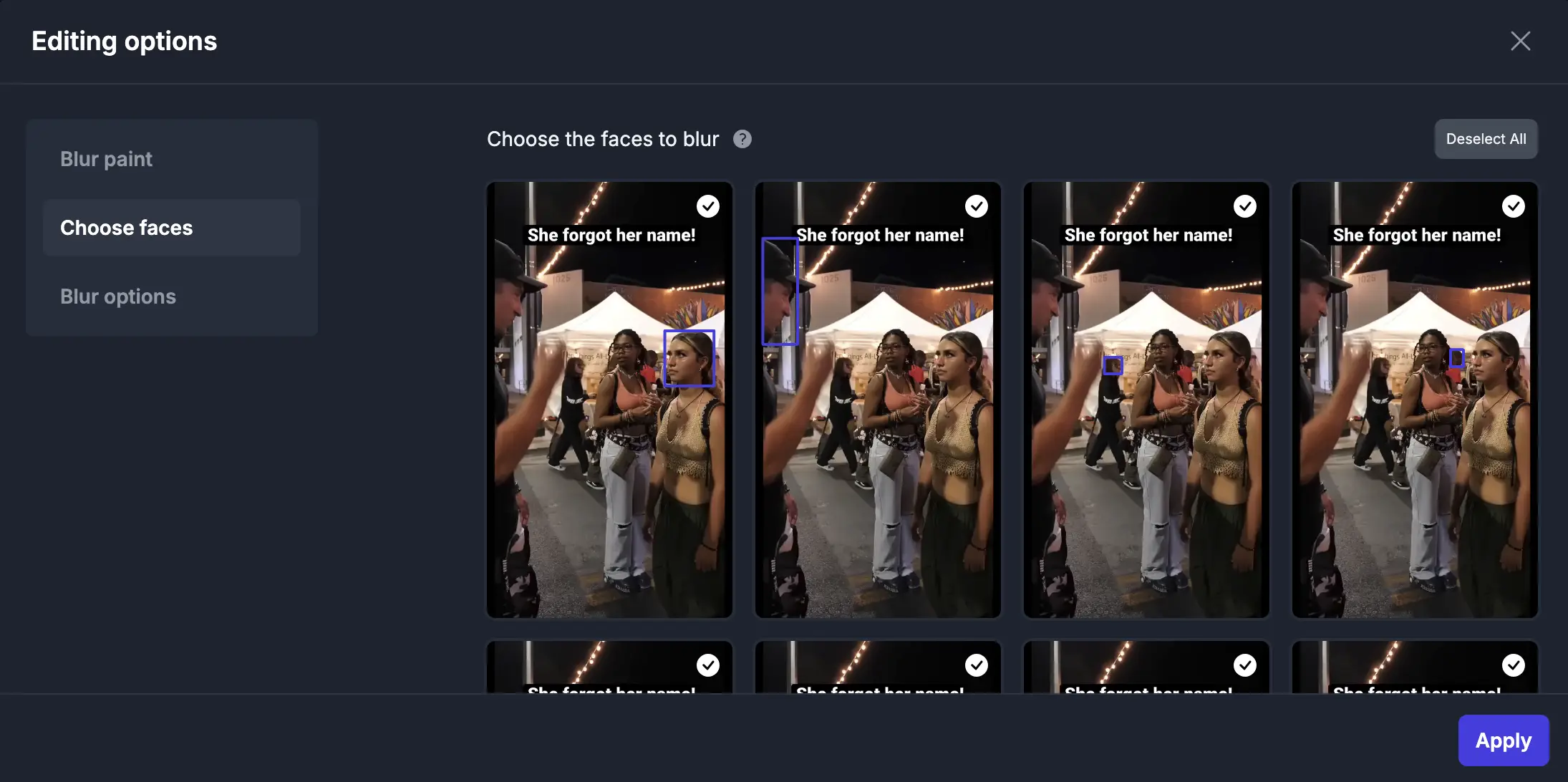
Above: The VIDIO interface automatically detects faces and lets you pick which ones to blur. Using the tool is straightforward and doesn’t require any technical expertise. Just follow these simple steps to blur faces in your video:
-
Open the Face Blurring tool and upload your video: Go to the VIDIO AI Face Blurring page and click on the “Get Started” button. You can sign in or create a free account if prompted. Once you’re in the tool, upload the video file that you want to edit (you can drag-and-drop or select it from your computer). The tool supports most common video formats like MP4, MOV, AVI, WEBM, etc., so you shouldn’t have any compatibility issues. There’s also no need to download any software – everything happens online in your browser.
-
Let the AI detect all faces in the video: After uploading, VIDIO will automatically analyze your video to find any human faces in it. This detection process uses AI to scan frame by frame. Give it a moment to finish – the time will depend on your video’s length, but it’s usually quite fast (thanks to the cloud GPUs). You’ll see the tool start marking faces; for example, it might display boxes around faces in a preview or generate thumbnails of each detected face. Behind the scenes, the AI is identifying and tracking each face it finds, even if the person moves or turns their head. You don’t need to do anything in this step except wait a short time for the detection to complete.
-
Select which faces you want to blur: Once detection is done, the interface will show you all the faces it found. Typically, the tool will either highlight faces in the video preview with checkmarks or present a list of face snapshots. By default, usually all faces will be selected for blurring (since the goal is privacy). Now it’s your turn to review and decide: choose the faces that should be blurred and deselect any faces that you want to leave unblurred. For example, if you filmed yourself interviewing someone on the street, you might blur the interviewee’s face but keep your own face visible. VIDIO makes this easy – you can simply click on a face to toggle blur on/off. The idea is to blur everyone except the people you explicitly want shown. Take a moment to double-check that all the people who need anonymity have a checkmark (blur) and those who are okay to show are unmarked. The interface (as shown above) provides visual cues, so you can be confident you picked the right faces.
-
Adjust the blur settings (optional): VIDIO’s tool lets you customize how the blur looks, though this step is optional if you’re happy with the default blur. Look for blur options or settings in the editor – for instance, you might see controls for Blur Size and Blur Level. If needed, click on that section. Here you can fine-tune the blur effect: increase or decrease the size of the blurred area and the intensity of the blur. A larger blur area can cover a bit beyond the face (useful if the person moves around), and a stronger blur makes the face more obscured. Adjust these sliders until the preview looks right to you. In most cases, the default settings (moderate blur covering just the face) work well, but it’s nice to have control. For example, if a face is still slightly recognizable, you may want to turn up the blur strength. On the other hand, if the blur is too large and covering more than necessary, you can reduce the size. This step ensures you get the best balance between privacy and visibility – the face becomes unidentifiable, but the video still looks natural.
-
Process the video and download the result: Now that you’ve selected which faces to blur (and set any custom preferences), it’s time to let VIDIO do its magic. Hit the “Blur” or “Export” button (the exact wording may be “Export” since it’s producing your new video). The tool will now apply the blur to all the selected faces throughout the video. You don’t have to manually track anything – the AI handles it frame by frame. Processing is usually quick: for short videos, it might finish in around a minute or so; longer videos will take a few minutes. You can watch the progress bar, or even step away if it’s a long video – VIDIO will notify you by email when the video is ready, if you enabled that option. Once processing is complete, you’ll get a prompt to download your blurred video. Click the download button to save the new video file to your device. Finally, play back the video to double-check that all intended faces are properly blurred. You should see that every face you selected is now obscured in motion, while any faces you left unselected remain clear. Congrats – you’ve successfully blurred faces in your video!
Tips for Getting the Best Results
Here are some helpful tips and best practices to ensure the face blurring process goes smoothly and the outcome is effective:
- Use a clear video for better detection: The AI works best when faces are reasonably clear in the footage. If possible, try to use videos where the lighting is good and faces are not extremely small or hidden. Very dark or extremely blurry footage might make it harder for any AI to recognize faces. The clearer the face, the more accurately the tool can detect and blur it.
- Double-check all detected faces: After the AI finds faces, take a moment to review them. Make sure every person who should be anonymized is indeed detected and marked for blurring. If someone’s face was missed by the AI, you have a couple of options: you could try a different frame (scroll through the video in the tool to see if the face gets picked up), or use a manual blur tool (VIDIO provides a “blur paint” brush you can use to manually blur areas, in case a face isn’t auto-detected). It’s rare for the AI to miss, but it can happen if a face is at a very odd angle or mostly obstructed.
- Blur only what’s necessary: It might be tempting to blur everything, but keep in mind the purpose of your video. If there are faces that don’t need blurring (for example, a presenter or someone who gave consent to be shown), you can leave them unblurred to preserve the human element in your video. Blurring does reduce detail, so only apply it where needed – this way, your audience can still see the important people or emotions in the video, and only the sensitive identities are hidden.
- Adjust the blur amount for privacy: Make use of the adjustable settings to get the blur just right. Too light of a blur could leave some features recognizable (defeating the purpose), while too heavy of a blur might be larger than necessary. Aim for a blur level that completely obscures the person’s identity but still looks natural on screen. For instance, ensure the blur covers the whole face and maybe a bit of the hair/forehead, so nothing distinguishing is visible. VIDIO’s “Natural Blur Boundary” feature already softens the edges of the blur to blend it in, so you generally just need to set the strength appropriately.
- Take advantage of the free preview: If you’re new to the tool, you can test it out on a short clip first. VIDIO’s free plan lets you blur the first 15 seconds of a video for free. Use this as a trial – upload a small sample of your video (or just know that it will only export 15 seconds on the free tier) to see how the blurring looks. This way, you can verify the results and get comfortable with the interface. If you like the outcome, you can then consider upgrading or splitting your video into chunks. It’s a good way to make sure the tool meets your needs before committing a large file or payment.
- Keep a backup of the original video: Blurring is a one-way process – once a face is blurred in the exported video, you can’t unblur it. So always keep your original video file safe. This ensures that if you need to try different settings or blur additional faces later, you still have the untouched footage to work from. Think of the blurred video as a final published copy for sharing, and the original as your source material.
- Respect privacy beyond just faces: While VIDIO focuses on faces, remember that privacy might involve other identifying elements too. Consider if there are name tags, license plates, or documents visible in the video that should be obscured. The face blurring tool won’t automatically catch those, but you can use the manual blur paint to cover any sensitive info. This extra step will further protect identities and comply with privacy guidelines, ensuring no identifiable detail slips through.
By following these tips, you’ll maximize the effectiveness of the face blurring and produce a video that both conveys your message and protects the people featured in it.
Limitations and Things to Keep in Mind
Before you finalize your project, be aware of a few limitations and considerations when using VIDIO’s AI Face Blurring tool:
- Video Length and Size Limits: The online tool has an upload limit of 20 minutes per video (max) and about 3 GB file size. This means extremely long videos (like hour-long recordings) or very large HD files might be too big to process in one go. If your video exceeds these limits, you’ll need to either cut it into shorter segments or consider a premium plan (if available) that supports longer durations.
- Free Version Restrictions: VIDIO offers a free usage option, but it’s quite limited – it only processes the first 15 seconds of your video for free. This is fine for testing or very short clips, but obviously not enough for full videos. To blur an entire video longer than 15 seconds, you will likely need to upgrade to a paid plan or subscription. Keep this in mind if you plan to use the tool regularly or for longer content.
- Internet and Upload Requirement: Because this is an online service, you’ll need a stable internet connection and you have to upload your video to VIDIO’s server. For small videos this is easy, but for larger files (several hundred MBs or a few GBs), uploading can take some time. Be patient during the upload, and try not to close the browser tab until it’s done. If your internet is slow, plan ahead for the upload phase. Also, ensure you’re comfortable with the service’s privacy terms since you are transmitting your video to the cloud for processing (VIDIO is a reputable provider, but this is worth noting for very sensitive footage).
- AI Detection Might Not Be Perfect: While VIDIO’s face detection is very advanced (it can even catch faces turned at an angle or partially looking away), no AI is 100% infallible. If a face is extremely hidden, at the very edge of the frame, or only appears for a few frames, there’s a small chance it might not be detected. Always review the output video to ensure every face that needed blurring was blurred. If you find a face that was missed, you may need to re-run the tool and use manual blur on that part, or try a clearer frame for detection. The good news is that multi-face, moving targets are generally handled well – just be mindful of any out-of-the-ordinary cases.
- Focuses Only on Faces: This tool is specialized for face blurring. It won’t automatically blur other objects or text in the video (e.g. a phone number on a screen, a car’s license plate, etc.). If your privacy needs go beyond faces, be prepared to manually blur those items or use additional tools. VIDIO does have other AI tools (like background blurring or object removal in their suite), but those might be separate features. For the face blurring tool, remember that its scope is detecting human faces. Non-face elements will require extra attention on your part if they need hiding.
- Processing Time for Longer Videos: Blurring is generally quick, but for a full 15-20 minute high-resolution video, it could take a few minutes to process. This isn’t exactly a limitation, but something to keep in mind. The service’s email notification feature is useful here – you can start the blur job and you’ll get an email when it’s done. During processing, avoid closing the window unless you’re sure the job has been submitted and you’ll rely on the email. If the video is very long and complex, just allow some extra time for the AI to finish the job properly.
- Output is Final: Once you download your blurred video, that’s the final product. If you realize you wanted a different face blurred (or unblurred), you’d have to go back to the original video and run the tool again with the new selection. So, double-check selections before exporting to save time. It can help to keep notes of which files are which (original vs blurred version) so you don’t mix them up.
By understanding these limitations, you can plan your editing workflow better and avoid surprises. Despite these considerations, VIDIO’s AI Face Blurring tool remains a powerful and convenient way to protect identities in your videos. Just remember its constraints, use it wisely, and you’ll be able to create content that is both engaging and privacy-compliant.
Top related tools
5AskVIDIO
Ask our AI agent anything you want
This assistant can help you with guidance on what tools to use for your video editing needs.
Ask now