How to Blur a Person in a Video: Tools, Tips, and Best Practices (2025)

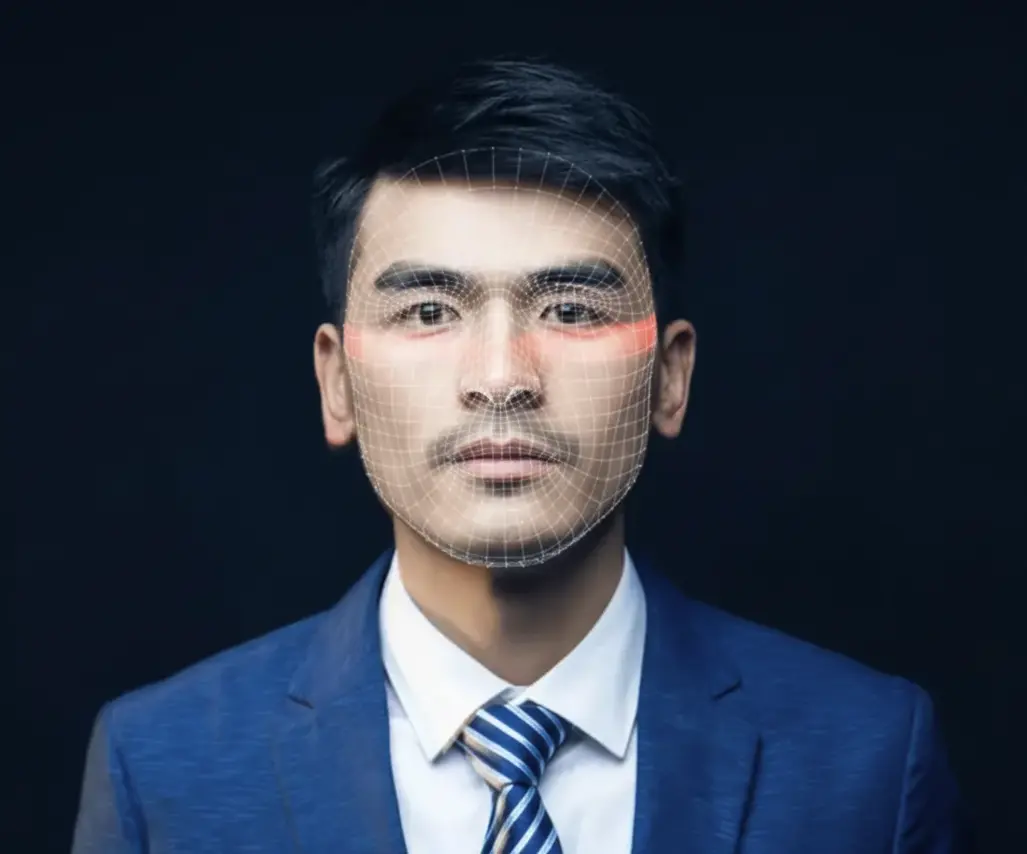
Blurring out a person’s face or identity in a video is an essential skill for content creators concerned with privacy and compliance. Whether you’re hiding the face of a bystander, anonymizing subjects in a documentary, or protecting sensitive information, there are now many video blurring tools available – from AI face blur software to built-in editors – that make the job easier. In this comprehensive guide, we’ll walk through how to blur a person in a video using an AI-powered tool, compare popular solutions (YouTube’s blur tool, Adobe Premiere Pro, DaVinci Resolve, Kapwing, Descript), and discuss each tool’s pros and cons. We’ll also provide tips on choosing the right tool for your needs (based on skill level, video complexity, and intended use) and cover best practices for ethical, effective video blurring – ensuring you maintain video privacy (e.g. for GDPR compliance) without compromising your content’s quality.
Step-by-Step: Blurring a Face in Video with VIDIO’s AI Face Blurring Tool
VIDIO’s AI Face Blurring tool is an online application designed to make face anonymization in videos easy for anyone. Unlike manual editing, this cloud-based AI tool can automatically detect and blur faces in your footage, no editing experience required. It’s especially useful if you have multiple people or moving subjects to censor. Here’s a step-by-step guide to blur faces using VIDIO’s AI tool:
- Access the Face Blurring Tool: Go to the VIDIO AI Face Blurring page in your web browser. The interface will prompt you to upload a video file (most standard formats are supported).
- Upload Your Video: Select the video that needs face blurring and upload it to the VIDIO tool. The AI will quickly process the video to automatically detect all faces in each frame (using advanced face recognition algorithms) [1].
- Select Faces to Blur: Once detection is complete, the tool will display the faces it found. Choose which face(s) or person(s) you want to blur. You can typically toggle blurring on or off for each detected face (useful if you only need to hide specific people).
- Apply Blur and Review: Apply the blur effect. The AI will track each selected face throughout the video and blur it wherever it appears, even as the person moves. Take a moment to preview the video – ensure the blur properly covers the faces for the entire duration.
- Adjust Settings (If Available): Some AI tools let you adjust the blur style or intensity. For example, you might switch between a traditional gaussian blur or a mosaic pixelation effect. (If the interface provides options like blur strength or shape, tweak these to achieve the desired balance between privacy and video clarity.)
- Export the Blurred Video: When you’re satisfied that the person is thoroughly blurred, export or download the edited video. VIDIO processes everything online, so once done, you can download the new file with faces anonymized. The result is a video in which the chosen faces are obscured for privacy.
Using VIDIO’s AI blurring tool is a fast, user-friendly way to anonymize people in footage. You simply upload a video and the AI automatically blurs faces within seconds, no complex editing timeline needed [1]. This makes it ideal for creators who want a quick, AI-driven video privacy solution without learning pro editing software. Next, we’ll compare this tool to other popular methods for blurring a person in a video.
Comparing Popular Face Blurring Tools
There are several other tools and software options for blurring faces or people in videos. Below, we break down how each works along with its pros and cons. We’ll look at YouTube Studio’s face blur, Adobe Premiere Pro, DaVinci Resolve, Kapwing’s online editor, and Descript, so you can understand their differences.
YouTube Studio’s Built-in Face Blur Tool
How it works: YouTube offers a free built-in blurring tool in YouTube Studio for videos you’ve uploaded. In the YouTube Studio Editor, you can choose “Blur” → “Face blur”, and YouTube will scan the video for faces. It automatically detects all faces in your video, then you can select which faces you want blurred[2]. Once you apply, YouTube blurs those faces throughout the video. You can also use a custom blur shape to obscure objects or areas if needed. After saving, the changes will be applied to the video on YouTube (note: as of 2025, you cannot revert the blur once saved, so keep a copy of the original video just in case).
Pros:
- Completely free and no software needed. The tool is accessible via your browser on YouTube – no installation required, and it’s available to all creators [2].
- Automatic face detection. YouTube’s AI will find faces for you, which is convenient for blurring multiple people quickly without manual tracking.
- No re-upload required. You can blur faces after your video is uploaded (even on an already-published video) and keep the same video URL, which is great for quick privacy fixes.
- Basic tracking provided. The editor allows the blurred area to track the moving face (or you can fix it in place) [3], so the blur stays on the person as they move in the frame.
Cons:
- Limited editing control. YouTube’s blurring options are basic – you can adjust the blur area and choose rectangle or oval shape [4], but you can’t fine-tune the blur strength or apply advanced effects. It’s not as precise as professional editing software for complex scenes.
- Must use YouTube platform. The tool only works for videos uploaded to YouTube. If your intended use is outside YouTube, you’d have to blur on YouTube and re-download the video (which adds compression) [5]. This can be inconvenient for non-YouTube projects.
- Quality and speed vary. The face detection is usually good for clear, front-facing shots but might miss faces at odd angles or in poor lighting. Processing time depends on video length/quality. Very long videos may be slow to process, and there are restrictions (e.g. videos over 100k views have limited editing capabilities) [6].
- Changes are permanent on YouTube. Once you save the blurred video, you cannot revert to the original via YouTube Studio [7]. This irreversible edit means you need to be sure about the blur or keep an original copy.
Adobe Premiere Pro
How it works: Adobe Premiere Pro is a professional video editing software that offers powerful tools for blurring objects or faces. There isn’t a one-click “face blur” button; instead you use masking and tracking features with a blur effect. The typical workflow is: apply a Gaussian Blur (or Mosaic) effect to your clip, then use Premiere’s masking tool (ellipse or pen) to create a mask over the person’s face, and enable mask tracking. Premiere will then automatically track the masked area as the person moves frame by frame [8], blurring the face throughout the shot. You can feather the mask for a smooth look and adjust the blur amount as needed [9]. This method gives fine control – you can adjust the mask shape, size, and path if the tracker isn’t perfect.
Pros:
- High precision and control. Premiere Pro’s manual masking allows you to blur exactly what you intend (faces, license plates, etc.) with custom shapes. You can animate and keyframe the masks if needed for complex scenes.
- Robust motion tracking. The software can automatically track the masked face as it moves, including position, scale, rotation changes [10][11]. This greatly speeds up the process of blurring a moving person, and the tracking is fairly accurate in most cases.
- Professional results. You have control over blur intensity, style (e.g. you could use pixelation or mosaic effects), and can combine multiple masks/effects. The blurring can be made to look seamless. Plus, Premiere Pro preserves overall video quality (no additional compression beyond your export settings).
- Part of a full editing suite. If you’re already editing the video in Premiere, blurring a face can be done in the same project. It integrates with After Effects for even more advanced tracking if needed [12]. For those doing professional or long-form content, it’s efficient to have everything in one place.
Cons:
- Steep learning curve (not beginner-friendly). Using Premiere Pro for a simple task like face blurring is often overkill for novices. The interface and workflow require some editing knowledge – you must understand effects, masks, and tracking settings to do it properly. Beginners may find it intimidating compared to one-click blur tools.
- Time-consuming for many faces. If your video has dozens of faces to censor, doing each one manually in Premiere can be labor intensive. There’s no built-in automatic face finder (though third-party plugins exist), so you have to set up masks for each face. Tracking each mask can also be slow if the video is long or faces move a lot.
- Cost and system requirements. Premiere Pro is paid (subscription-based) software and requires a relatively powerful computer. It’s not a free solution – making it less ideal if you only occasionally need to blur a face and don’t already use Premiere.
- Mask tracking limitations. While Premiere’s tracker is good, it can struggle if the face gets obscured or the lighting changes significantly. You might need to babysit the process, adjusting masks manually if the track drifts off the target. In some cases, users report it can be “terribly inaccurate” for complex movements [13], requiring manual correction.
DaVinci Resolve
How it works: DaVinci Resolve (particularly in its Color page) also provides powerful tools to blur faces. In Resolve, you typically switch to the Color workspace, add a Power Window (mask shape like a circle) over the face, apply a blur effect, and then use trackers to follow the face’s movement [14]. Resolve offers both a basic blur (by adjusting a blur radius on the node) and more advanced blur effects under OpenFX (like Mosaic blur for pixelation) [15][16]. After drawing your mask window on the person’s face, you go to the Tracker and click Track Forward (and backward if needed) to have the mask follow the face through the clip [17]. Resolve’s tracking is very robust, even with complex movements, especially if you’re using the latest DaVinci Neural Engine features (e.g. Magic Mask in newer versions can auto-detect and track people). Once tracked, the face stays blurred throughout. You can then render out the video with the blur applied.
Pros:
- Professional-grade capabilities (free version available). One big advantage is that DaVinci Resolve has a free version that includes these blurring and tracking tools. It’s a high-end editor (used in Hollywood for color grading) but at no cost, which is great for creators on a budget.
- Advanced tracking and masks. Resolve’s object tracker is known for accuracy. It can handle a moving face well – even complex motion or partial occlusion – often better than some other editors. You can also fine-tune the mask shape and use multiple tracking modes.
- Flexible blur options. You can choose different blur methods (simple defocus blur, Gaussian, mosaic pixelation, etc.) to get the effect you want [15][16]. This lets you control how unrecognizable the face is (e.g. a heavy mosaic vs. a slight blur). The strength of blur is adjustable to balance anonymity with visibility.
- Suitable for complex projects. If you have a high-resolution video or a project with many scenes to blur, Resolve can handle it. It supports up to 4K (even higher in Studio version) and offers batch render options. It’s also great if you need to do color correction or other edits in conjunction – it’s a full editing/color toolset.
Cons:
- Learning curve and interface. Resolve is powerful but complex. The process of adding nodes in the Color page, using power windows, etc., might confuse users not already familiar with it. It’s not as straightforward as a dedicated blur app or simpler editor.
- Performance considerations. Resolve can be resource-intensive. Tracking a mask on a long 4K video, for instance, uses a lot of CPU/GPU power. It might be slow on older computers (though the performance is quite optimized, slower machines may struggle especially with multiple blurs or high resolutions).
- Not automated for faces (in base tools). Unless you use the newer AI-based Magic Mask (available in Studio version) or third-party plugins, you still manually create the mask for each face. There’s no one-click “detect all faces” in the free version’s workflow. This means for multiple faces you repeat the process multiple times, which is time-consuming.
- Overkill for quick edits. If you just need to blur one face quickly for a one-off social media video, opening Resolve and setting up nodes might be more work than needed. Simpler tools might get the job done faster in those scenarios, whereas Resolve shines in more complex or professional content where quality is paramount.
Kapwing Online Studio
How it works: Kapwing is a web-based video editor that includes a blur feature. It doesn’t have automatic face detection, but it offers an easy way to blur a selected area or even the entire video. In the Kapwing Studio editor, you can upload your video, then add the “Blur” effect either to the whole video or use shapes/filters to cover a part of the frame. One common method is to duplicate the video layer, apply a blur to the top layer, and crop or shape that top layer to only cover the face or area you want blurred (Kapwing’s interface provides an adjustable blur slider)[18]. Recently, Kapwing has introduced (semi-)automatic object tracking for the blur effect – you can draw a blur over a face and the editor will attempt to track it as the person moves (useful for moving subjects)[19]. Once done, you export the video from Kapwing’s servers with the blur applied.
Pros:
- User-friendly and quick. Kapwing is designed for everyday content creators, so its tools are straightforward. The interface is drag-and-drop with simple sliders – ideal for beginners who want to blur something without learning complex software [20].
- No installation – works in the browser. Being online, it works on any platform (Windows, Mac, Chromebook) with just a web browser. This is convenient if you can’t install software or need to edit on the go.
- Fast processing for short videos. For relatively short or small videos, Kapwing’s cloud processing is quite fast. You upload the clip, apply blur, and their servers render it quickly. It’s marketed as a “quick method of editing” for those who need a face or object censored without hassle [20].
- Free plan available. Kapwing offers a free tier that lets you do basic blurring and export videos (usually with some limitations). This means you can try it out or do occasional blurs at no cost. For more frequent use or to remove limitations, they have paid plans.
- Other editing features included. Along with blurring, Kapwing’s studio lets you do other simple edits (cutting, captions, adding images, etc.). It’s a versatile online tool, so if you’re already using it to resize or subtitle a video for example, doing a blur in the same workflow is convenient.
Cons:
- Limited advanced control. Kapwing’s simplicity is a double-edged sword. You won’t get the fine control over mask shape, keyframes, or blur intensity that professional software offers. The blur is generally one-size-fits-all (though you can adjust strength). Complex scenarios (many faces or needing precise masking) can be challenging.
- Free version restrictions. The free plan of Kapwing adds a small watermark on exports and has limits on video length and resolution. Advanced features are limited for free users – for example, higher output quality and some effects might require a subscription [21]. To get a watermark-free video and full HD quality, you often need to upgrade.
- Privacy and upload concerns. Using Kapwing (or any online editor) means you have to upload your video to their cloud. This may be a privacy issue if your footage is sensitive (since you’re entrusting it to a third-party server) [22]. Those working with confidential content might prefer an offline tool.
- Performance on long videos. For larger or longer videos, the browser-based editor can become sluggish, and uploads/downloads take time. There may also be file size limits. If you try to blur a very long video for free, you might hit Kapwing’s duration limits or face extremely slow processing (unless you have a paid plan).
- Internet required. Since it’s an online service, you need a stable internet connection. Editing high-resolution videos can consume a lot of bandwidth (uploading a 4K video to blur it and then downloading it). This isn’t ideal if you have slow internet or data caps.
Descript Video Editor
How it works: Descript is a unique video editor focused on text-based editing (where you edit video by editing the transcript). It also includes visual editing tools like effects. Descript has a “Blur Out” visual effect that you can apply to any video layer to make it fuzzy or out of focus [23]. The workflow would be: import your video into a Descript project, select the video layer on the canvas, and from the Properties panel, apply the Blur effect. You can adjust the blur radius (intensity) to increase or decrease how much the image is obscured [24]. To blur a specific person or object, you might duplicate the video track, crop or mask it to just the area of the person’s face, and then apply the blur to that layer (Descript doesn’t have an elaborate masking tool like Premiere, but you can add shapes or use a green screen workaround). Essentially, you’ll be blurring an area manually at the desired time in the video. Descript’s interface is user-friendly, but it does not yet automatically track faces or movement – you would need to split the clip or animate the blurred layer if the person moves around a lot.
Pros:
- Easy for beginner editors. If you’re already using Descript for creating content (like editing talking head videos or podcasts with captions), adding a blur effect is very simple. It’s just an effect in the sidebar – no advanced editing knowledge required [25]. This makes it approachable to content creators who may not be video editing experts.
- Integrated with other editing tasks. Descript combines many tools (transcription, subtitling, audio editing, etc.). So while you cut out ums and generate captions, you can also quickly blur something in the same app. It’s efficient for workflow if you’re producing social media clips or tutorials with Descript anyway.
- Quick application for static blurs. For cases like blurring a piece of sensitive info on a screen recording or a single face that doesn’t move much, Descript gets it done fast. You drop in the blur effect and you’re done. No need to export to another program.
- Collaboration and cloud syncing. Descript projects live in the cloud, so if you’re working with a team, everyone can see the edit. If a producer or client says “blur this person’s face,” you can do it and they’ll see it in the shared project. This collaborative aspect (plus version history) can be useful for content teams.
- Multi-platform and lightweight. Descript runs on Windows and Mac, and the heavy lifting (like transcription) is cloud-based. It’s not as demanding on your computer’s hardware as running Premiere or Resolve, which is a plus for users with basic laptops.
Cons:
- No automatic face detection. Descript’s blur effect is not AI-powered to find faces – it’s a manual effect. That means you have to locate and cover the face yourself, and if the subject moves, you’ll have to adjust the blurred area over time (Descript’s keyframing capabilities are limited, so tracking a moving face might be tedious or not smooth).
- Basic effect only. The blur is a simple Gaussian blur over a region. You can’t do pixelation mosaics or advanced shape masks natively. For example, you might not easily blur a moving person in a complex scene without visible artifacts. It’s best for small, relatively static blurs (like hiding a name badge or a single face mostly looking at the camera).
- Depends on Descript’s environment. To use the blur, you have to import your video into Descript. Very large or long videos might be cumbersome in Descript (which is optimized for shorter content, like a 30-min interview at most). If your project doesn’t already involve Descript, it might be an unnecessary step to use it just for blurring.
- Subscription for full features. Descript has a free tier, but to export videos without watermarks or higher quality, you might need a paid plan (depending on the length of the video and features used). If you’re not already a subscriber and only need the blur feature occasionally, it might not justify the cost.
- Quality considerations. Descript will re-render your video when exporting, which could affect quality. While generally fine for 1080p social videos, it might not be the best choice if you need full control over render settings or lossless output. In contrast, dedicated editors give more control over final encoding quality.
Summary of Tools: Pros and Cons Comparison
For a quick overview, the table below summarizes each tool and its key pros/cons:
| Tool | Key Strengths (Pros) | Key Limitations (Cons) |
|---|---|---|
| VIDIO AI Blurring | Automatic face detection and blurring; very easy to use (no editing skills needed); fast cloud processing; great for multiple moving faces; no software install (browser-based). | Requires upload to cloud (potential privacy concern for sensitive footage); limited manual control over the blur style; dependent on internet speed; may have subscription or limits for long videos. |
| YouTube Studio Blur | Free and accessible to all YouTube users; no extra software needed; auto-detects faces; can blur after video is posted; basic tracking included. | Only works on YouTube platform; minimal control over blur appearance; cannot easily undo once saved; must re-download for use outside YouTube; might miss faces at odd angles. |
| Adobe Premiere Pro | Professional precision (custom masks, adjustable blur, many effects); powerful motion tracking for moving faces [8]; can handle complex projects; integration with full editing workflow; reliable output quality. | Steep learning curve for new users; requires subscription and a capable PC; time-consuming for many faces (no auto face-detect); overkill for simple tasks; expensive if only used sparingly. |
| DaVinci Resolve | High-end tracking and masking (even in free version); multiple blur effects (Gaussian, mosaic, etc.) [15]; free to use with pro-level results; optimized for batch and high-res video; good for legal/enterprise use (detailed control). | Advanced interface that can be hard for beginners; still a manual process to set up blurs; heavy application – can be slow on older hardware; not an instant solution for quick social videos; limited one-click automation unless using paid Studio features. |
| Kapwing | Browser-based and easy for beginners [20]; no install needed; quick for short clips; offers basic object tracking; free tier available; great for casual use or quick social media edits. | Lacks fine control and advanced features (simple blur only); free exports have watermarks and limitations [21]; need internet and upload (privacy/security considerations) [22]; not ideal for long or large videos; performance limited by browser. |
| Descript | Simple effect applied in a few clicks [25]; perfect for blurring small things in videos you’re already editing in Descript; beginner-friendly UI; also gets transcription/captioning done in one app; cross-platform and collaborative. | No AI face recognition – fully manual; not suited for multiple moving subjects; somewhat limited editing capabilities for complex blur needs; must import into Descript (large files can be a hassle); may need a paid plan for extensive use. |
(Sources: Official tool documentation and user guides [26][8][15][20][21][22].)
Tips for Choosing the Right Face Blurring Tool
With so many options available, how do you decide which tool is best for your situation? Here are some tips to help you select the right face-blurring method based on your skill level, video complexity, and intended use:
- Match the Tool to Your Skill Level: If you’re a beginner or need a quick fix, choose user-friendly tools that do the heavy lifting for you. Online AI tools (like VIDIO or Kapwing) and YouTube’s built-in blur are great for one-click blurring with minimal effort. They have intuitive interfaces and require little technical knowledge, so anyone can use them to protect privacy [20]. On the other hand, if you’re comfortable with advanced software or already familiar with editing, you can leverage pro software (Premiere Pro, Resolve) for more control. Experienced video editors may prefer the precision of manual masking and tracking – especially if the project demands high quality or additional editing beyond blurring.
- Consider Video Complexity & Number of Faces: The complexity of your video (how many people, how much movement, video length) should guide your choice. For a simple scenario (e.g. one static person in a short clip), a quick online tool or Descript will handle it easily. But if you have many faces or a person moving around a lot, look for tools with strong tracking and automation. AI-powered solutions can save you tons of time by finding and blurring all faces automatically [2]. If using manual tools, ensure they support motion tracking – tracking a moving face frame-by-frame yourself is tedious, so rely on software that can follow movement for you [27]. For very long videos or frequent blurring tasks, consider offline software that won’t choke on large files, and possibly one that supports batch processing or scripting.
- Intended Use & Output Requirements: Think about where and how the blurred video will be used. For example, if you are blurring a video for YouTube specifically, using YouTube Studio’s tool makes sense since it keeps the video on the platform and avoids an extra re-upload. For social media clips (Instagram, TikTok) or internal use, an online editor like Kapwing or a quick mobile app might be sufficient – they prioritize speed and convenience. However, for documentaries, journalism, or professional content, you’ll likely need the higher fidelity and fine-tuned control of professional software to ensure the blur is accurate and the rest of the video quality is maintained. Also, pro content often demands watermark-free, high-resolution output – which might rule out free online tools that stamp logos or limit resolution [28]. In such cases, using paid software or services (or paid tier of an online tool) is worth it for a clean result.
- Privacy and Security Considerations: If your footage is sensitive (e.g. contains confidential information or at-risk individuals), be mindful of where your video is processed. Online tools require uploading your video to a server, which might pose privacy risks [22]. For highly confidential projects (like investigative journalism or corporate security footage), choose offline software (Premiere, Resolve, or specialized tools) so the video never leaves your local machine. If you do use cloud-based blurring, check if the service deletes your footage after processing and ensure it’s a reputable service. Always weigh convenience vs. privacy – sometimes a slightly longer manual process offline is preferable to exposing footage online.
- Budget and Frequency: Some tools are free, others require subscriptions or one-time purchases. If you only need to blur faces occasionally, try free solutions first (YouTube Editor, free version of Resolve, trial of an AI tool, etc.). Keep in mind, completely free tools often come with trade-offs like watermarks, limited features, or slower processing [28]. If you find yourself blurring faces regularly (say you vlog in public often and constantly need to blur people in the background), investing in a paid tool or software might be worthwhile for the efficiency and better results. For example, a paid AI service or a plugin like Boris FX Continuum (which auto-blurs faces with AI in editing programs) could drastically speed up your workflow if used frequently [29]. Similarly, if you already pay for an Adobe Creative Cloud subscription, using Premiere (which you have) might be more logical than paying for another service.
- Trial and Test: Don’t hesitate to test a small portion of your video on multiple tools to compare results. For instance, you could try a short clip with a face on Kapwing, on VIDIO, and in Premiere to see which gives the best combination of ease and result for your scenario. Many tools have free trials or free tiers that let you experiment. Pay attention to how well the face remains blurred (does it ever slip up and reveal identity?), how the output video looks (any noticeable quality drop or watermark?), and how long the process takes. Choose the tool that gives you a satisfactory blur with the least headache.
By considering these factors – your comfort level, the demands of the video, the context in which the video will appear, privacy risks, and cost – you can pick a face blurring method that fits your needs. For example, a travel vlogger who occasionally needs to blur strangers might stick to YouTube’s tool or an AI online service for speed, while a documentary filmmaker handling sensitive interviews would use something like Resolve or Premiere for absolute control and legal compliance.
Best Practices for Ethical and Effective Video Blurring
Blurring a person’s face in a video isn’t just a technical task – it comes with ethical responsibilities. You want to ensure you’re truly protecting identities and not causing other issues in the process. Below are some best practices to follow when blurring people or sensitive information in your videos:
- Obtain Consent or Blur to Protect Privacy: Whenever possible, get permission from individuals appearing in your videos. If someone doesn’t want to be shown or you didn’t get consent, blurring their face (or otherwise anonymizing them) is the ethical choice. In many places, privacy laws and data protection regulations (like Europe’s GDPR) require either consent or anonymization for identifiable people [30]. When it’s impractical to get consent (e.g. a crowd scene), err on the side of privacy and blur faces as needed to avoid legal and ethical issues.
- Prioritize Vulnerable Individuals: Be extra cautious when your footage includes vulnerable groups – such as minors (children), victims of crime, patients, or protestors. These individuals could face harm, harassment, or stigma if identified. Always blur faces (and any other identifying traits) for such people to protect their identity [31]. For example, if you’re filming in a school or a hospital, it’s standard practice to obscure faces of children or patients. Even if not legally required, it’s the right thing to do to prevent potential exploitation or embarrassment.
- Blur All Identifying Information (Not Just Faces): Remember that anonymity isn’t only about faces. People can be identified by other visual details like tattoos, name tags, license plates, house numbers, or documents shown on screen. Extend your blurring to any personally identifying information that needs to be concealed [32]. For instance, if you blur a witness’s face but their ID card is visible in their hand, the job isn’t done. Scan your video for things like IDs, addresses, vehicle plates, distinctive clothing logos, etc., and cover those as well if they could reveal someone’s identity.
- Maintain Clarity Where Possible: While protecting privacy is paramount, try to maintain the overall clarity and message of your video. Use an appropriate level of blur – enough to prevent recognition, but not so heavy that it distracts the viewer or obscures the whole scene (unless absolutely necessary). In some cases, a mosaic pixelation might draw less attention than a big blurred blob, or vice versa. Aim for a balance that respects privacy while retaining the video’s authenticity and context [33]. For example, if you’re blurring a face in a tutorial, ensure the blur doesn’t cover the object they’re interacting with, which might confuse viewers.
- Be Consistent and Thorough: Apply blurring consistently anywhere the person or sensitive info appears. It’s easy to blur one shot and miss another. Double-check the entire video after processing – watch it through to catch any moment where a face might become clear due to movement or where you forgot to apply the effect on a secondary camera angle. The goal is to protect individuals’ privacy without any “holes” or frames left unblurred [34]. If using an automatic tool, verify it picked up every instance of the face. If doing it manually, scrub through frame by frame around edit cuts or fast motion to ensure nothing slips by. Consistency also means using the same blur style/shape across the video (if you blur one protestor’s face with a circle mosaic, do the same for others so it looks uniform and professional).
- Mind Legal and Platform Guidelines: Ethically blurring also means you’re considering legal implications. In some jurisdictions or scenarios, blurring faces may be legally required when publishing content (for example, disguising minors on news broadcasts). Ensure you’re up to date with any relevant laws or guidelines for your content. Platforms like YouTube also have policies – while they provide the blur tool, they might still hold you accountable for protecting privacy in certain cases (e.g., YouTube’s privacy guidelines expect you to blur people who might not have agreed to be in a video). When in doubt, take the cautious approach and blur more rather than less.
- Preserve Video Quality: An often overlooked best practice is to maintain your video’s quality when adding blur. Some methods of blurring can reduce resolution or cause the whole video to export at lower quality. Try to use high-quality settings so that only the intended areas are blurred, and the rest of the footage stays sharp. For example, if you’re exporting from an editor, use the same resolution as the source and a decent bitrate. Avoid repeatedly re-compressing the video (each generation can degrade quality). If using YouTube’s tool and then downloading, remember that downloaded YouTube videos may be compressed – whenever possible, blur on the highest quality copy of the footage you have, then upload or share that. Maintaining visual quality (aside from the blur area) keeps your content looking professional even with the censorship.
- Disclose Edits When Appropriate: In certain contexts (like journalism or documentary filmmaking), it’s good practice to inform your audience that a blur/censorship has been applied, especially if it could raise questions. For instance, a caption might note “Face blurred to protect identity.” This maintains transparency about what’s been altered in the footage. It’s part of ethical storytelling to let viewers know that you’ve obscured something intentionally (so they don’t think it’s a camera issue or something else). This might not be necessary for casual YouTube vlogs, but in news or factual content it’s often appreciated.
By following these best practices, you ensure that using a face blur tool truly serves its purpose: protecting privacy and identity in a responsible way [35][30]. Blurring should always be done with care – it’s not just a visual effect, but a safeguard for real people’s privacy, safety, and dignity. As a content creator, taking the time to blur appropriately (and choose the right tool to do so) reflects professionalism and respect for your subjects and audience.
Conclusion
In today’s era of ubiquitous video content, knowing how to blur a person in a video is an invaluable skill. Whether you’re a YouTuber addressing privacy concerns, a filmmaker complying with legal requirements, or an editor safeguarding someone’s identity, the range of face blur video software available means there’s a solution for every need. We’ve seen that AI video privacy tools like VIDIO’s face blurring app can handle the heavy lifting automatically, while traditional editors like Premiere Pro and DaVinci Resolve offer meticulous control for those who need it. Simpler online editors (Kapwing, Descript) fill the gap for quick, on-the-fly blurring tasks.
As you choose a tool, consider your own experience, the complexity of your project, and the context in which your video will be viewed. Always weigh the convenience of automation against the importance of precision – and never forget the reason we blur faces in the first place: to protect privacy, ensure safety, and behave ethically toward the people in our videos. By following the tips and best practices outlined above, you can confidently anonymize individuals in your footage while maintaining a high standard of quality and integrity in your content. Happy editing, and here’s to a safer, more privacy-conscious video creation process!
Sources: The information above is compiled from official product documentation, user tutorials, and expert guidelines, including YouTube Help [26][2], Adobe/Blackmagic user guides [8][17], and industry articles on face blurring best practices [34][30]. These sources provide additional details on using each tool and the importance of effective video blurring.
[1] [27] [33] [34] Have a Need to Censor Face in Video - Blur Face With a Dedicated App | Gallio
https://gallio.pro/blog/have-a-need-to-censor-face-in-video-blur-face-with-a-dedicated-app/
[2] Automatic face-blur in video editing ? : r/VideoEditing
https://www.reddit.com/r/VideoEditing/comments/xib1ow/automatic_faceblur_in_video_editing/
[3] [4] [5] [6] [7] [26] Blur your videos - YouTube Help
https://support.google.com/youtube/answer/9057652?hl=en
[8] [10] [11] [12] Masking and Tracking in Premiere Pro
https://helpx.adobe.com/se/premiere-pro/using/masking-tracking.html
[9] How to blur faces in Premiere Pro: 1-Min Guide
https://www.kometmedia.com/tutorials/how-to-blur-faces-in-premiere-pro
[13] Am I missing something about masking and tracking in Premiere?
[14] [15] [16] [17] How to Blur Faces and Objects in DaVinci Resolve
https://www.mauriziomercorella.com/color-grading-blog/how-to-blur-faces-objects-davinci-resolve
[18] Add Blur to Video Online - Kapwing
https://www.kapwing.com/tools/blur
[19] (Semi Automatic) Object Tracking in Kapwing Video Editor - YouTube
https://www.youtube.com/watch?v=rA4l2sKa8sc
[20] [21] [22] [28] 6 Smart And Simple Ways To Blur Face In A Video Online for Free
https://www.capcut.com/resource/blur-face-in-video-online-free
[23] [24] Blur – Descript Help
https://help.descript.com/hc/en-us/articles/10327647505549-Blur
[25] Add Blur Out To Your Video for Free Online
https://www.descript.com/tools/add-blur-out-to-video
[29] [30] [31] [32] [35] How to Blur Faces in a Video | Boris FX
https://borisfx.com/blog/how-to-blur-faces-in-a-video-witness-protection-ml/
Top related tools
5AskVIDIO
Ask our AI agent anything you want
This assistant can help you with guidance on what tools to use for your video editing needs.
Ask now