Automatically Turn Training Recordings into Bite-Sized Learning Clips

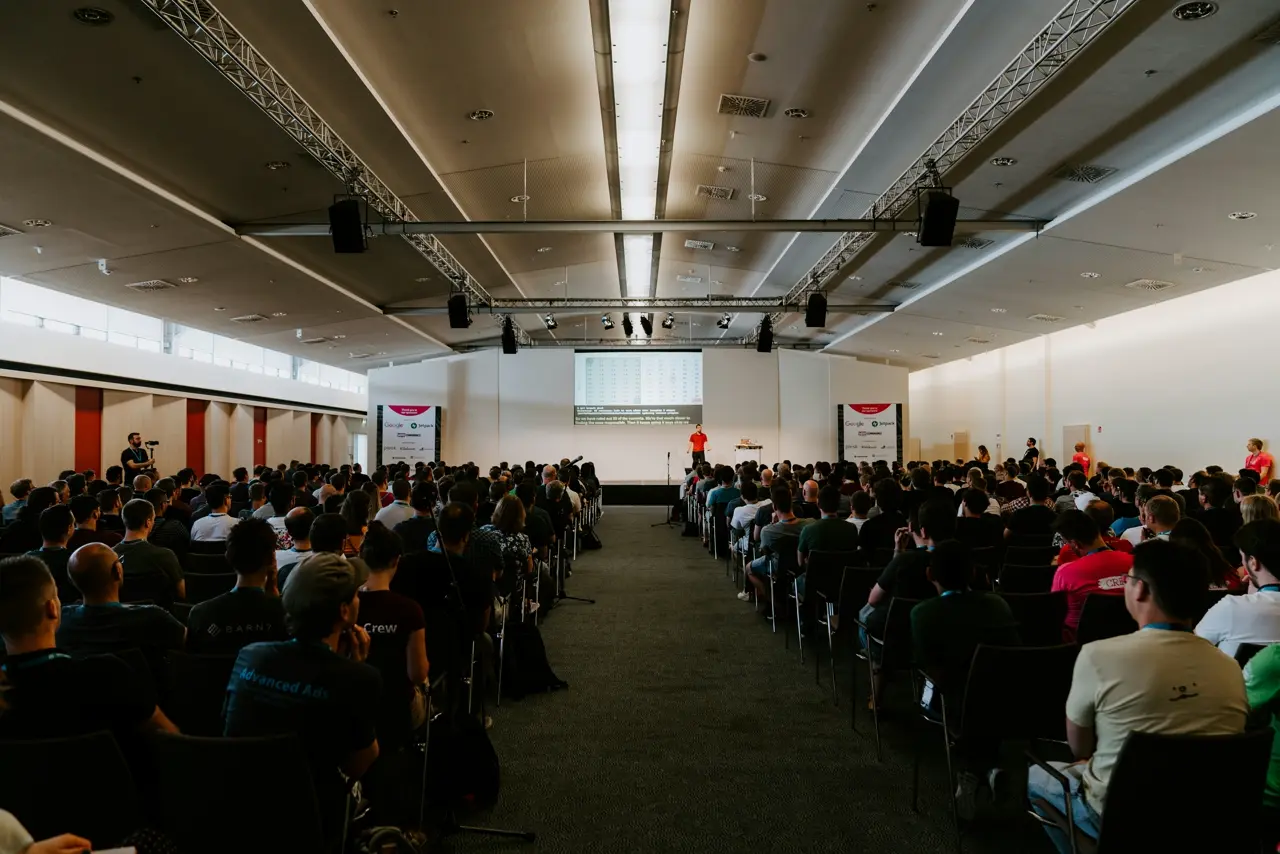
Long, boring training videos are a recipe for disengaged learners. Nearly half of employees say the main reason training videos aren’t engaging is that they’re simply too long [1]. Microlearning offers a solution. By breaking down lengthy training sessions into bite-sized clips (typically 2–5 minutes each), you can keep learners’ attention, boost retention, and fit training into busy schedules [2][3]. Today’s AI video editing tools make this transformation easier than ever, automating the repurposing of long recordings into short, focused learning nuggets.
Why Repurpose Long Training Videos into Microlearning Clips
Microlearning videos are short, focused training videos that teach a single concept or skill in just a few minutes [2]. Rather than force employees to slog through hour-long webinars or training sessions, microlearning delivers information in concise “nuggets.” This approach offers several benefits:
- Improved Engagement & Retention: Bite-sized content is easier to absorb. The brain processes small chunks better than marathon sessions, leading to higher knowledge retention (by up to 80% in some studies) [3]. Short videos also hold attention more effectively than long lectures.
- Fits Modern Schedules: Employees can watch a 3-minute how-to clip between meetings or on a coffee break. Microlearning fits into packed workdays and caters to short attention spans of modern learners [4]. In fact, many Gen Z employees prefer on-demand micro-doses of learning over traditional long trainings [5].
- Just-In-Time Learning: Need to quickly recall a procedure or policy? It’s much easier to find and view a specific 2-minute clip on that topic than scrub through a 2-hour recording. Microlearning clips serve as on-demand performance support for employees, giving “right information at the right time” [6].
- Scalable, Reusable Assets: From one long training video, you can create dozens of targeted micro-video assets. These can be reused in multiple courses or learning pathways, maximizing the ROI of your original content. The library of short clips can also be easily updated or expanded as needed.
However, manually chopping up videos into polished microlearning clips can be labor-intensive. This is where AI-powered video editing comes in, drastically reducing the editing workload for L&D teams.
How AI Video Editing Streamlines Microlearning Creation
AI video editors are transforming the video production process for corporate training. They use machine learning to handle many tedious editing tasks automatically, allowing you to produce more content with less effort [7]. Here’s how AI editing tools make repurposing training recordings easier and faster:
- Auto-Trim and Highlight Detection: Instead of watching hours of footage, the AI can scan your training video and identify the most engaging parts. For example, Wisecut’s AI automatically finds highlights in a long video and cuts out the “dead air” or dull moments [8]. This means the tool can remove long pauses, tangents, or repetitive segments for you. The result is a leaner video that keeps only the valuable moments.
- Scene Detection & Smart Splitting: Many AI editors can detect scene changes or topic shifts. This allows them to split a long recording into logical chapters or clips. For instance, an hour-long training on five topics could be automatically divided into five short videos – one per topic – with clean transitions at each break.
- Text-Based Editing (Transcripts): AI tools typically generate a transcript of your video via speech recognition. This unlocks powerful text-based editing: you can edit the video by editing the text. Tools like Descript let you delete a sentence in the transcript and that portion of video gets cut as well [9]. Some platforms even let you search the transcript for keywords to quickly find and extract specific sections – a great way to pull out, say, the Q&A portion of a training [10].
- Automatic Captions & Translations: Captioning training videos is a best practice (remember, 69% of people watch videos on mute in public, so captions are essential [11]). AI editors auto-generate subtitles and can even translate them into multiple languages instantly [12]. This not only improves accessibility but also enables you to cater to a global workforce without extra effort.
- Audio Enhancement and Music: Advanced tools can automatically clean up audio (removing background noise, normalizing volumes) and even add royalty-free background music. For example, Wisecut will add background music and auto-duck it – lowering music volume when someone speaks and raising it during pauses [13]. Little touches like these make your microlearning clips more professional and engaging, with zero manual editing.
- Consistent Styling and Branding: You can train or configure AI editors to apply your branding (intros, logos, color schemes) across all clips. This ensures every snippet looks consistent. Once you set a style or template, the AI can apply it to batches of videos for scale.
In short, AI video editing acts like a tireless assistant editor: it cuts out silences, finds key moments, adds captions, and more, all in a fraction of the time it would take a human [14]. L&D teams and HR managers can thus produce high-quality microlearning content faster and at lower cost [7] – without needing advanced video editing skills.
Now, let’s look at one AI editing solution in particular that’s geared for this kind of task: VIDIO’s VibeEdit tool.
Overview of VIDIO’s VibeEdit Tool for AI Video Editing
VibeEdit is VIDIO’s AI-powered video editor designed to make video editing fast and accessible for anyone. (It was formerly known simply as VIDIO’s AI Video Editor, rebranded to “VibeEdit” in 2025 to reflect its focus on creating the right “vibe” in edits.) For corporate training teams, VibeEdit can be a game-changer in turning lengthy training recordings into polished microlearning clips. Here’s a detailed look at its key features, how it works, and who it’s for:
Key Features of VibeEdit
- AI-Assisted Editing: VibeEdit lets you edit videos with AI assistance, handling tasks like stitching clips together, trimming out parts, scene change detection, adding captions, and even background music overlay [15]. In practice, this means you can upload a long training video and let the AI do the heavy lifting of cutting and combining footage.
- Automatic “Boring Parts” Removal: The tool uses AI to analyze your video’s content and trim out unengaging segments. For example, if there are long pauses, off-topic digressions by the speaker, or repetitive filler, VibeEdit can detect those and cut them automatically. This ensures your output clips contain only the impactful moments that keep learners interested.
- Smart Scene Detection: VibeEdit can detect scene boundaries or slide transitions. This is especially handy for training recordings that include slide decks or multiple sections. The AI will flag these points so you can quickly split the video into chaptered clips (e.g., one clip per section or learning objective).
- Auto Captioning & Transcription: Like most AI editors, VibeEdit generates a transcript and can create burned-in captions for your videos in one click. This saves you the trouble of manual transcription and makes your microlearning videos ready for silent viewing or ADA compliance out of the box. You can edit the transcript within the tool to fix any errors before finalizing captions.
- Music and Audio Tweaks: Need some background music or an intro jingle? VibeEdit has an AI music overlay feature [15] – it can suggest and add music tracks that fit the tone of your video. It also automatically balances audio levels, so voices are clear (using techniques similar to Wisecut’s auto-ducking). Additionally, it offers basic audio cleanup (removing background noise, normalizing volume) to improve quality.
- One-Click Formats & Export: VibeEdit is built for today’s multi-platform world. It can quickly resize or reformat videos for different platforms (e.g., turning a standard 16:9 training video into vertical 9:16 clips for mobile learning or internal social feeds). Exporting the final clips is straightforward – get your bite-sized videos in MP4 format, ready to upload to your LMS or intranet.
In essence, VibeEdit packs a suite of AI-driven editing functions that cover the entire microlearning clip creation process – from cutting and trimming to enhancing and finalizing the video. All of this happens through a user-friendly interface that doesn’t require specialized skills.
How It Works and Who It’s For
VibeEdit is designed to be simple even for non-editors, which is ideal for L&D professionals and HR teams. Here’s a quick overview of the typical workflow using VibeEdit:
- Upload Your Video: Start by uploading the full training recording (or multiple videos) to VibeEdit. The tool accepts common video formats and will automatically generate a transcript and detect key sections.
- Set Your Preferences: You can configure what you want the AI to do. For instance, enable “auto-remove silences,” turn on auto-captioning, select a background music genre, or specify a target clip length. You can also choose a “highlight” mode where the AI will attempt to extract the most important points (say the top 3 takeaways from a talk).
- AI Editing in Action: With a click, VibeEdit’s AI goes to work. It will cut the video into clips (if you chose to auto-split by scenes or topics), trim out low-value parts, add captions, and perform any other enabled tasks. This usually takes only a few minutes even for hour-long videos, thanks to cloud processing.
- Review and Tweak: You’ll get a set of edited clips or a single edited video (depending on your approach) in the timeline. Now you can review the AI’s work. VibeEdit’s interface lets you play each clip, and because it’s transcript-driven, you can quickly tweak the edits by deleting or reordering text in the transcript. For example, if the AI cut a section you think is important, you can restore it by adding back the corresponding transcript text or adjusting a slider to include that segment.
- Add Finishing Touches: Use VibeEdit’s built-in tools to add any finishing touches – e.g., insert your company intro/outro slides, overlay a presenter's name title, or apply a consistent style template across all clips. If your training had multiple speakers or topics, you might use tags or the conversational editor to filter content (for example, focus only on clips where a specific instructor is speaking).
- Export Your Clips: Once satisfied, export the video or clips. VibeEdit allows batch exporting if you split into many micro clips. You can download them to your computer or directly publish to platforms if integrated.
Who benefits from VibeEdit? The tool is geared toward content creators and teams who need to produce lots of video content quickly – especially training/L&D teams, educators, and business content marketers. If you’re an L&D manager with a backlog of recorded Zoom trainings or classroom sessions, VibeEdit provides a way to unlock that raw footage and turn it into polished, usable learning resources with minimal manual work. It’s equally useful for HR trainers or consultants who want to productize their long workshops into a series of short videos.
Importantly, VibeEdit offers a free plan (with some limits like 720p output and watermarked videos[16]) which is great for experimenting. For professional use (higher resolution and more processing hours per month), paid plans are available, but still far cheaper than hiring a video editor for the task.
VibeEdit vs Other Top AI Video Editing Tools
VibeEdit is one of several AI-driven video editors on the market. How does it stack up against other popular tools, and which should you choose for your training content? Below we compare VibeEdit with three other top AI video editing platforms – Pictory, Wisecut, and Descript – all of which are useful for repurposing training videos into microlearning. Each tool has its own strengths, so the “best” choice depends on your specific needs.
Quick Comparison Table
To make it easy to evaluate, here’s a side-by-side comparison of VibeEdit, Pictory, Wisecut, and Descript in key areas relevant to corporate training videos:
| Tool | AI Editing Capabilities | Best For (Use Case) | Ease of Use | Notable Features / Limitations |
|---|---|---|---|---|
| VibeEdit (VIDIO) | - Automatic editing (stitching, trimming, scene detection) - Auto-remove boring parts (AI finds and cuts dull segments) - Auto captions & music overlay in one click [15] - Transcript-based refinements (edit by text) | Converting raw training recordings into highlight reels and microlearning clips in one go. Great for L&D teams with lots of footage to process. | Very beginner-friendly (designed for non-editors). Cloud-based, no installation. | + Pros: All-in-one tool – handles cuts, subtitles, audio, formatting in one workflow. – Cons: Primarily cloud-based; heavy reliance on auto decisions (may need review for perfect cuts). |
| Pictory | - AI video generator from scripts, blogs, or long videos - Auto-summarizes long-form content into short videos [17] - Large stock library for visuals & music - Adds captions & voiceovers with AI voices | Turning written content (docs, blog posts, slides) into training videos; creating quick video summaries of webinars or Zoom trainings [17]. | Beginner-friendly (template-driven). Mostly cloud-based; simply input text or link. | + Pros: Can create videos without original footage (just text), useful for creating microlearning from existing documents. Lots of media assets included[18]. – Cons: Less control over fine edits on existing footage; styles can feel templated without customization. |
| Wisecut | - Auto video cutter: turns long videos into short viral-style clips [19] - AI highlight detection picks the best moments [8] - Auto-remove silences & filler, auto zoom cuts - Auto subtitles and translations added [12] - Auto background music with ducking [20] | Transforming talking-head training videos or webinars into snappy, social-media-ready clips. Ideal for removing pauses and adding dynamic cuts for engagement. | Very easy to use. Upload a video and get multiple short clips generated. Storyboard interface for text-based edits. | + Pros: Excellent for making engaging shorts (e.g., turning a 1-hour talk into 10 key clips with captions and music). Minimal manual work – AI does most of it [8][21]. – Cons: Free plan limited to 720p & watermark [16]. Fewer traditional editing options; geared toward jump-cut style outputs. |
| Descript | - Text-based editor: edit video by editing transcript - AI filler word removal, silence deletion, audio cleanup - Overdub: AI voice cloning to fix or add narration - “Underlord” AI co-editor: experimental chat-based editing agent that can create a rough cut or summary via prompts [22] | Fine-tuning training recordings or podcast-style training content with precision. Great for editing dialogue-heavy videos (interviews, panel discussions) by text. Also useful if you need to adjust narration after recording (using Overdub). | Moderate. User-friendly interface but has more features to learn. Desktop app that syncs to cloud. | + Pros: Powerful editing and review workflow – widely used for e-learning video post-production. The new AI co-pilot can generate summaries or edits on command [23]. Highly flexible: you can manually edit or use AI suggestions. – Cons: Not fully automated for clip creation – you likely guide the edits. Requires time to learn full feature set. Cloud processing of AI features can be slower for long videos. |
Sources: The above information is compiled from official tool pages and reviews, including Pictory’s site (which highlights its ability to “re-purpose content into bite-sized video” [24]), a Wisecut review (noting it “automatically transforms long videos into short, shareable clips” and adds captions, music, etc. [25][8]), and Descript’s documentation (for its text-based editing and new Underlord AI assistant that can “vibe edit” a video via prompts [22]).
How to Choose the Right Tool for Your Training Needs
With so many AI video editors available, how do you pick the best one for your specific training projects? Here are some tips to choose the right tool:
- Consider Your Source Material: What are you starting with? If you have a lot of written content (PowerPoints, manuals, blog posts) that you want to turn into video, a tool like Pictory is extremely handy for generating videos from text [26]. If you have raw video recordings (like webinars or instructor-led sessions), VibeEdit or Wisecut might serve you better by automatically cutting those down [8].
- Decide How Much Automation You Need: Some teams want a nearly one-click solution (maximum automation), while others prefer to fine-tune the output. Wisecut is great for hands-off automation – it will produce jump-cut style clips with minimal input. Descript, on the other hand, gives you granular control to tweak the edit via transcript. VibeEdit and Pictory offer a balance: automated editing with the option to make adjustments. Choose a tool that matches how much time you want to spend reviewing vs. customizing.
- Identify Key Features Required: Prioritize the features that matter for your training videos. For example:
- If captions and translations are a must (for accessibility or a global audience), ensure the tool excels at automatic subtitle generation (many do) and multi-language support (Wisecut and Pictory have translation features [12]).
- If you need AI voice-overs or avatars to create content without on-camera presenters, consider tools like Pictory (has AI voiceover options) or even generative video tools like Synthesia (for avatar-led videos) instead of a pure editor.
- For multi-speaker events or interviews, a tool with transcript editing (Descript or VibeEdit) can make it easy to split speakers or chapters.
- If your style demands a lot of visual polish (graphics, animations, branded templates), look at whether the AI editor supports those. Some tools integrate with templates (Pictory, Descript’s templates) while others are more focused on cuts.
- Test Ease of Use with a Sample: Most of these platforms have a free trial or free tier. Try uploading a short training video to each and see the workflow. For instance, test how VibeEdit’s interface feels versus Descript’s. If you find one much easier to navigate, that’s a good sign – you’re more likely to actually use it regularly. The goal is to empower your L&D team, not frustrate them with complex software.
- Check Output Quality and Formats: Ensure the tool can export in the resolution and format you need. If your training clips will be hosted in an LMS, you’ll likely want at least HD (720p or 1080p). Wisecut’s free plan caps at 720p [16], so you might need a paid plan for full HD. Also verify aspect ratio options if you plan to use clips on mobile or social platforms.
- Budget and Scalability: Finally, consider pricing relative to how much you’ll use it. Some tools charge by length of video processed per month. If you have dozens of hours of footage to process, calculate what that would cost. VibeEdit’s pricing is not listed here, but compare it with Pictory (starts ~$19/month) or Wisecut (pro plan ~$15/month) for your expected usage. Also, if you need multiple team members collaborating, check if the tool offers team accounts or cloud project sharing (Descript and Pictory do).
By weighing these factors, you can narrow in on the AI video editor that best fits your training development workflow. In many cases, organizations use a combination of tools – for example, using Pictory to generate some microlearning videos from text-based SOPs, and VibeEdit/Wisecut to clip down live training recordings.
Conclusion: Embrace AI to Scale Your Corporate Learning Content
Automatically turning long training recordings into bite-sized learning clips is no longer a futuristic idea – it’s a practical strategy available today. With AI video editing tools like VibeEdit, L&D and HR teams can dramatically cut down the time and effort required to produce engaging training content. Instead of losing your audience to hour-long videos, you can deliver crisp, focused microlearning modules that your employees will actually watch and learn from.
The best part? You don’t need to be a video editing expert or have a big production budget. By leveraging AI for tasks like cutting, trimming, and captioning, even a small training team can scale up video content creation and keep pace with the training needs of a growing organization [27].
Ready to get started? Consider trying out VIDIO’s VibeEdit tool for your next training project – upload a recording and watch how quickly you can generate multiple useful clips. Or experiment with one of the other AI editors to see which fits your style. The sooner you incorporate these AI tools into your workflow, the faster you can build a rich library of microlearning videos. By doing so, you’ll not only save time and effort for your team, but also deliver learning in a format that today’s employees find engaging and effective. So go ahead – take your existing training videos and let AI help you turn them into impactful bite-sized lessons. Your learners (and your future self with more free time) will thank you!
__["Long, boring training videos..." – VEED Blog on Microlearning】 [1][2]; [3][11]; [7][8]; [24][17]; [25][22]; [27]___
[1] [2] [3] [4] [5] [6] Understanding Microlearning Videos: What They are and Best Practices
https://www.veed.io/learn/microlearning-videos
[7] [9] [10] 10 AI Video Editor Tools To Create Corporate Videos In 2025 | The Human Capital Hub
[8] [12] [16] [21] [25] Wisecut AI Review: Pricing, Pros, Features (2025)
https://sendshort.ai/guides/wisecut-review/
[11] [13] [19] [20] Wisecut | AI Video Editor
[14] [22] [23] What's The Best AI Video Editor? We Test 5 Popular Tools
https://massive.io/gear-guides/the-best-ai-video-editor/
[15] Editing and summarization - Dashboard
https://www.vidio.ai/dashboard/editing-and-summarization
[17] [26] Top 10 AI Video Design Tools for Corporate eLearning
https://www.thinkdom.co/post/10-top-ai-tools-to-design-video-based-corporate-elearning
[18] [24] Training Video Maker
https://pictory.ai/training-video-maker
[27] Microlearning Videos And AI: A Dynamic Duo - eLearning Industry
Top related tools
4Create with VibeEdit
Transform Your Training Recordings into Engaging Clips
Specify clip length, key moments, captions, and style preferences