Tools for Selective Face Blurring in Videos

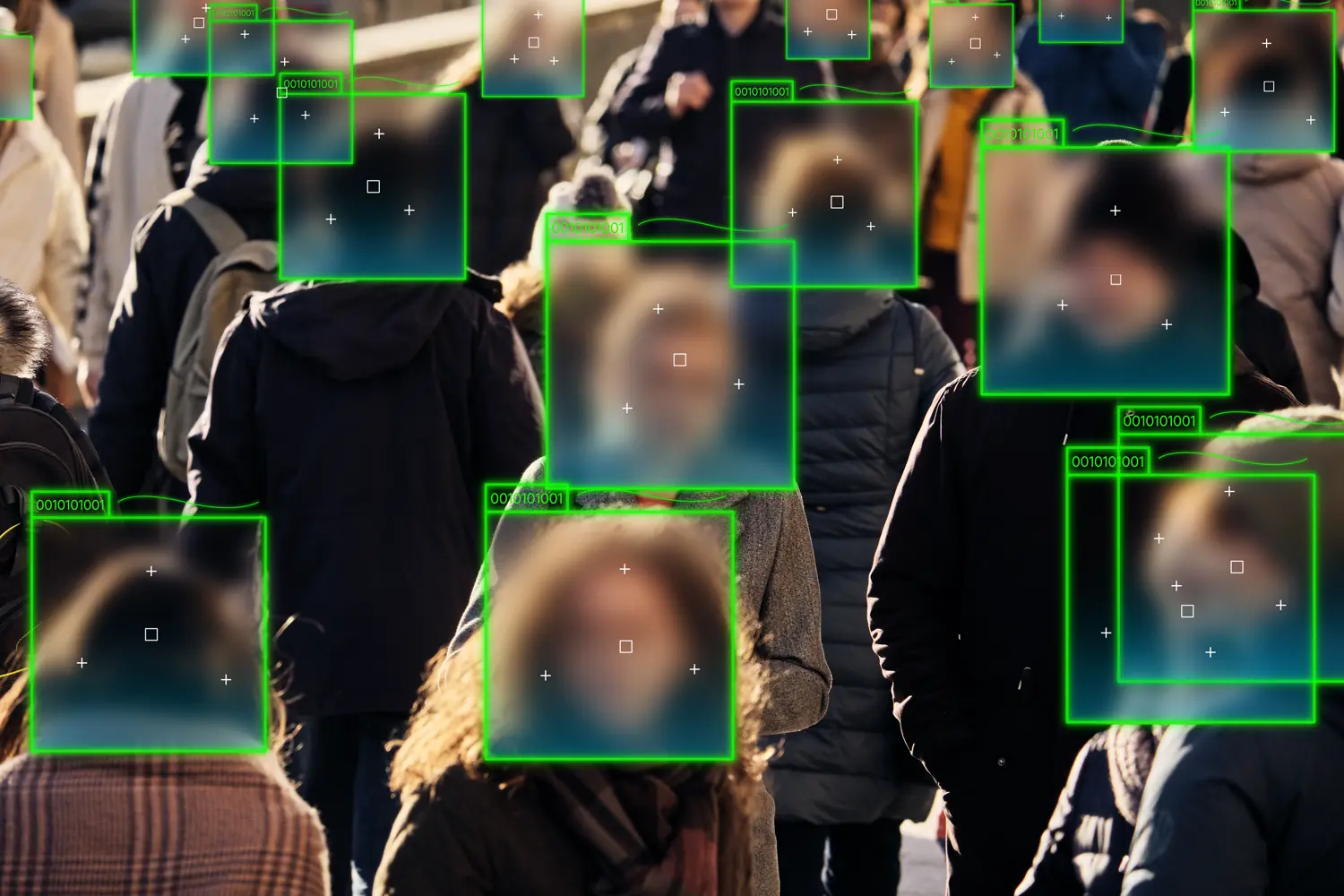
Selective face blurring means hiding only certain people’s faces in a video (for example, bystanders or private individuals) rather than automatically blurring every face. This is often done to protect privacy or comply with consent laws. As one guide notes, censoring faces “involves strategically obscuring or blurring the faces of individuals to protect their identities,” especially when those people haven’t given permission - reduct.video. The goal is to keep desired subjects clear while masking others. Many video tools now offer face-blur features with varying levels of control. Some use AI to detect all faces and blur them, while selective tools let you choose exactly which detected faces to conceal. Below are several popular tools that support selective face blurring, along with how they work, their ease of use, cost, and ideal users.
VIDIO (AI-Powered Online Video Editor)
VIDIO is a web-based AI video editing platform with a dedicated face-blurring tool. It automatically detects faces in an uploaded clip and then lets you click on the ones you want to blur - vidio.ai. According to VIDIO’s site, the AI “seamlessly blurs faces” and allows you to “select the faces you want to blur. Leave the important faces unblurred” - vidio.ai. This makes it easy to protect just the identities you choose. VIDIO advertises that no software installation is needed and faces can be blurred in “just a few clicks,” highlighting a very user-friendly interface - vidio.ai. It also offers smart controls like adjustable blur strength and the ability to export in 4K - vidio.ai.
-
Selectivity: AI-assisted. VIDIO auto-detects all faces, then you manually select which to blur - vidio.ai.
-
Ease of use: Very easy. It’s online and “no installation…nothing to learn” – faces are blurred with just a few clicks - vidio.ai.
-
Cost: Paid subscription (with free trial). VIDIO offers a free trial, and paid plans start at roughly $15/month - revoyant.com.
-
Ideal users: Content creators, journalists, and organizations who want a quick online solution. The simple interface suits both casual and semi-professional users who need efficient privacy editing.
YouTube Studio (Built-in Editor)
YouTube’s built-in editor (YouTube Studio) includes a Face Blur feature that can blur selected people in your video. When you edit a video on YouTube, you choose Face blur from the editor, and the tool will process the video to identify faces. Once processing is done, it shows you the detected faces and you click which faces to blur - support.google.com. For example, Google’s help page instructs: “select the faces that you'd like to blur” after the system has detected them - support.google.com. This makes the process semi-automatic: AI detection plus manual selection. The face-blur feature was updated around 2016 to support “selective blurring for specific areas or individuals,” giving creators precise control - filmora.wondershare.com.
-
Selectivity: Semi-automatic. YouTube’s AI finds faces, and you select which ones to blur - support.google.com. You can also draw a custom blur box for arbitrary objects.
-
Ease of use: Moderate. It’s integrated into the YouTube Studio interface. The workflow is guided but basic (the editor is simple). It may require exporting and re-uploading to finalize changes - support.google.com.
-
Cost: Free (built into YouTube). There is no extra charge for using it on videos you upload.
-
Ideal users: Casual creators and small YouTubers who are already working on that platform. It’s convenient for anyone with a YouTube channel who wants a quick privacy fix without installing software.
Adobe Premiere Pro (Professional Video Editor)
Adobe Premiere Pro is a professional-grade video editing application. It doesn’t have a one-click face blur, but it offers powerful masking and tracking tools for selective blurring. In Premiere, you add a blur effect (like Mosaic or Gaussian Blur) to your clip, then draw a shape mask around a face. The mask confines the blur to that area. Premiere can then automatically track that mask as the person moves - helpx.adobe.com. As Adobe notes, if you blur a face with a mask, “Premiere Pro can automatically track the movements of the masked face from frame to frame” - helpx.adobe.com. This means after an initial manual mask setup, the blur stays locked on the face.
-
Selectivity: Manual. You place a mask over each face you want to blur. (Premiere cannot automatically choose faces for you.) However, it then can AI-track the mask for you - helpx.adobe.com.
-
Ease of use: Complex. Premiere requires familiarity with video editing concepts (effects, masks, keyframes). It has a steep learning curve, so it’s best for experienced editors.
-
Cost: Subscription software. Premiere Pro is part of Adobe Creative Cloud (≈US$20–30 per month for a single-app plan). There is a 7-day free trial.
-
Ideal users: Professional editors and corporate teams. Use Premiere if you need precise, frame-accurate blurs in high-end projects, and you’re comfortable with advanced editing workflows.
Runway ML (Web-Based AI Editor)
Runway ML is an AI-driven creative platform with many video editing tools. Among its features is a one-click “Blur Faces” tool. In Runway, this automatically detects people’s faces in your video and applies a blur effect. By default it will blur all detected faces (there isn’t a separate UI for unchecking individual faces). The process is largely automatic: you just add the Blur Faces effect and Runway handles detection and blurring. According to Runway’s documentation, they include a “Blur Faces” tool among their AI editing features - nofilmschool.com.
-
Selectivity: Automatic. The tool blurs every face it finds. (There is limited built-in control for excluding specific faces.)
-
Ease of use: Very easy. Runway is web-based, and sign-up is simple. As No Film School notes, you “just go to the Runway ML website and sign up for free” to begin, and the interface is user-friendly for beginners - nofilmschool.com.
-
Cost: Freemium. Runway gives a free trial with some credit allowance; paid plans are credit- or subscription-based for higher usage.
-
Ideal users: Creatives and content makers. Runway is geared toward filmmakers, social media creators, and anyone interested in AI-assisted video editing. It’s great for those who want fast, one-click results and are comfortable trying new AI tools.
AVCLabs Video Blur AI (Desktop Software)
AVCLabs Video Blur AI is a dedicated desktop application (Windows/macOS) for anonymizing video. It is fully AI-powered and can track and blur moving faces without manual keyframing. By default it can automatically blur all faces in a clip. Uniquely, it also offers a custom selection mode: you can choose “All Faces” or switch to “Custom Selection” and pick exactly which faces to blur - avclabs.com. Their user guide explains you can “blur all faces in a video with a single click” or “selectively blur specific faces” using manual selection for precise control - avclabs.com.
-
Selectivity: Very flexible. It has an “All Faces” mode and a “Custom Selection” mode - avclabs.com. In All Faces mode it blurs everyone; in Custom mode you choose which faces to include.
-
Ease of use: Moderately easy. As a specialized tool, it’s simpler than a full editor. You import your video, pick a mode, and let the software do the rest. The interface is straightforward for its purpose.
-
Cost: Paid software. AVCLabs typically sells its video tools via one-time licenses, often with discounts (they often run sales with ~50% off). They usually offer a free trial as well.
-
Ideal users: Privacy-focused creators and professionals. It’s useful for journalists, researchers, or anyone who needs quick, accurate blurring of faces (and other objects) without learning an editing program.
CyberLink PowerDirector (Consumer Video Editor)
PowerDirector is a popular consumer video editing app (available on Windows, Mac, and mobile). It includes an AI Face Blur feature. In its “AI Face Blur” mode you import your clip and the program will automatically detect faces in the video - cyberlink.com. You then choose a blur style and apply it. The software even lets you refine which faces to blur – you can click an “Effect” button and uncheck any detected faces you don’t want blurred - cyberlink.com. CyberLink’s blog describes PowerDirector as “user-friendly” and AI-enhanced: it “automatically blur faces using different blur styles” - cyberlink.com and uses AI so you can “accurately blur the faces of moving subjects” - cyberlink.com.
-
Selectivity: AI-assisted with manual override. It auto-detects all faces - cyberlink.com, but you can then easily uncheck individuals to keep them sharp - cyberlink.com.
-
Ease of use: Easy. PowerDirector is designed for beginners. The AI Face Blur mode guides you through the steps, and there are simple controls for adjusting blur intensity and selections - cyberlink.com, cyberlink.com.
-
Cost: Freemium. PowerDirector offers a free version with basic features. Paid editions (one-time or subscription) unlock advanced tools. The face-blur feature is included in the free app, though some outputs may be limited in the unpaid version.
-
Ideal users: General consumers and vloggers. It’s great for casual users or small business owners who want a friendly interface. (PowerDirector is often recommended as “the best face-blur video editing app” for mobile devices - cyberlink.com.)
Conclusion
In summary, there are many ways to blur faces selectively, and the best tool depends on your needs. Online AI tools like VIDIO make it very easy to click and blur specific faces without installs, whereas platform tools like YouTube Studio offer basic, free blur features integrated into your workflow. Professional editors (Premiere Pro) give you full control but require skill and cost a subscription. AI creative suites (Runway ML) automate blur with a one-click solution but may blur everyone detected. Specialized apps (AVCLabs Video Blur AI) balance automation with custom selection, ideal for privacy-conscious projects. Finally, consumer-friendly editors (PowerDirector) offer a middle ground: they auto-detect faces and also let you fine-tune which ones to blur with a very user-friendly interface.
Choose a tool based on your workflow and comfort level. For quick free edits on YouTube, YouTube Studio works well. For fast online edits, try VIDIO or Runway. If you need high-end editing or already use Premiere, its masking tools are powerful. For detailed control without complex software, a dedicated app like AVCLabs or PowerDirector may be best. Each of these tools provides a way to hide chosen faces – just pick the one that fits how you work, how much time you want to spend, and how professional the final output needs to be.
Sources: We’ve cited official documentation and user guides for each tool’s features and usage, including VIDIO’s face-blur tool description - vidio.ai, vidio.ai, YouTube’s help pages - support.google.com, Adobe’s tracking guide - helpx.adobe.com, Runway’s feature list - nofilmschool.com, AVCLabs’s user guide - avclabs.com, and CyberLink’s PowerDirector documentation - cyberlink.com, cyberlink.com, among others. These confirm the tools’ capabilities and workflows.
Top related tools
5AskVIDIO
Ask our AI agent anything you want
This assistant can help you with guidance on what tools to use for your video editing needs.
Ask now